
Fill a template from a spreadsheet
Bring a CSV or pasted rows into a batch so every row fills your template.
You end up with a batch that has one row for every product in your sheet, matched to the layers of the product sale card and ready to check.
What you need
- A saved template with named text and image layers. The sale card has Title, Price, Was Price, Badge and Product Image.
- Your data as a CSV file, or as cells you can copy from Excel, Google Sheets or Numbers.
- Product photos in Brand Assets → All Images, if your rows use photos from the library.
The sample sheet has four columns (Title, Price, Was Price, Badge) and five products.
Steps
Start a batch
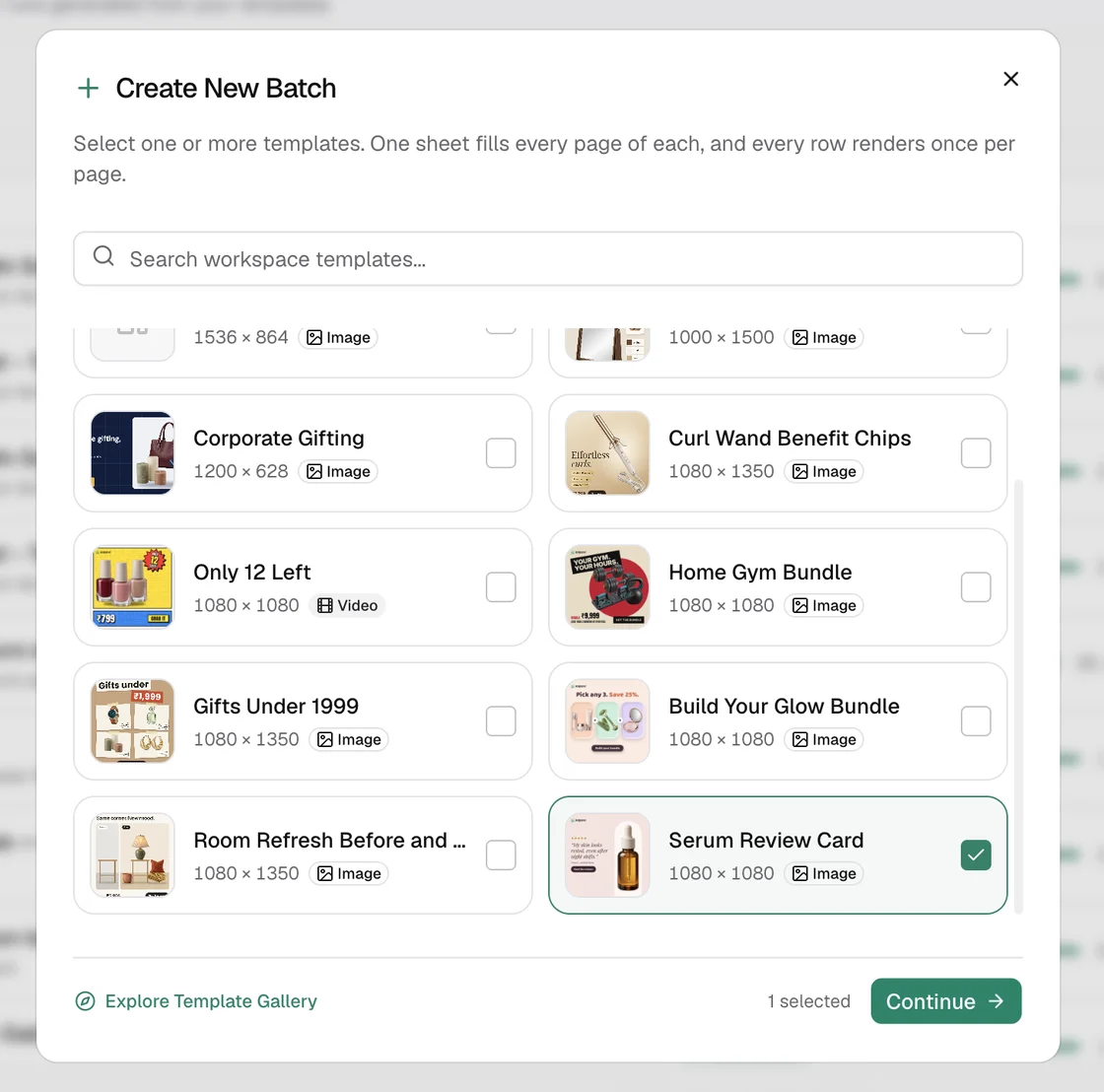
Open Batches → New Batch. Search for your template, select it and choose Continue. Each card shows the template's size and whether it makes an image or a video.
Get the right headers
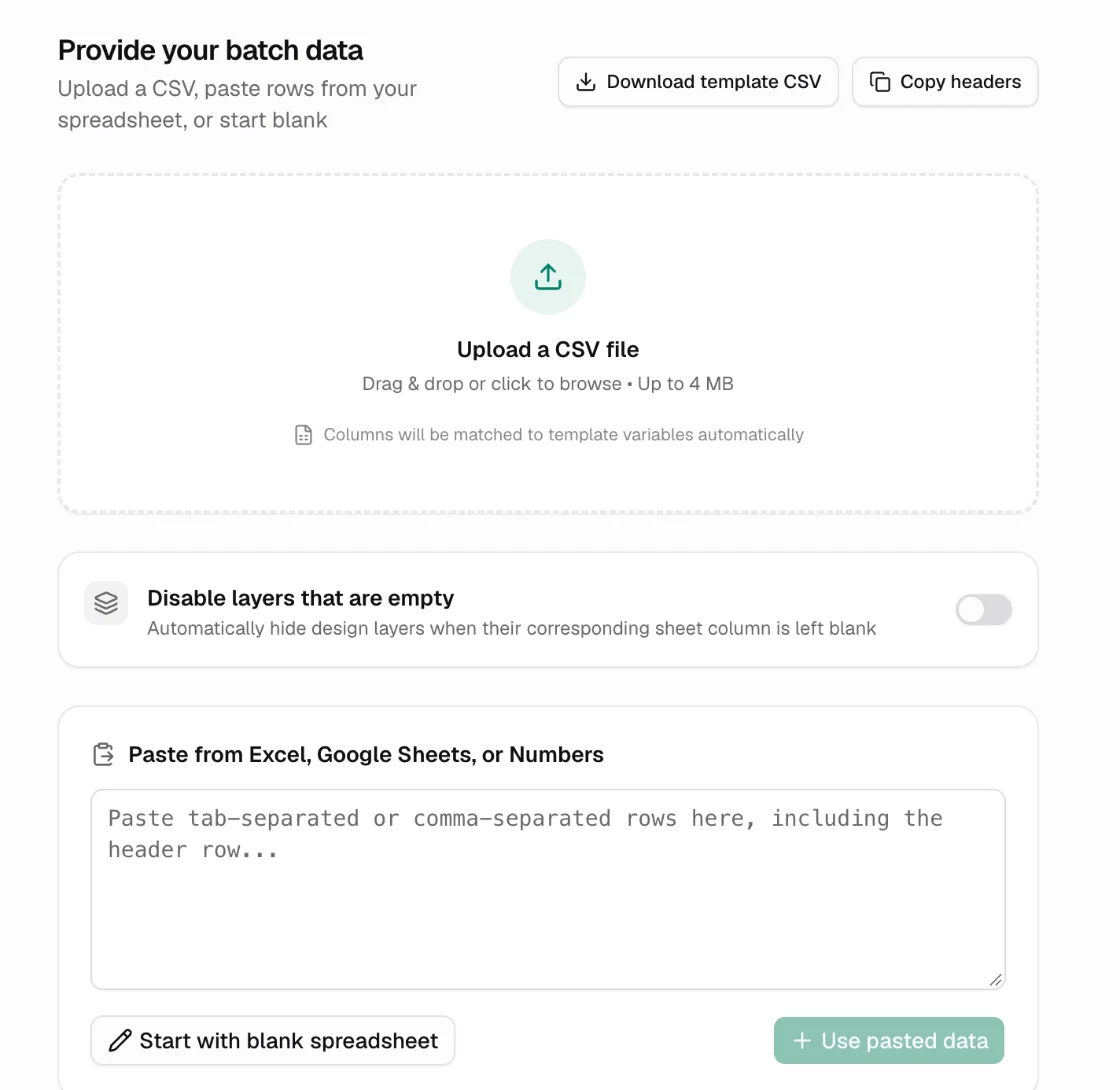
On the data step, choose Download template CSV for a file with one column per variable. Or choose Copy headers and paste them into your own sheet.
A column fills a variable when its header is the variable's name. Case does not matter. Columns that match nothing are ignored.
Fill in your rows
Open the file in your spreadsheet app and add one row per creative. Add a Product Image column too. Put the exact name of an image from All Images in each cell, such as everyday-tee.png, or an https:// link to a photo. Links must be on a domain your workspace allows.
Wrap a value that contains a comma in double quotes. Save the file as UTF-8 so symbols such as the rupee sign stay intact.
Add the data
Pick one of three ways:
| Option | Use it when |
|---|---|
| Upload a CSV file | You have a file up to 4 MB |
| Paste from Excel, Google Sheets, or Numbers | You copied cells including the header row. Paste them, then choose Use pasted data |
| Start with blank spreadsheet | You want to type the rows in Kalpana |
An Excel file cannot be uploaded as it is. Copy the cells instead, or save the sheet as a CSV first.
Fix any column that did not match
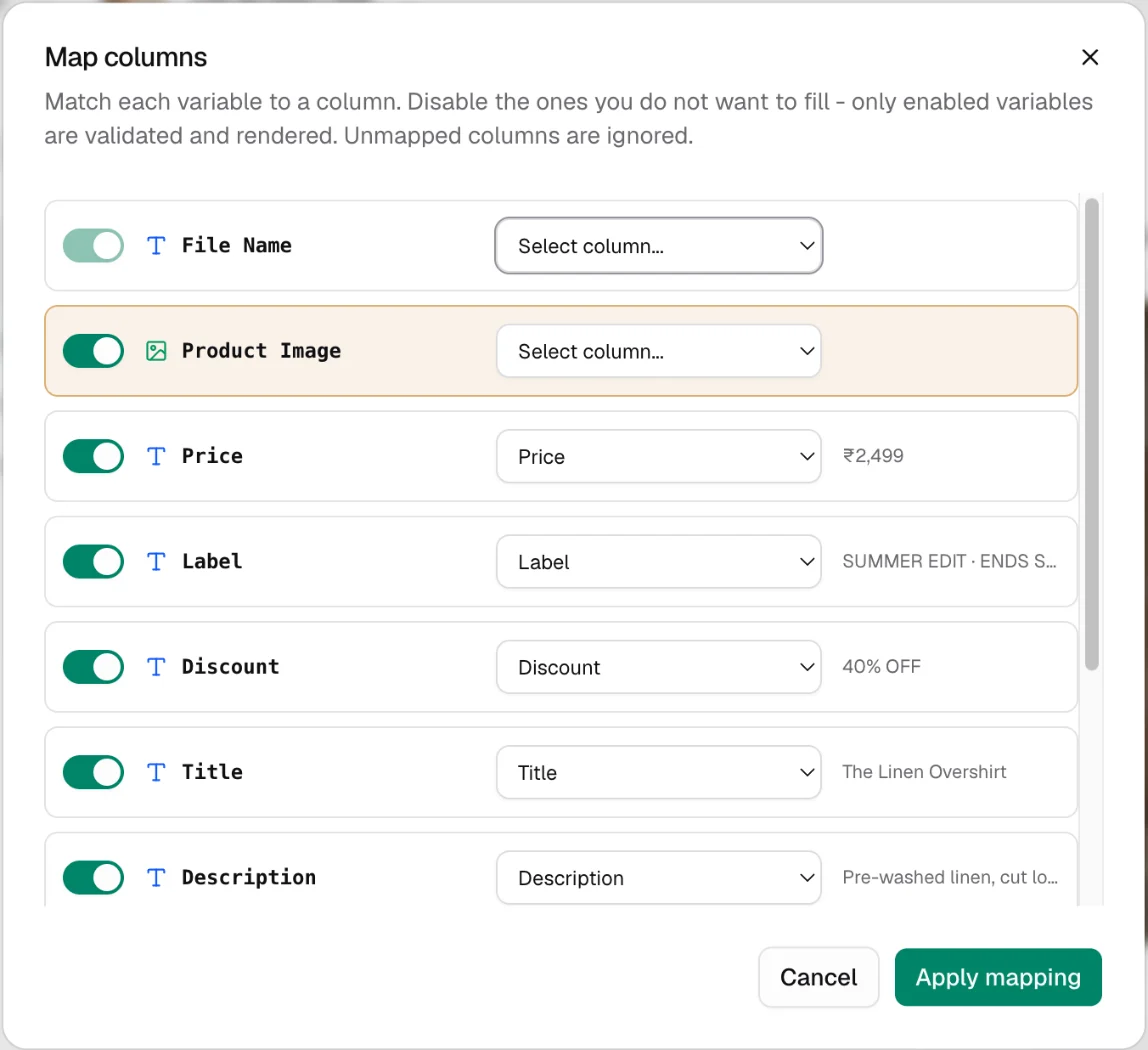
The builder opens with your rows in a grid. If a header differs from the variable name, choose Variables to open Map columns. Pick the column for each variable, or switch a variable off to keep the template's own content.
Name the files
Add a file_name column to name each output file, for example SKU-2101. Without it, files are named after the batch and the row number.
Try one row first
Quick generate renders one creative without building a batch. Go to Templates → My Templates, hover the template's card, open its menu and choose Quick generate. The form starts with the template's own text. Fill the variables, then choose Generate. The confirmation shows the cost and your balance before anything renders. The file appears in the dialog when it has rendered, with Download and Back to the form, and it is saved in Creatives.
A Quick generate image uses 1 render credit; a video costs what a video row costs. Nothing is charged until you confirm.
Check the result
The tab for your template shows its row count, such as 5 rows, and the grid shows your copy in each cell. A row with a problem, such as an image that cannot be found, is flagged, and the header counts how many rows will be skipped.
The commonest mistake is a header that is not the variable's name, such as Old Price for Was Price. Kalpana ignores it, so the template's own text stays in every row. Use Variables to map it, or rename the header.
Next
- Check and fix rows before you run
- Fill several pages from one sheet
- Row values for what each variable accepts
Updated 4 Nov 2026