
Choose what changes per row
Decide which layers a sheet can fill, name them for the people who fill them, and leave the rest fixed.
On the sale card, the title, price, old price, badge and photo change for every product, and a brand logo does not. You set that on the template page, not in the designer.
What you need
- A saved template, such as the sale card from Create a template from a blank page.
- Permission to edit templates in the workspace.
Steps
Know the rule
Every text layer becomes a text variable and every image layer an image variable when you save the template. A variable is named after its layer, and that name is the column header in a sheet. Colours and layer visibility are not variables. You change those per row in the batch builder.
The designer has no variables panel. Layer names are set there, and everything else is set on the template page.
Name the layers
Open the template in the designer with Edit design. In the Layers panel, double-click a row to rename it, or edit Layer name at the top of the right panel. Use names a person filling a sheet would understand: Title, Price, Was Price, Badge, Product Image.
Give every layer its own name. A layer named after its words, such as Everyday Tee, makes a poor column header. Choose Save Template.
Open the variables
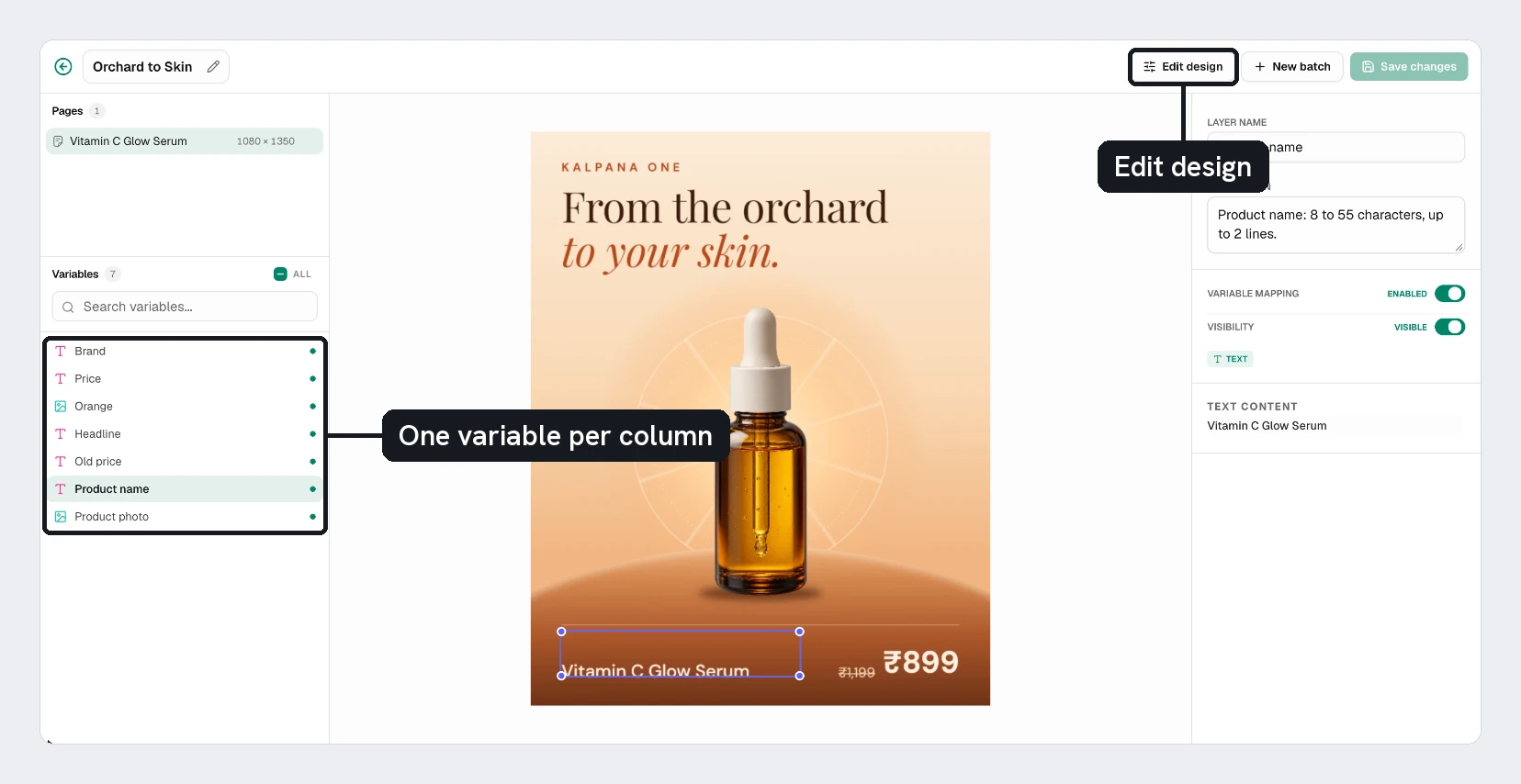
Open Templates → My Templates and click the template. On the left, below Pages, the Variables list shows each variable with a count. Use Search variables in a long list.
Add a description
Click a variable. In the right panel, write in Description what belongs in it. For Product Image, you might write Photo of the product on a plain background.
This help text is shown to whoever fills in the batch, so write it for them.
Turn off what should stay fixed
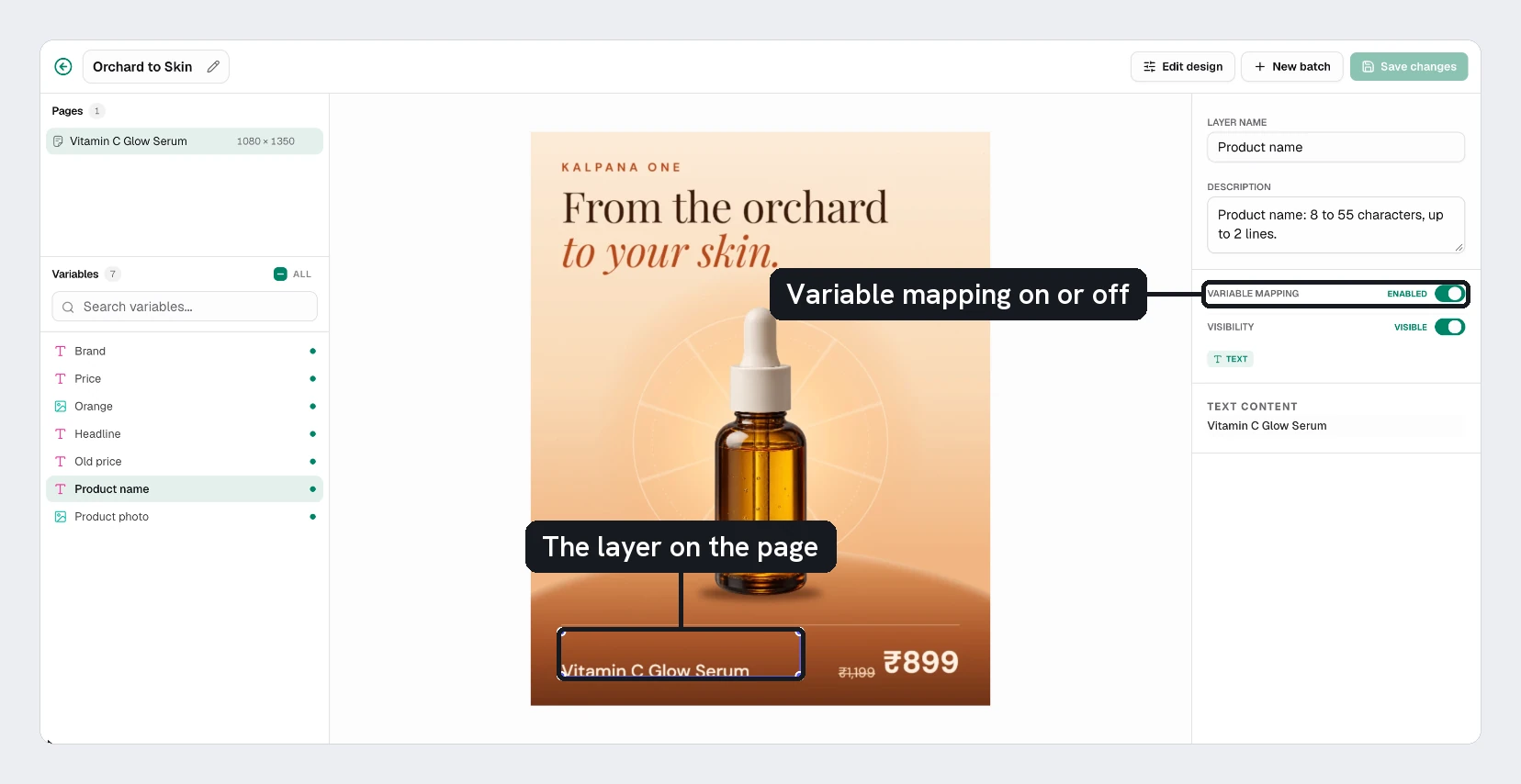
Say you add a logo image called Brand Logo to the card. Click it and switch Variable Mapping to Disabled. The logo keeps the design's picture and no Brand Logo column appears in the sheet.
To change several at once, hold Cmd/Ctrl and click each one, or hold Shift for a range. A bar appears for turning them on or off. You can also right-click a variable and choose Don't use as a variable. Choose Use as a variable to bring it back.
Set a fallback
For a text variable, Text Content shows the default text. A row that leaves its cell empty uses it. Edit the words in the designer if you want a different fallback.
Visibility shows or hides the layer in the template itself. A hidden layer cannot be edited in the batch builder.
Save
Choose Save changes. If you leave without saving, Kalpana asks first.
Check the result
Choose New batch. On the data step, choose Copy headers or Download template CSV. The header row should be Title, Price, Was Price, Badge and Product Image. If you added a logo and turned it off, Brand Logo is missing from the list. The sample sheet uses the first four. It has no image column, so every row uses the template's own photo unless you pick one in the builder.
The commonest mistake is renaming a layer after you wrote the sheet. The old column no longer matches, and its cells are ignored. Rename the column or use Map columns in the builder.
Pages in one template each have their own variables. If you add sizes, keep layer names the same on every page so one column fills them all. See Add more sizes to a template.
Next
Updated 4 Nov 2026