
Run a batch and collect the files
Create, publish and run a batch, then download the files or send them to Dropbox.
This guide takes a checked batch to finished files in a folder, a ZIP or Dropbox.
What you need
- A batch builder with rows you have already checked. See Check and fix rows before you run.
- Enough render credits. An image costs 1 credit, and credits are taken only for files that render.
- A workspace role of Owner or Manager. Designers can edit templates but not create or run batches.
Steps
Choose a folder
In the builder header, open the Folder list, which reads No folder, and pick where the files should land. Files appear in Creatives and in that folder as they render.
Create the batch
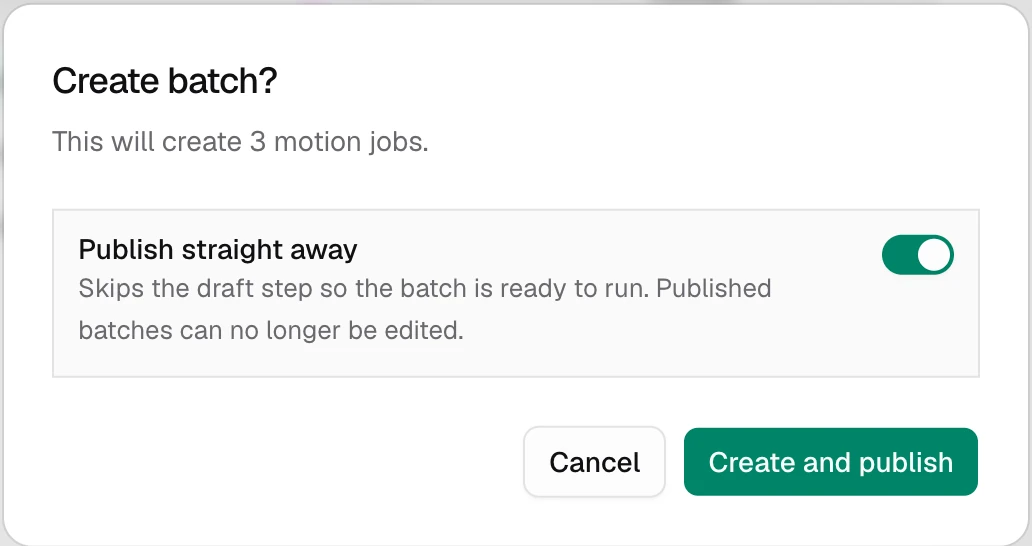
Choose Create Batch. The confirmation says how many image and motion jobs the batch holds. Turn on Publish straight away to make it ready to run. If you leave it off, the batch is saved as a draft under Batches → Drafts, and you choose Publish later. Kalpana asks you to confirm, because a published batch can no longer be edited.
Run it
Go to Batches → Published and choose Run on your batch. The confirmation shows Required Credits, split into images and videos. If the workspace has an endpoint for webhooks there is also a Send to webhooks switch. Choose Run Batch to start.
Running spends credits. Five sale cards cost 5 render credits. If you do not have enough, the dialog says how many credits you are short and Run Batch stays off.
Follow the progress
The Batches list shows the status and a count such as 18 / 23 · 2 failed · 3 cancelled. Choose Refresh to update it. To stop a batch, choose Cancel while it is Processing. Unfinished jobs become Cancelled and are not charged, and finished files are kept.
Open the details
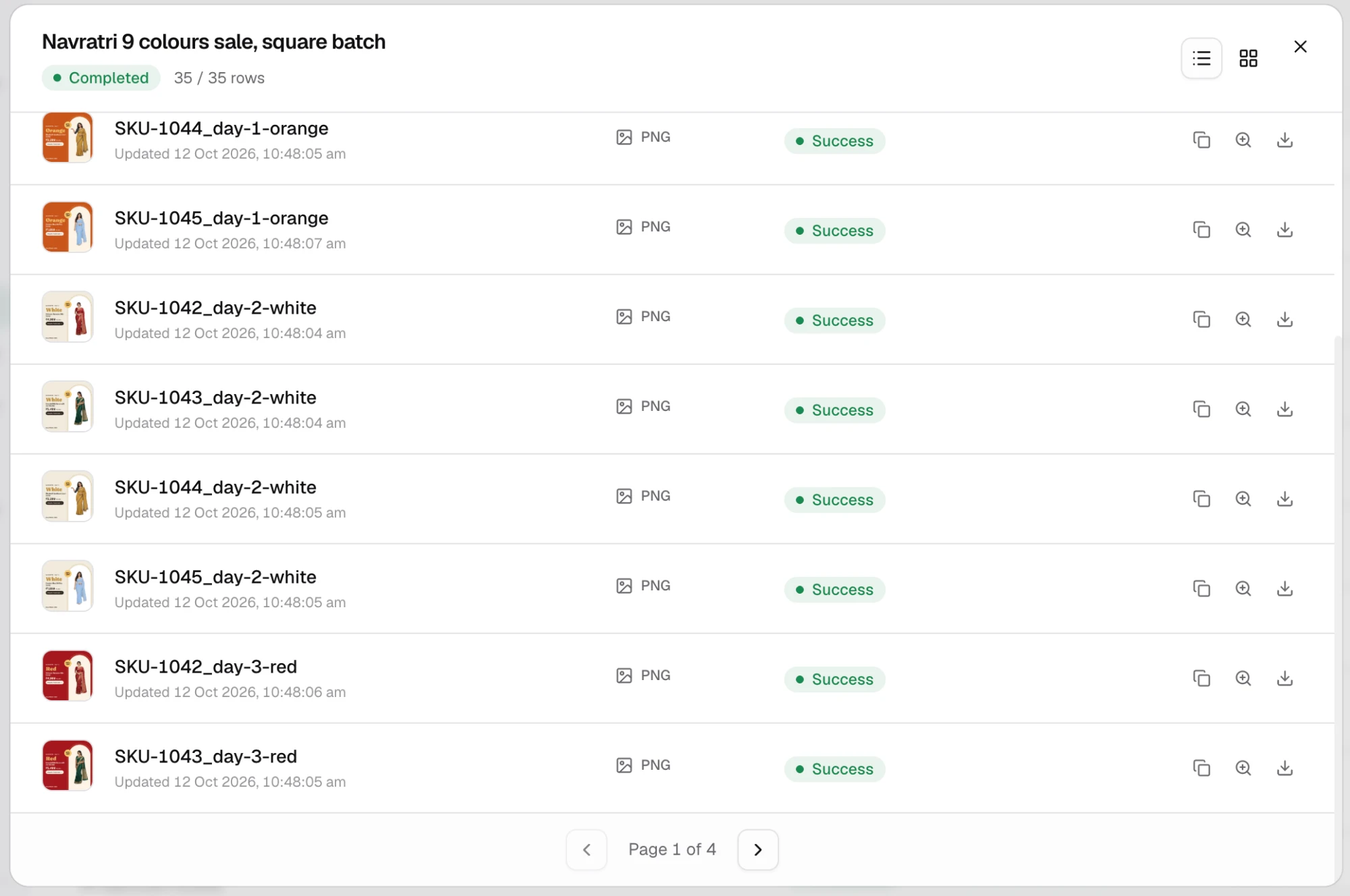
Choose Details. Each job shows its file name, format and status, as a list or a gallery. Use Preview Creative to look at a file and Download Creative to save one. Once any job has rendered, Download ZIP downloads every file so far.
Keep or move the files
Every successful job is also in Creatives, in the folder you chose. There you can rename, move to another folder, or choose Download ZIP on a folder. See Creatives.
Send them to Dropbox
Dropbox is connected directly. In Creatives, open a card's menu, or tick several cards, or open a folder, and choose Save to storage. Pick the Storage account, click through to the Destination and choose Save. Keep the dialog open until it finishes. Saving is manual, so new files are not copied on their own.
Check the result
The batch shows Completed, and every job in Details shows Success. If it shows Partial, some jobs failed or were cancelled. See Fix failed rows.
The commonest mistake is looking for Run on a draft. Run is under Batches → Published, so publish the draft first.
Google Drive and your store
Kalpana does not save to Google Drive or back to a store directly. Zapier does it: every file that renders sends an event, and a Zap uploads it. See Google Drive and Shopify. Your AI assistant can also run a batch for you. See Run a batch from a chat.
Next
- Fix failed rows
- Run and download for statuses and batch actions
- Webhooks
Updated 4 Nov 2026