
Run and Download
Create, publish and run a batch, follow its progress and get the finished files.
Create the batch
Choose Create Batch in the builder. The confirmation shows how many image and motion jobs the batch holds. Turn on Publish straight away to make it ready to run, or leave it off to save a draft you can keep editing.
Publish
Drafts are under Batches → Drafts. Choose Publish when the rows are final. Published batches can no longer be edited.
Run
On Batches → Published, choose Run. The confirmation shows the render credits required and how many images and videos will be made, and a Send to webhooks switch when the workspace has a live endpoint. Kalpana starts rendering and the Progress column fills as jobs finish.
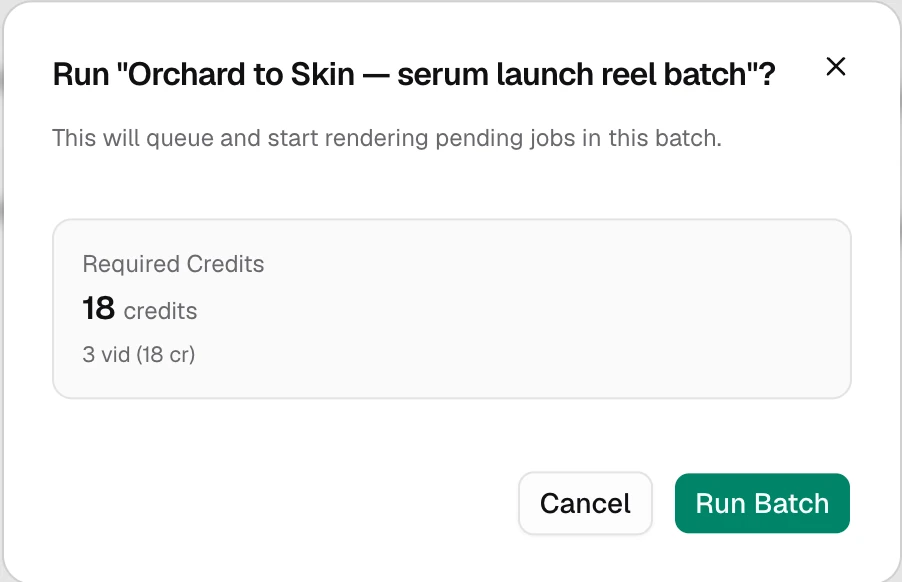
Credits
Each job is priced when the batch is created: 1 render credit for an image, and for a video its length in seconds scaled by size (see Motion templates). A video renders at most 60 seconds; a longer one is not refused, but only its first 60 seconds are rendered and charged. Credits are taken only when a job renders successfully. If the organization does not have enough render credits, the run stops with Not enough credits to run this batch. See Plans and credits.
Follow progress
The Batches list shows each batch's status, progress (finished jobs out of total, then any failed and cancelled, such as 18 / 23 · 2 failed · 3 cancelled) and creation time. Use Refresh to update it.
| Status | Meaning |
|---|---|
| Draft | Still editable, not ready to run |
| Published | Locked and ready to run |
| Processing | Jobs are rendering |
| Completed | Every job rendered |
| Partial | Some jobs rendered and the rest failed or were cancelled |
| Failed | No job rendered and at least one failed |
| Cancelled | The batch was cancelled before anything rendered |
While a batch is Processing, choose Cancel to stop it. Unfinished jobs become Cancelled and are not charged, and finished files are kept. A single processing job has its own Cancel job. Cancelled jobs cannot be resumed; use Duplicate to render one again.
Batch details
Choose Details to open the batch. It lists every job with its file name, format and status (Pending, Processing, Success, Failed or Cancelled), in a list or a gallery view. Results appear as they render.
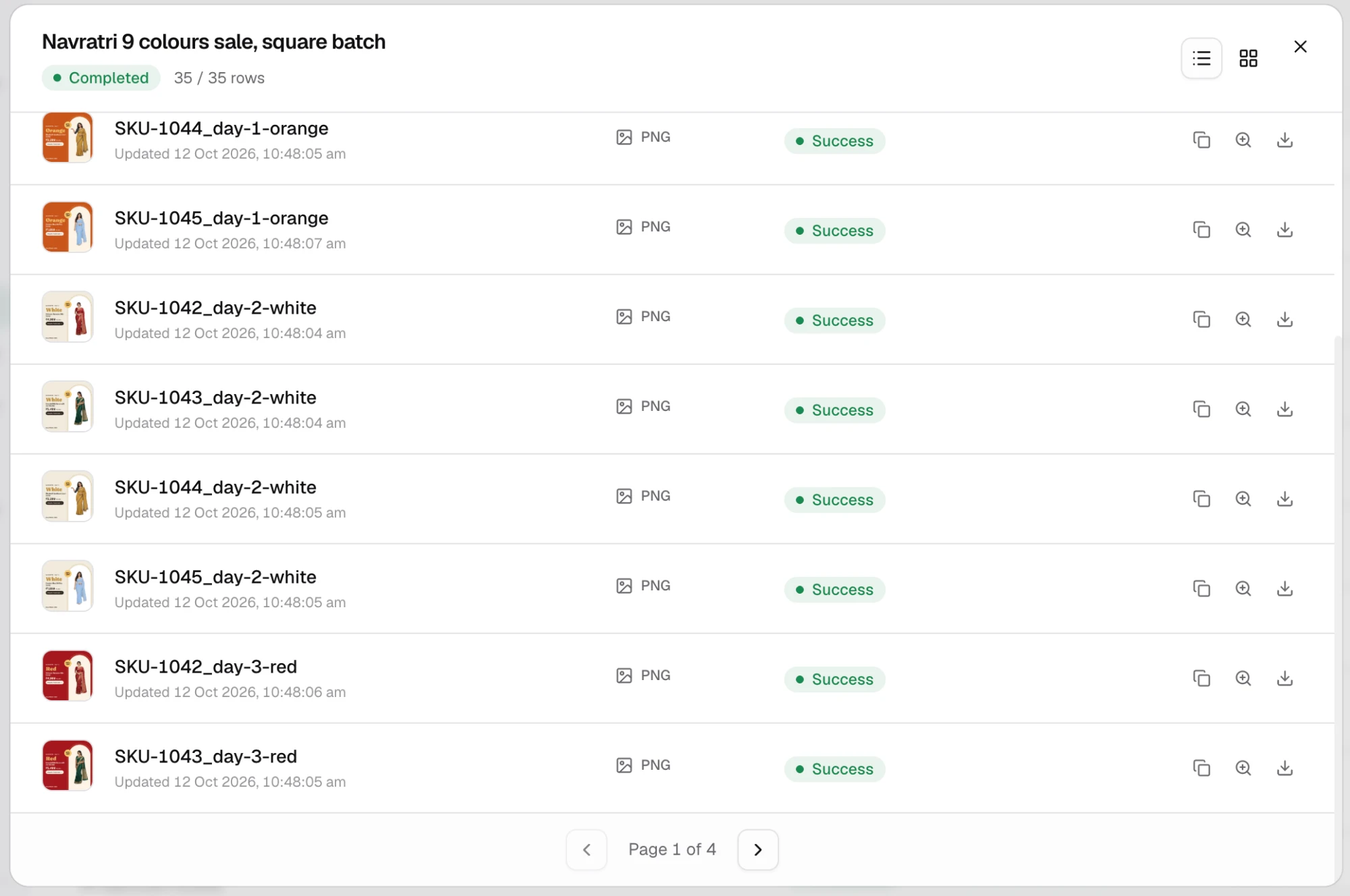
For each job you can:
- Preview the creative.
- Download the creative.
- Duplicate the job to make a variation of it, or to render a failed job again.
- Edit or Delete a job that is still pending.
Once any job has rendered, Download ZIP downloads every file rendered so far.
Re-render a failed job
Open the failed job's Duplicate action, adjust the values if needed, and choose Regenerate. The confirmation shows the credit cost and your balance before the job is queued again.
Where the files go
Every successful job also appears in Creatives, and in the folder you chose in the builder. From there you can rename, move, download as a ZIP or save to cloud storage. See Creatives.
Other batch actions
The menu on each batch has Clone batch, which copies it as a new draft, and Delete batch.
Delete batch only removes a batch that has no rows. A batch with rows, whether a draft or a finished run, is kept, and the Studio shows the error "Cannot delete a batch that contains render jobs". Its finished files stay in Creatives, where you can delete them. See Creatives.
Running a batch needs a workspace role that can create renders: Owner or Manager.
Updated 4 Nov 2026