
Organizations and Workspaces
How organizations, workspaces, people and credits relate, and how to add a workspace.
How they relate
- An organization holds the plan, the credits, the billing and the people.
- A workspace belongs to one organization and holds templates, batches, creatives, images, fonts and integrations.
- Credits are shared by every workspace in the organization.
- People join the organization first and start as Viewer in every existing workspace. Change their role, or remove them, in each workspace.
Use workspaces to separate brands, clients or teams. Nothing is shared between workspaces except the organization's credits.
Organization pages
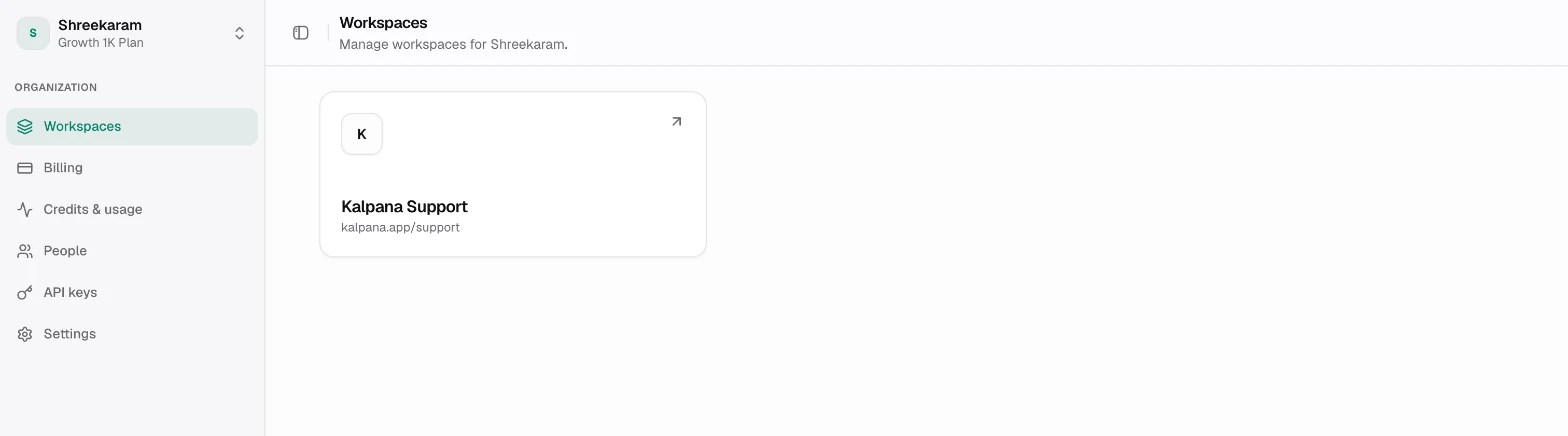
Open the workspace menu at the top of the sidebar and choose Go to organization. The organization sidebar shows the pages your role allows:
| Page | What it is for |
|---|---|
| Workspaces | The organization's workspaces that you belong to, and New workspace |
| Billing | Plan, plan changes and credit top-ups. See Plans and credits |
| Credits & usage | Credit balances, credit lots and usage by workspace. See Usage |
| People | Organization members and invitations |
| API keys | Your keys for this organization's workspaces. See API keys |
| Settings | Organization name and logo |
Add a workspace
On Workspaces, choose New workspace, enter a Workspace name and a Workspace URL, and create it. The URL cannot be changed later.
Each plan allows a number of workspaces. The free plan includes one. At the limit New workspace is hidden, so upgrade the organization's plan to add more.
Invite people to the organization
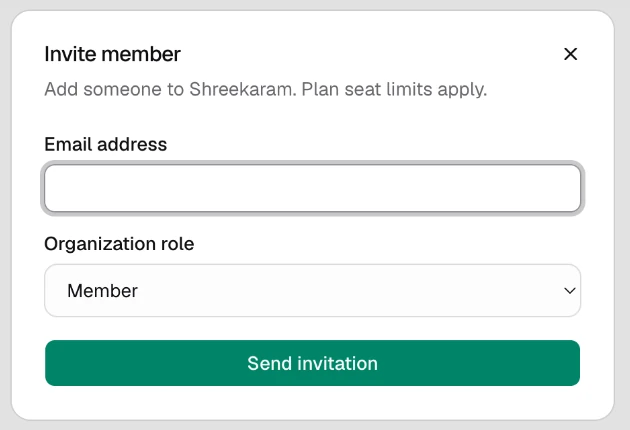
On People, choose Invite member, enter the email address and pick an organization role:
| Organization role | Can |
|---|---|
| Owner | Everything, including managing billing and inviting Admins |
| Admin | Everything except managing billing |
| Billing | View the organization and manage billing |
| Member | View the organization and its workspaces |
Only an Owner can invite an Admin, and only an Owner or Billing member can invite a Billing member. Invitations appear under Pending Invitations, visible to Owners and Admins, and expire after 7 days. Each plan includes a number of member seats, the free plan one, and pending invitations use a seat. Revoke an invitation you no longer need to free its seat. Copy link gives you the invitation link to send yourself, for example if the email did not arrive. At the seat limit Invite member explains that all seats are in use.
The invited person opens the invitation, sees the role and who invited them, and chooses Accept invitation or Decline invitation. They must accept with the email address the invitation was sent to, and that address must be verified.
After they join they are Viewers in every existing workspace. Open Workspace → Members to give them a different role or remove them from a workspace. See Members and roles.
Organization settings
Settings changes the organization's name and logo (PNG, JPEG or WebP, up to 1 MB).
Updated 4 Nov 2026