
Template Gallery
Browse ready-made templates and copy one into your workspace.
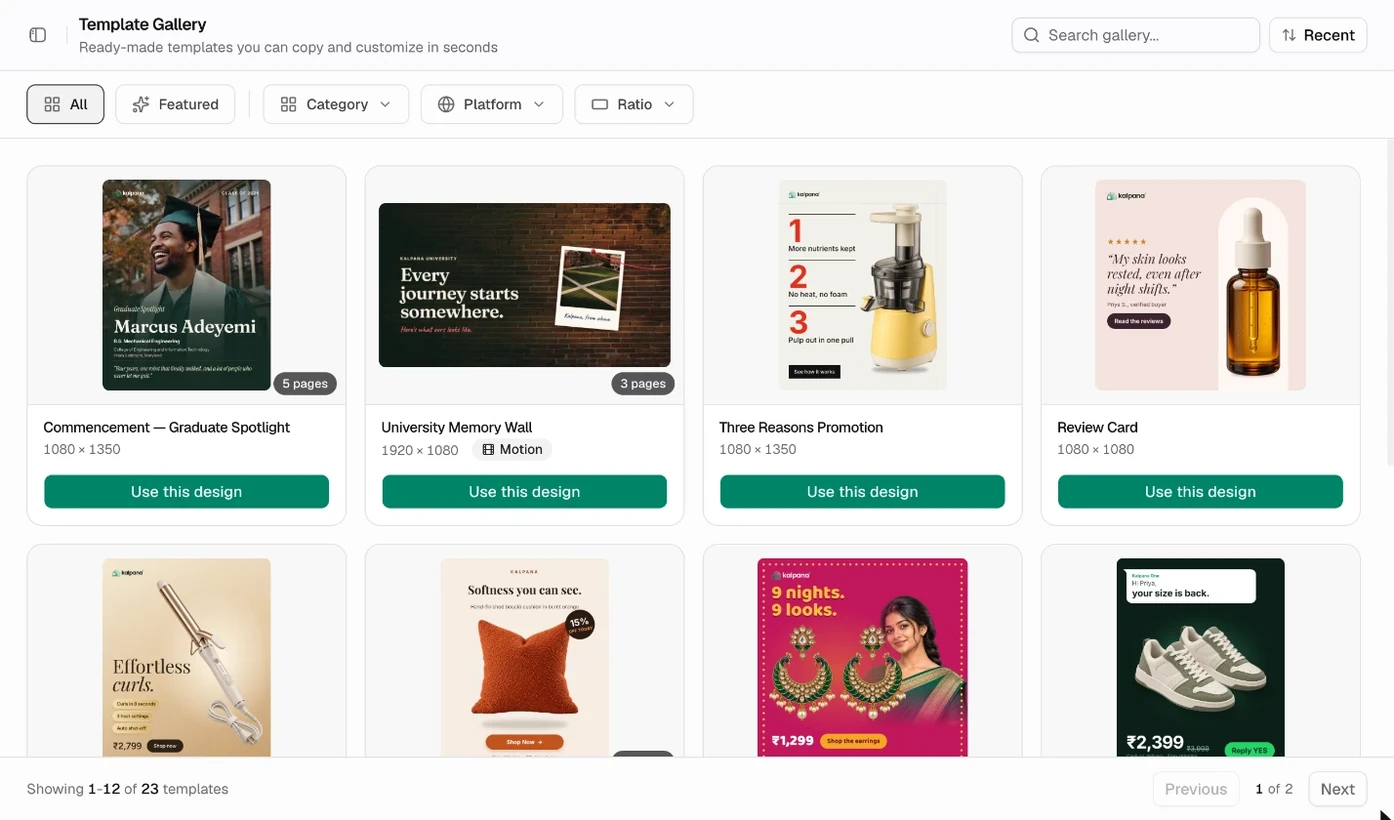
Templates → Explore is a gallery of ready-made designs you can copy and change. Each card shows the size, a Motion badge for animated designs and, for a design with several pages, how many it has. On hover, a template with several pages slides through them, and a single motion page plays its animation. The Use this design button under each card copies it straight away and opens a new batch.
Find a template
- Search gallery by name.
- Sort by Popular or Recent.
- Show All or only Featured templates.
- Filter by Category (social media, ads, marketing and promotions, e-commerce, branding and announcements, video and motion).
- Filter by Platform: Meta, Instagram, Facebook, WhatsApp, Google, LinkedIn, TikTok, YouTube, Pinterest, Reddit and X.
- Filter by Ratio: 1:1 Square, 4:5 Portrait, 9:16 Story, 16:9 Landscape and 1.91:1 Link.
Preview and copy
Click a template to see its description, its category, how many times it has been used, its dimensions, whether it is a static image or motion, and tags such as its ratio. A template with several pages has a strip of page thumbnails, and the arrow keys step through them. Then choose:
- Use this design to copy it into your workspace and go straight to a new batch.
- Copy and open in the editor to copy it and open it, so you can change the design first.
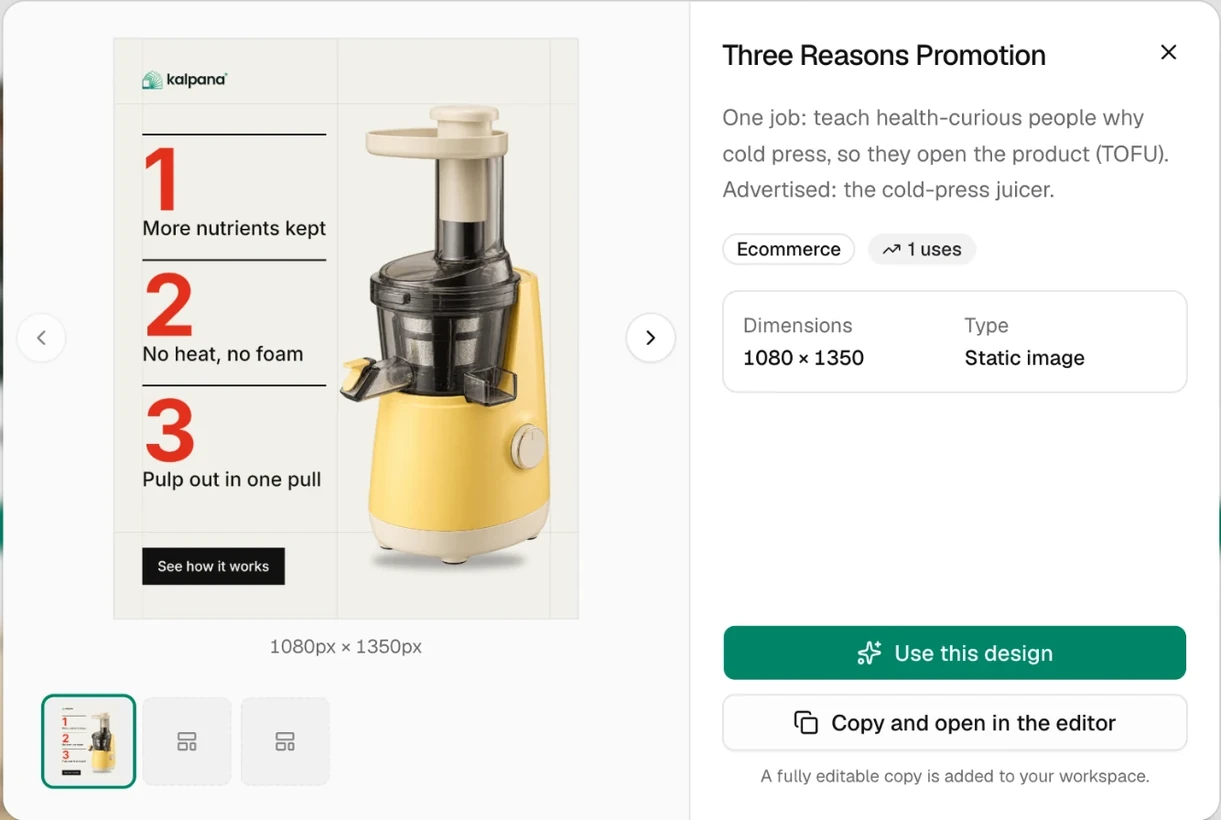
However you copy it, a fully editable copy is added to My Templates. Changes you make never affect the gallery original.
You need permission to create templates in the workspace to copy one. See Members and roles.
A workspace with no templates yet opens My Templates on No templates yet, with Browse templates to go to the gallery, and links to the Figma plugin and to connect your AI agent.
Updated 4 Nov 2026