
Images and Collections
Upload, import and organise the images your templates and batches use.
Brand Assets → All Images holds the product photos, logos and backgrounds of the workspace. Every image here can be picked in a batch row by name.
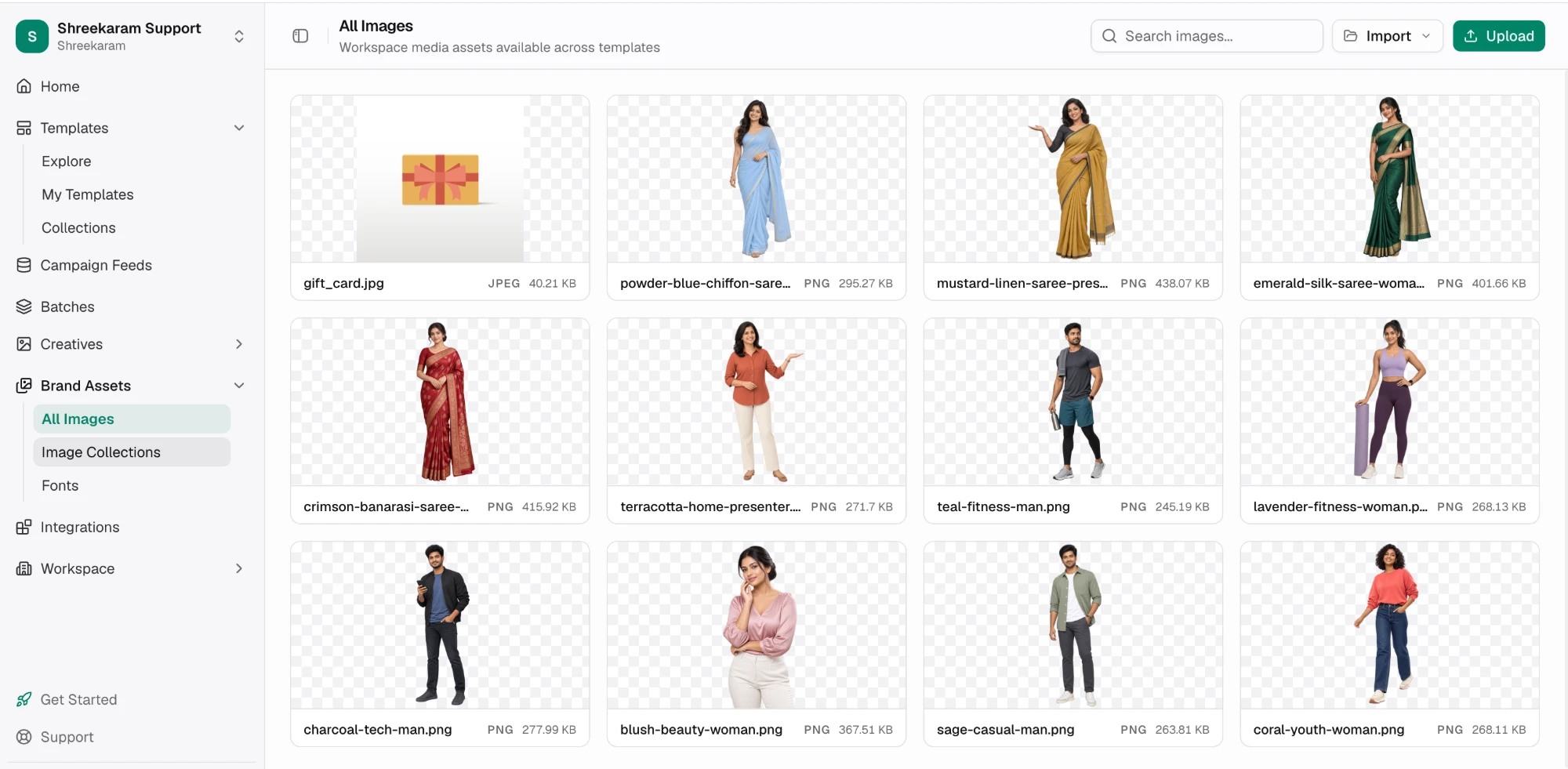
Add images
| Method | How |
|---|---|
| Upload | Choose files, up to 10 at a time, and optionally add them to a collection |
| Drag and drop | Drop files anywhere on the page |
| Paste | Paste an image from the clipboard. Large images can be resized and optimised before upload |
| Import | Pick up to 25 images from Dropbox once that account is connected |
| From a link | In any image picker, paste an https:// link into the search box |
Limits: PNG, JPEG or WebP, up to 5 MB and 5000 × 5000 pixels per image. GIF and SVG are not accepted.
Links can only be imported from domains on the workspace's allowed list. See Workspace settings.
Image details
Click an image to see its file name, dimensions, file size, type and creation date, with Download and Open. The same panel holds the AI and image tools.
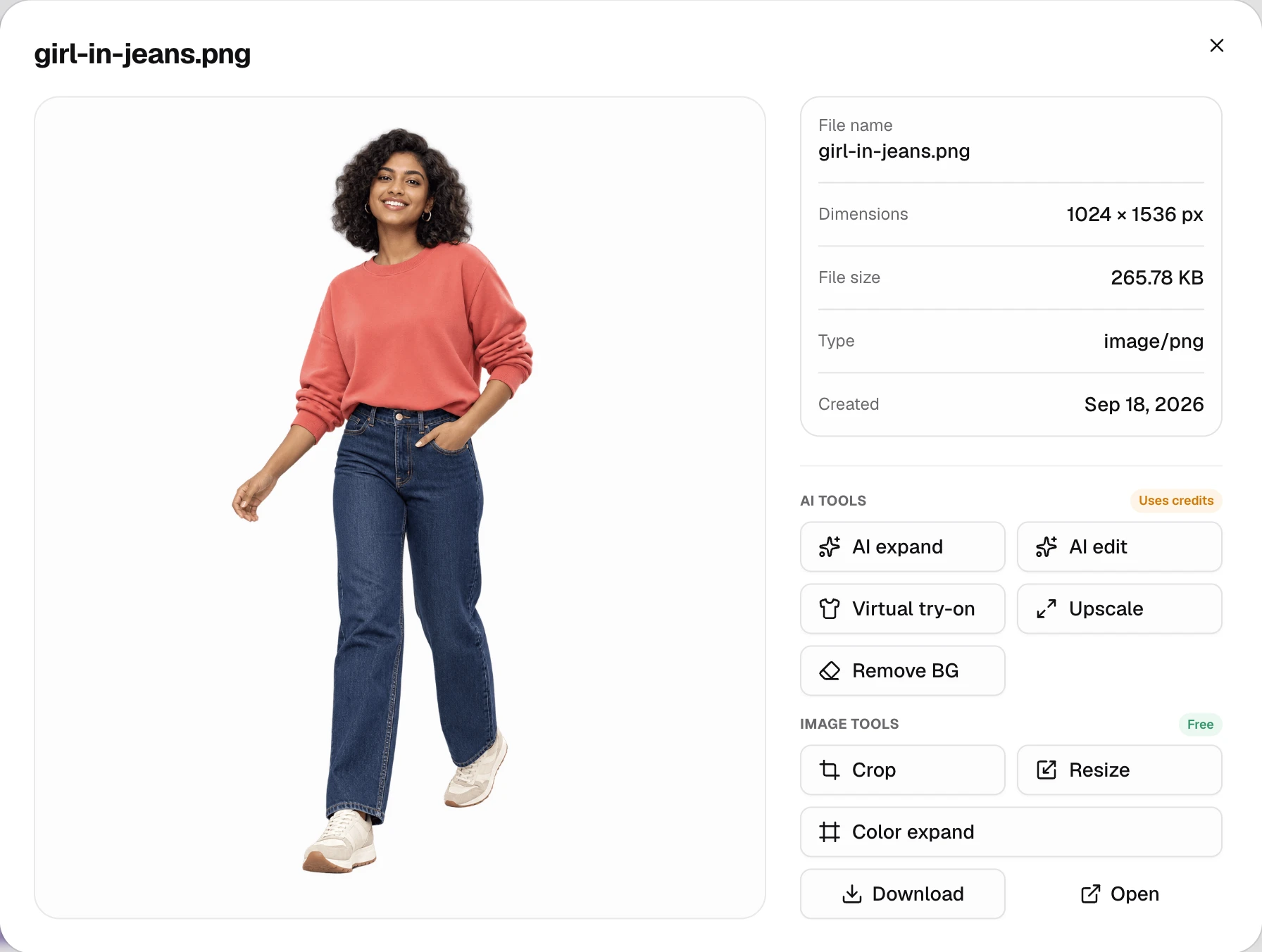
Each image's menu also has Manage Collections, Rename and Delete.
Give images the names you will use in your sheets, such as SKU-2101.png. A batch's image column can then refer to them by name.
Image collections
Brand Assets → Image Collections groups images by campaign, channel or product line. Choose New Collection, then add images from their Manage Collections menu. An image can be in several collections, and deleting a collection keeps its images.
Collections also appear as filters in the Pick Image dialog of the batch builder.
Select several images
Tick images to open the bar along the bottom. Add to Collection files them together, and inside a collection Remove from takes them out. Delete takes up to 50 at a time, and keeps any image a template or an AI edit uses.
Updated 1 Nov 2026