
Creatives and Folders
Find, organise, download and save the files your batches produce.
Every successful job adds a creative, the finished image or video, to the workspace.
All creatives
Creatives → All creatives shows every finished file, 12 to a page. Search by name and sort by Recent, Name or Size. Videos play in their cards.
Click a creative to see its file size, resolution and creation date, with Download Asset and Open in New Tab.
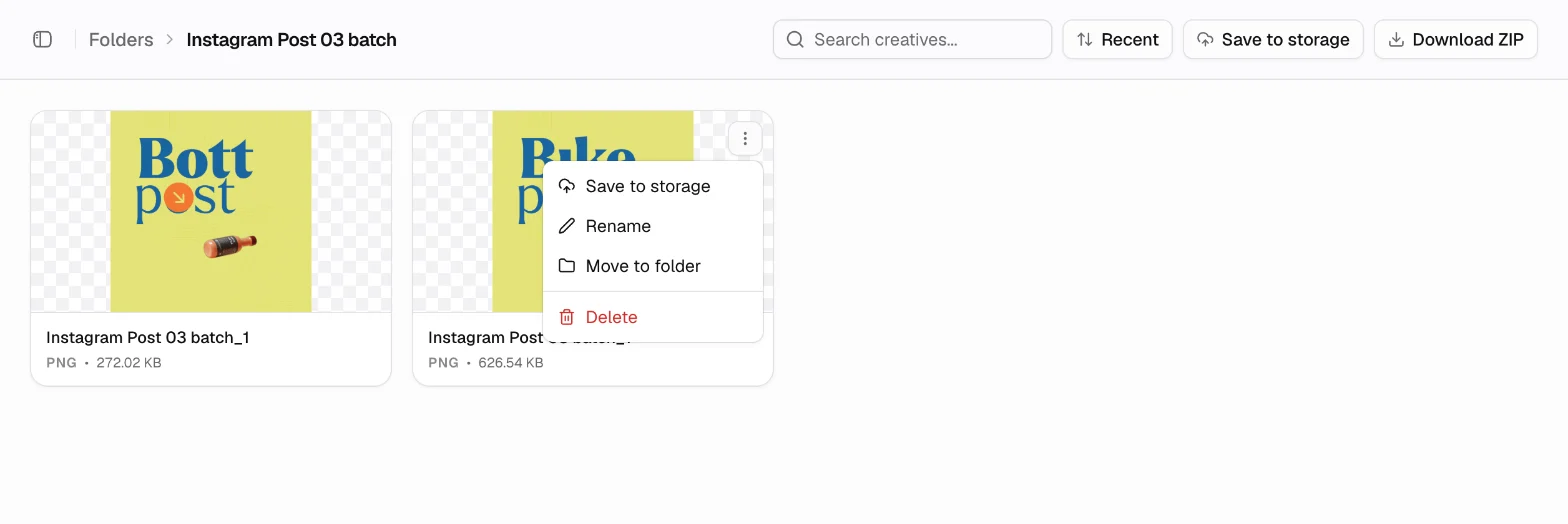
Each card's menu has:
- Save to storage: copy the file to Dropbox.
- Rename.
- Move to folder.
- Delete.
Tick several cards, or Select page, to move them to a folder, save them to storage or delete them together. Delete takes up to 50 at a time.
Folders
Creatives → Folders groups creatives by campaign or client. Choose New folder and give it a name and an optional description. Right-click a folder to edit or delete it.
You can also choose a folder in the batch builder so the batch's files land there as they render.
Inside a folder:
- Download ZIP downloads every file in the folder. Files with the same name are renamed so nothing is overwritten.
- Save to storage copies the whole folder to cloud storage.
- Select creatives to remove them from the folder.
Save to cloud storage
Save to storage creates a folder in the storage account you pick and copies the creatives into it. Choose the Storage account, browse to the Destination, and choose Save. Files up to 100 MB are supported. Keep the dialog open until saving finishes.
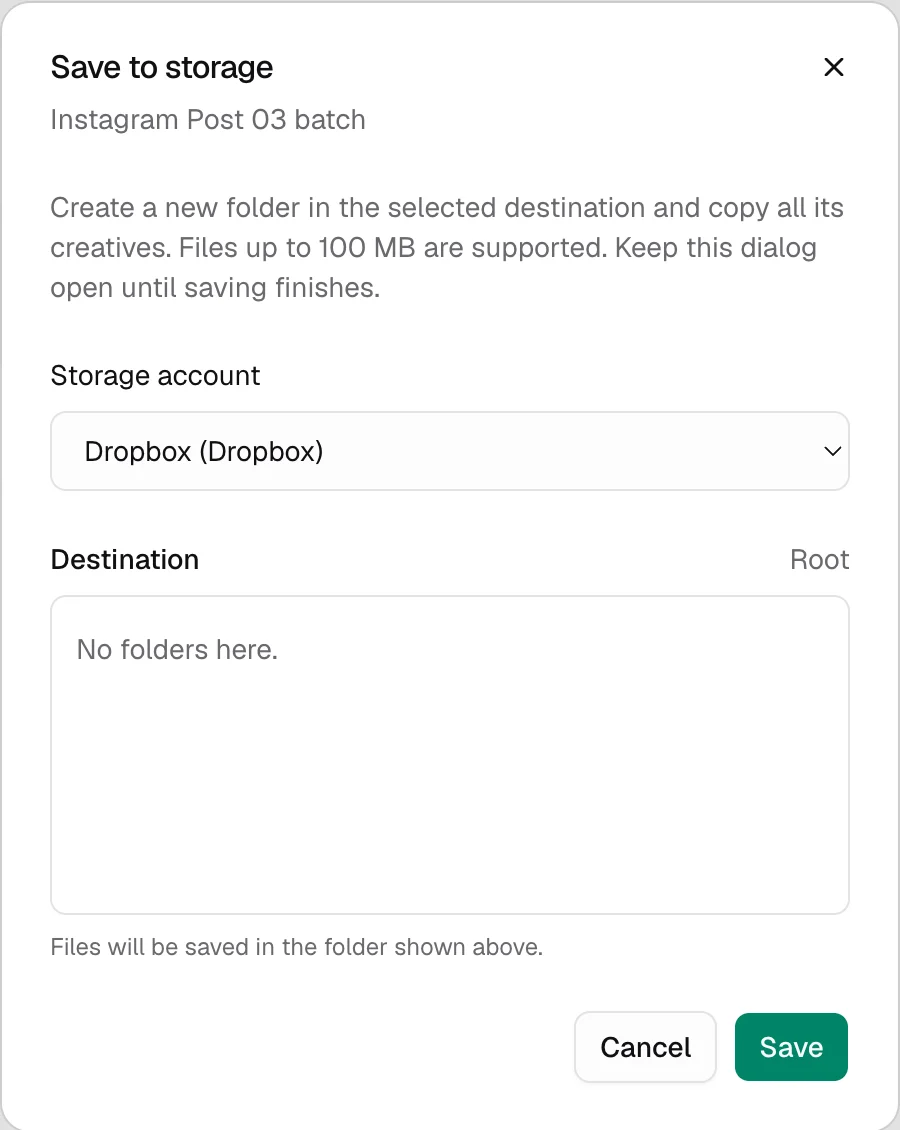
Storage accounts are connected in Integrations. Saving is manual: Kalpana does not copy new creatives automatically.
You can also download all files of one batch with Download ZIP in the batch's details once any job has rendered.
Updated 1 Nov 2026