
Library
Fonts
Upload your brand's custom fonts so every template renders with the right typeface.
Brand Assets → Fonts lists the typefaces available to templates in the workspace, grouped by family with their weights and italics. Fonts you upload are tagged Workspace.
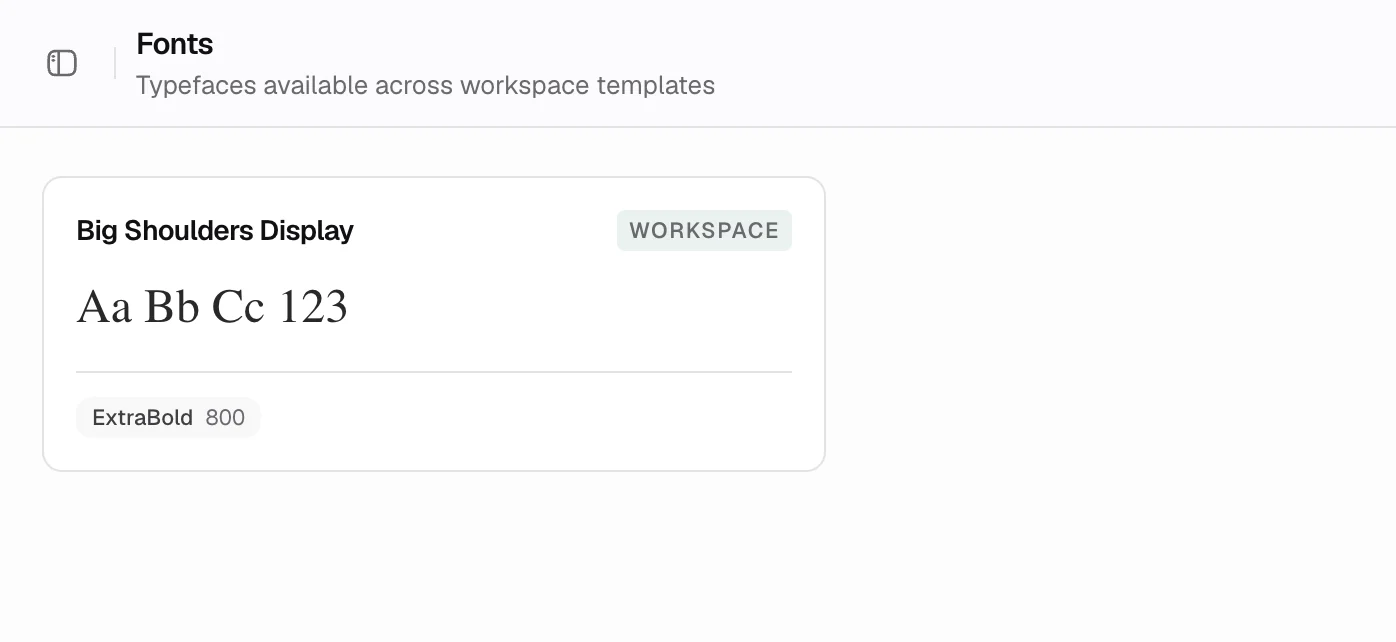
Upload a font
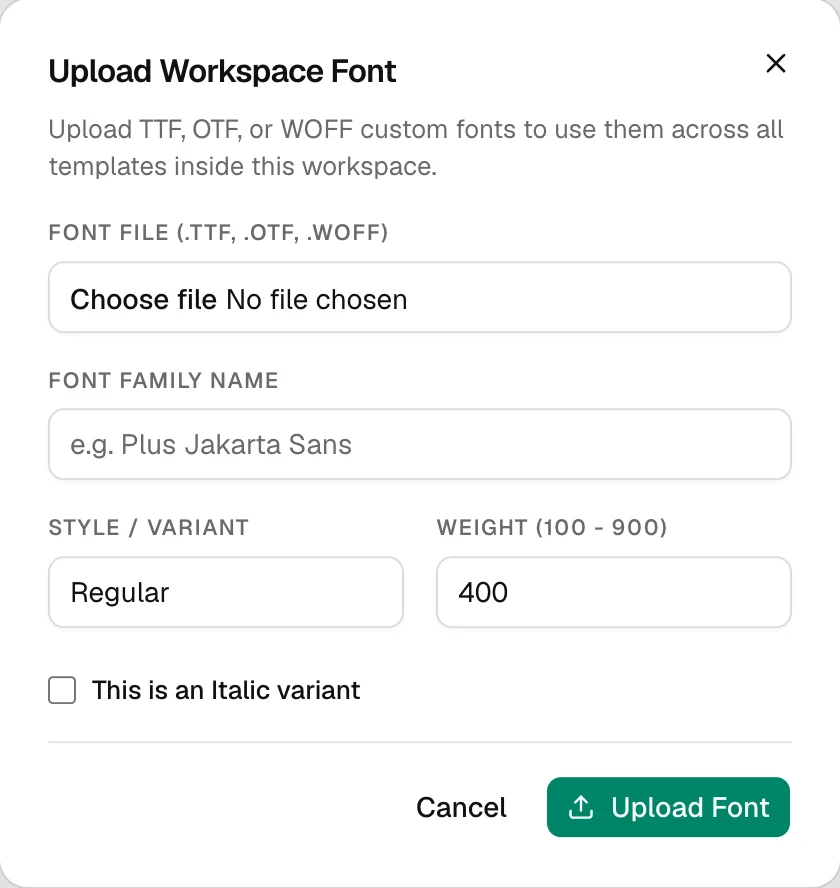
Choose Upload Font, then:
- Choose the file:
.ttf,.otf,.woffor.woff2. - Enter the Font Family Name exactly as the design uses it, for example
Plus Jakarta Sans. - Set the Style / variant and Weight (100 to 900), and tick This is an Italic variant if it is one.
- Choose Upload Font.
Upload each style you use as its own file: regular, bold, italic and so on.
When a font is missing
If a template uses a font the workspace does not have, the template shows an alert with Sync fonts, and Create batch in the template's preview asks you to fix it before continuing. Choose Sync fonts if you have already uploaded the font, or upload each missing file from the same dialog.
The Figma plugin also blocks export when Figma itself cannot load a font. See Figma plugin.
Was this page helpful?
Updated 1 Nov 2026