
API Keys
Create scoped keys for the Kalpana REST API, change their access and revoke them.
API keys let your own code use the Kalpana API as you. Manage them under Organization → API keys: open the workspace menu at the top of the sidebar, choose Go to organization, then API keys.
Keys belong to you, not to the organization. Each organization's page shows only your keys for its workspaces, so a key for another organization's workspace appears on that organization's page.
Your keys lists each key with its Workspace and its Access: how many permissions it holds. Hover the access to see each permission. Keys made before scoped access reach every workspace you belong to, so they show All your workspaces and Unrestricted (legacy key) on every organization's page.
Create a key
- Choose Create key.
- Give it a name that says what uses it, for example
Catalog sync bot. - Pick the workspace the key works in, from this organization's workspaces. A key reaches only that workspace.
- Set access for each resource to None, Read or Write. Write includes Read. Select all sets every resource to one level.
- Choose Create key, copy the key and choose I've saved it. The key starts with
sk-and is shown only once.
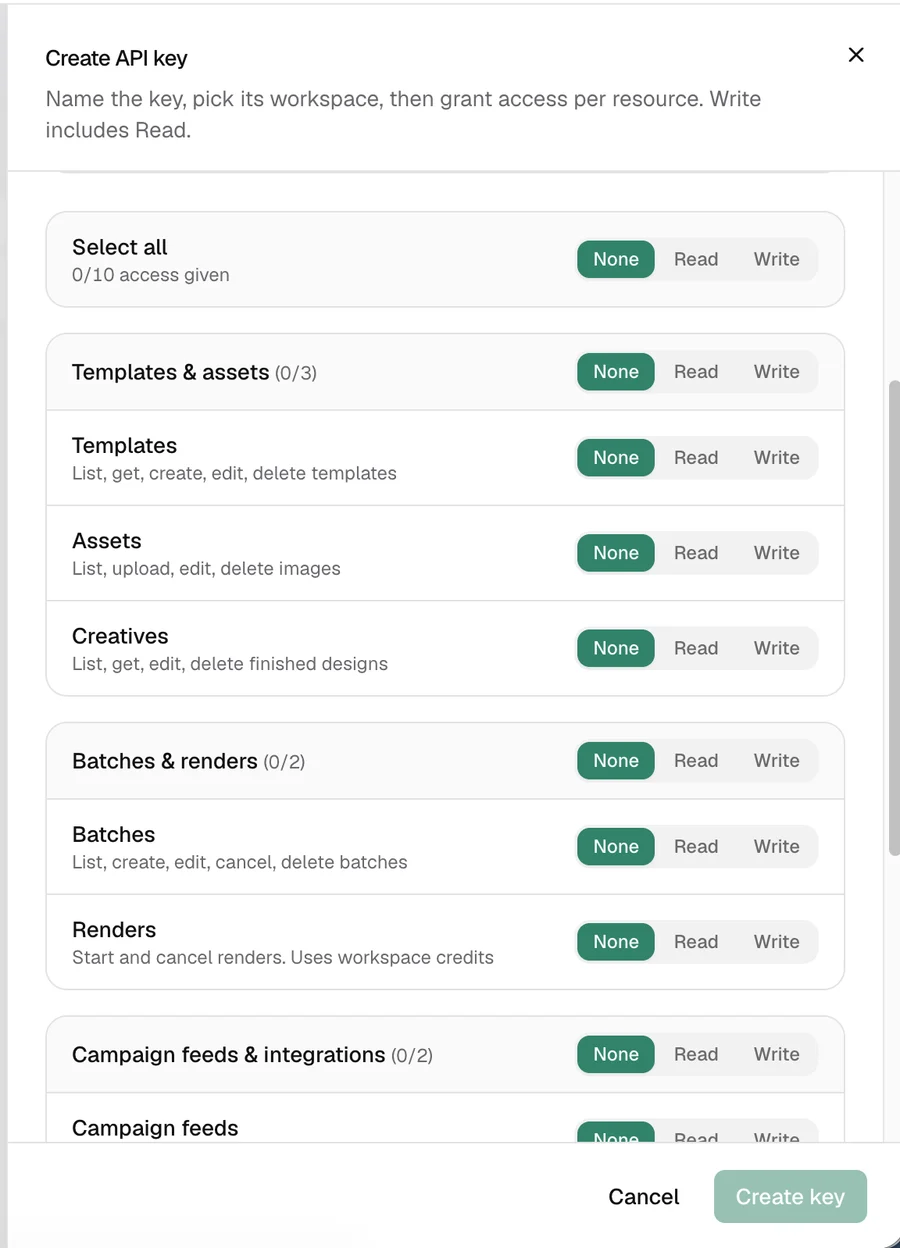
You can grant only what your own role holds in that workspace.
What a key can access
Resources are grouped as they are in the app:
| Group | Resources |
|---|---|
| Templates & assets | Templates, assets, creatives |
| Batches & renders | Batches, renders |
| Integrations & webhooks | Integrations, webhooks |
| Workspace administration | Workspace settings, members, roles |
Renders are the only resource that uses credits. A key with Write on batches and None on renders can build a batch but not run it.
A request outside the key's access fails with 403 and names the missing permission, for example This API key lacks permission: renders:create.
Change or revoke a key
From a key's menu:
- Edit access changes its permissions. The key, its name and its workspace stay the same, so nothing needs redeploying. To use another workspace, create a new key.
- Revoke key stops it at once. Revoke a key when it is no longer needed or may have leaked.
Legacy keys can do everything your role allows in every workspace you belong to. Replace them with scoped keys: create the new key, check one request with it, then revoke the old one.
Using a key
Send the key in the x-api-key header. Each key can make 100 requests a minute. See Authentication.
Treat keys like passwords. Never commit them to version control or paste them into designs, screenshots or shared documents.
For AI assistants such as ChatGPT or Claude, you do not need a key. Connect them through the Kalpana MCP servers, which sign in with your account.
Updated 1 Nov 2026