
Manage Your Subscription
Change your plan, buy credit top-ups, and what to do if you want to cancel.
Everything on this page is done from Organization → Billing. Open the workspace menu at the top of the sidebar, choose Go to organization, then Billing.
Only organization Owners and Billing members can change the plan or buy top-ups. Other roles with access to the page can see the plan and its prices, but the buttons are disabled.
Change your plan
Current plan shows the plan you are on and what it includes. Available plans lists the paid plans with price, billing interval and features. The plan you are on is marked Current plan and its button is disabled.
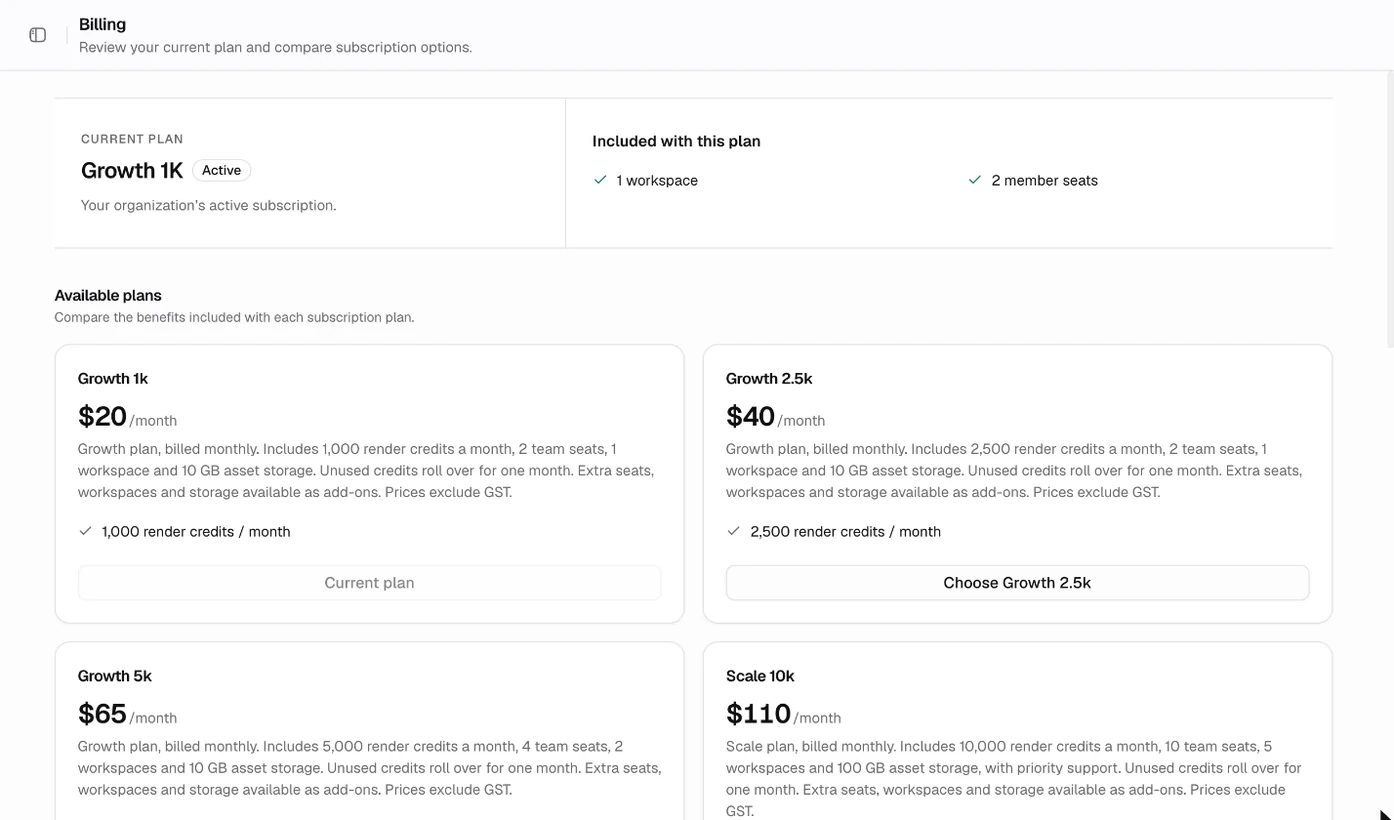
- Choose the button on the plan you want, for example Choose Growth 1k.
- Complete the secure checkout that opens.
- When you return to Billing, Kalpana checks the payment with the payment provider. A confirmation reads Payment verified. Your organization has been upgraded.
The new plan applies to the whole organization, so its credits, member seats and workspaces apply to every workspace in it. The same flow is used to move to a larger plan or a smaller one. Plan names, prices and limits come from the plan list, so they can change over time; see the pricing page for current figures.
For Enterprise, choose Contact sales. It opens an email to the sales team rather than a checkout.
If checkout cannot start, Kalpana shows Failed to start checkout process. Try again, and email support@kalpana.one if it keeps failing.
What happens to your credits
The new plan's credits are added for its billing period as their own block. Blocks you already have stay on Credits & usage with their own expiry dates, and top-up credits are separate blocks that a plan change does not touch.
Credits are spent in a fixed order: plan and rollover credits first, then top-ups from oldest to newest, then granted credits. See Plans and credits.
Buy a credit top-up
Top-ups add credits without changing your plan.
- Scroll to Credit top-ups & add-ons.
- Choose the pack you want, for example Buy followed by the pack name.
- Complete the checkout.
After the payment is verified, the credits appear as a new block under Credits & usage, with the date they expire. Packs are one-time purchases: there is no repeat charge. Which packs are offered, and their prices, come from the pack list.
If the section is not shown, no top-up packs are on sale for your organization right now.
Cancel a subscription
Cancelling is not a button in the Studio. Billing has no cancel option, no invoice list and no payment method screen.
To cancel, or to ask for anything else about your subscription, email support@kalpana.one from the address you bought it with. Say which organization it is for.
What you cannot do from Billing
- Cancel or pause a subscription.
- Download invoices or change the saved payment method.
- Buy extra seats, workspaces or storage on their own. Billing offers plans and credit top-ups only.
Not sure which plan fits? A batch confirmation shows the render credits it needs before you run it, so you can size a plan from a real batch. See Plans and credits.
Updated 4 Nov 2026