
Webhooks
Tell your own tools, Zapier, Make or a chat channel the moment a batch finishes or a creative renders.
A webhook sends a small message to a URL you choose whenever something finishes in the workspace. Use it to drop finished creatives into a Google Drive folder through Zapier, post "batch done" in a Slack channel, or start the next step in your own system without polling.

Open Webhooks in the workspace sidebar, under Connect next to Integrations and AI Agent setup. Each workspace has its own endpoints.
Webhooks need an active subscription for the workspace's organization. Only the workspace Owner adds endpoints and rotates signing secrets; a Manager can edit, test, resend, show the secret, turn endpoints on or off and delete them. A workspace can have up to 10 endpoints.
A Zap made with the Kalpana Zapier app, or an n8n workflow that starts with the Kalpana Trigger node, adds its own endpoint when it is turned on, so a Manager can connect one too. These count separately: up to 50 for Zapier and 50 for n8n.
Add an endpoint
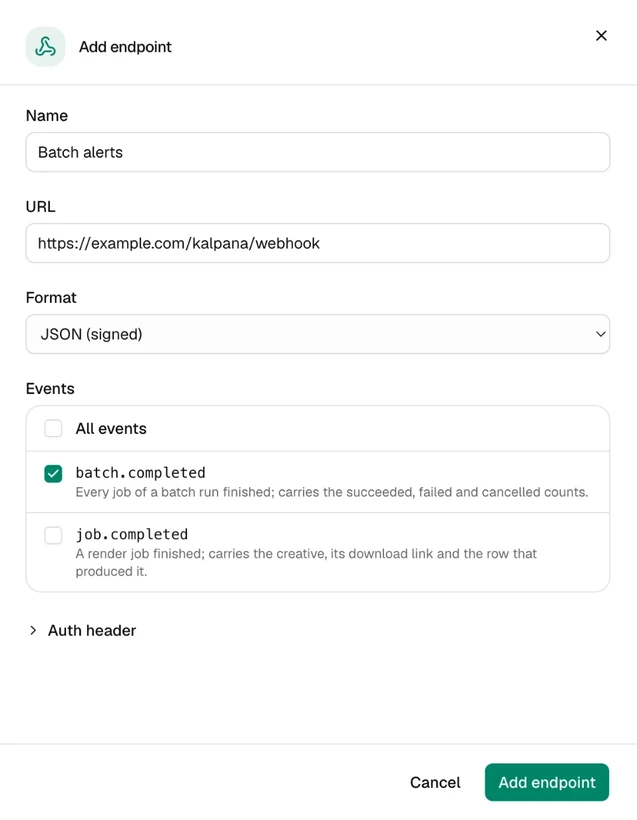
Get a URL to send to
In Zapier, add a Webhooks by Zapier → Catch Hook trigger and copy its URL. In Make, add a Custom webhook module. In Slack, Discord or Google Chat, create an incoming webhook for the channel. Your own server works too: any public https:// URL.
Add it in Kalpana
Choose Add endpoint, paste the URL and give it a name. Format follows the URL: a Slack, Discord or Google Chat incoming webhook gets a readable message for the channel, and any other URL gets JSON (signed) for Zapier, Make and your own code. Change it if needed.
Each URL can belong to one endpoint in a workspace. To send more events to the same URL, edit its endpoint instead of adding another.
Choose the events
Pick the events the endpoint should receive, or All events. Most automations only need batch.completed.
Check the test and copy the signing secret
Kalpana sends a test event the moment the endpoint is added and shows the answer under the signing secret, for example Test event delivered: the endpoint answered 200. A wrong URL shows here, before any batch runs.
Copy the secret: your own server uses it to check that a request came from Kalpana. You can show it again later with Show secret in the endpoint's menu.
Connect Zapier
Catch the hook
In Zapier, create a Zap with the trigger Webhooks by Zapier → Catch Hook and copy the webhook URL it shows.
Add the endpoint
In Kalpana, add an endpoint with that URL and choose the events, usually job.completed to handle each creative or batch.completed to act once per run.
Test the trigger
Back in Zapier, choose Test trigger. It finds the test event Kalpana sent when you added the endpoint. Run a small batch and test again to see real events with every field.
Add the actions
When one endpoint takes both events, start with a Filter by Zapier step on type. For job.completed, data.creative.url is the file to upload or attach and data.job.row holds the row's values.
Make and n8n work the same way with their own webhook triggers. To add finished creatives to Shopify products, see Shopify.
Events
| Event | Sent when |
|---|---|
batch.completed | Every job of a batch run has finished. Carries how many rendered, failed and were cancelled. |
job.completed | One row rendered. Carries the creative, its download link and the row that produced it. |
A batch of 500 rows sends one batch.completed and 500 job.completed events. Subscribe to job.completed only when each creative needs handling on its own, for example to upload it somewhere.
The fields of each event are in Receiving webhooks.
Turn webhooks off for one run
When the workspace has live endpoints, the dialog that runs a batch shows Send to webhooks to members who can see the Webhooks page. It starts switched on each time. Turn it off to render a batch without notifying anyone, for example while testing a template.
The choice is saved on the batch. A later run that does not set it, such as one started through the API or an agent without the webhooks option, uses the batch's last choice.
Delivery log
Select an endpoint to see its recent deliveries: the event, whether it was delivered, the reply your endpoint sent and how long it took. Open one to see the exact event that was sent and choose Resend to send it again.
Send test event in the endpoint's menu sends a test straight away and shows the answer. Tests and resends can be repeated every few seconds.
| Status | Meaning |
|---|---|
| Pending | Queued, not tried yet. |
| Succeeded | Your endpoint answered with a 2xx status. |
| Retrying | The last attempt failed. Kalpana tries again shortly. |
| Failed | Every attempt failed. Use Resend once the endpoint is fixed. |
| Skipped | Not sent, because the endpoint was turned off or the subscription ended. |
Each delivery is tried up to three times over about three minutes. Deliveries that succeeded are kept in the log for 7 days, failures for 30 days.
When an endpoint keeps failing
The endpoints list shows Failing with the time the failures started. Short outages are fine: deliveries made during them fail and can be resent, and the endpoint stays on.
After 10 failed attempts in a row, Kalpana stops calling the endpoint for each event. New deliveries are logged as failed with Not sent and one try goes through every 5 minutes. The first one that succeeds brings the endpoint back to normal, and the skipped deliveries can be resent from the log.
Kalpana turns an endpoint off by itself, with the reason shown in the list, when:
- many attempts in a row have failed and nothing has succeeded for 3 days, or
- the endpoint answers
410 Gone, which Zapier does for a deleted Zap, or405 Method Not Allowed, meaning the URL does not take events, or - the URL stops pointing to a public address.
Turning an endpoint off also stops everything already waiting to be sent to it. Fix the receiver, then choose Turn on from the endpoint's menu. Turning it on clears its failure history.
Signing secret and auth header
Requests in the JSON (signed) format carry a Kalpana-Signature header your code can check with the signing secret. See Verify the signature.
Some tools cannot check a signature. For those, open Auth header when adding or editing the endpoint and give a header name and value, such as Authorization and Bearer <your token>. Kalpana sends it on every request.
Rotate secret (Owner only) replaces the secret at once. Update your receiver straight away, because requests signed with the old secret stop verifying.
Updated 4 Nov 2026