
Preview Rows
Check every row in the builder and adjust copy, images, colours, layers, crop and format.
After you add data, the batch builder shows your rows in a grid with a Live Preview of the selected row.
For an animated page, the preview shows the page's still moment, the frame an image of that row will show. See Animated templates as an image.
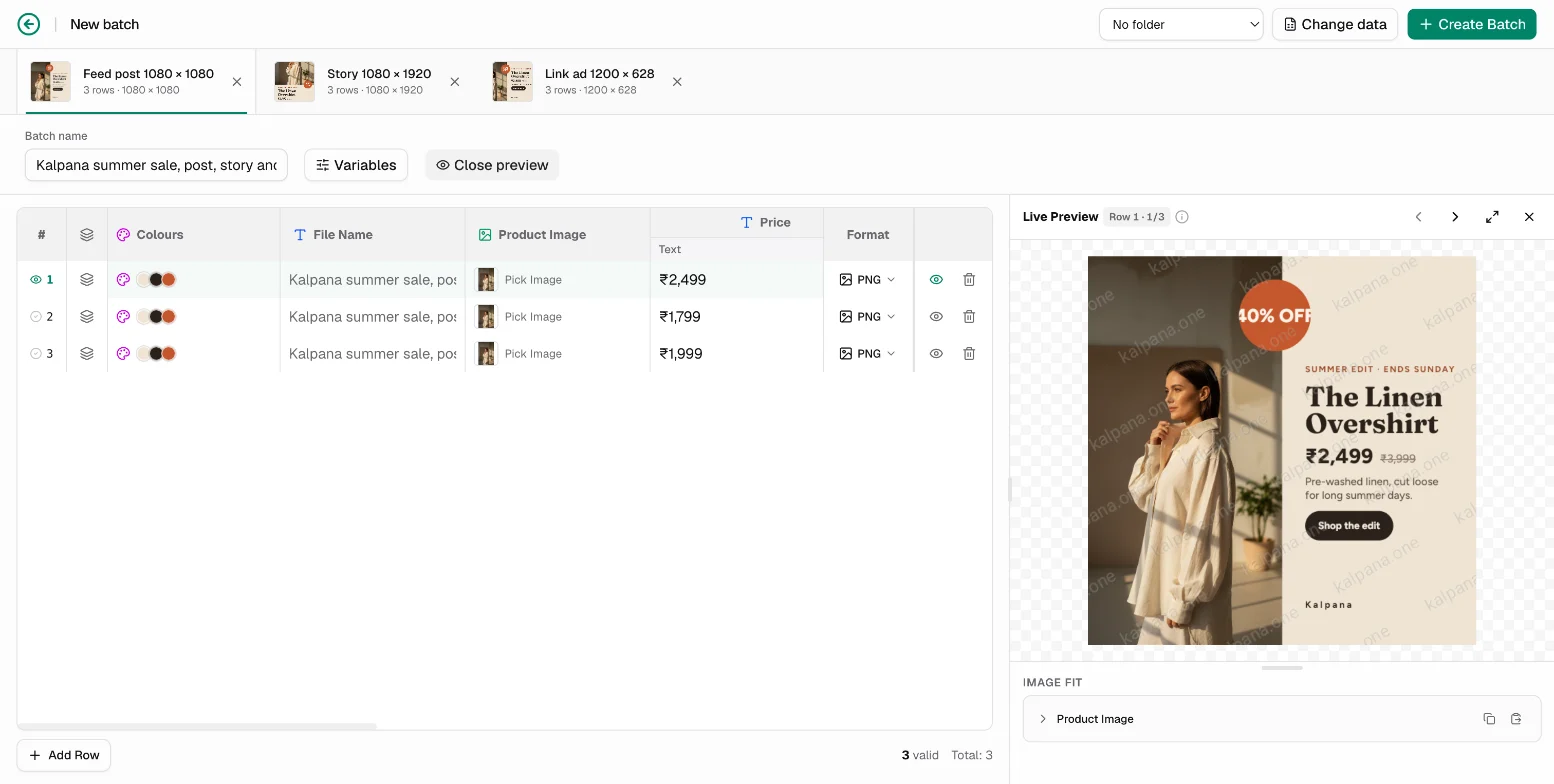
The builder at a glance
- Page tabs along the top show every page of every template in the batch, each with its row count and size. Close a tab with its × to leave that page out of this batch, and add it back from the + menu. A template's flows are tabs too, named Flow: .... They start out of the batch because a video costs more, so choose Add flow to include one.
- Batch name names the batch and the default file names.
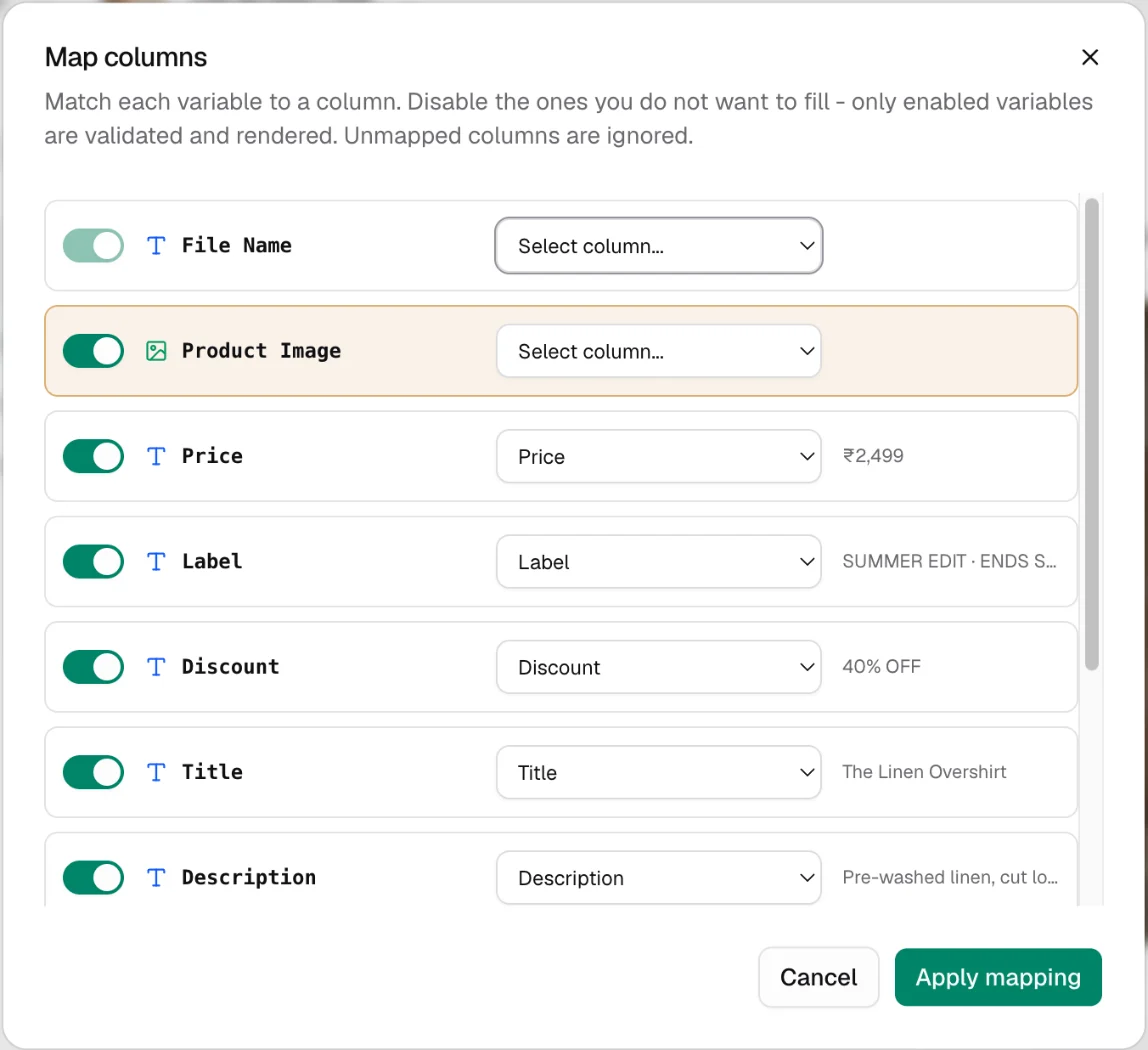
- Variables opens Map columns, where you match each variable to a column or turn it off.
- Close preview / Preview shows or hides the live preview.
- No folder lets you choose a Creatives folder for the finished files.
- Change data goes back to upload, paste or blank.
- Add Row adds an empty row. The counter at the bottom shows how many rows are valid.
Map columns
Map columns lists every variable with a switch and a column picker. Only enabled variables are validated and rendered, and unmapped columns are ignored. Use it when your sheet's headers do not match the variable names exactly.
Edit cells
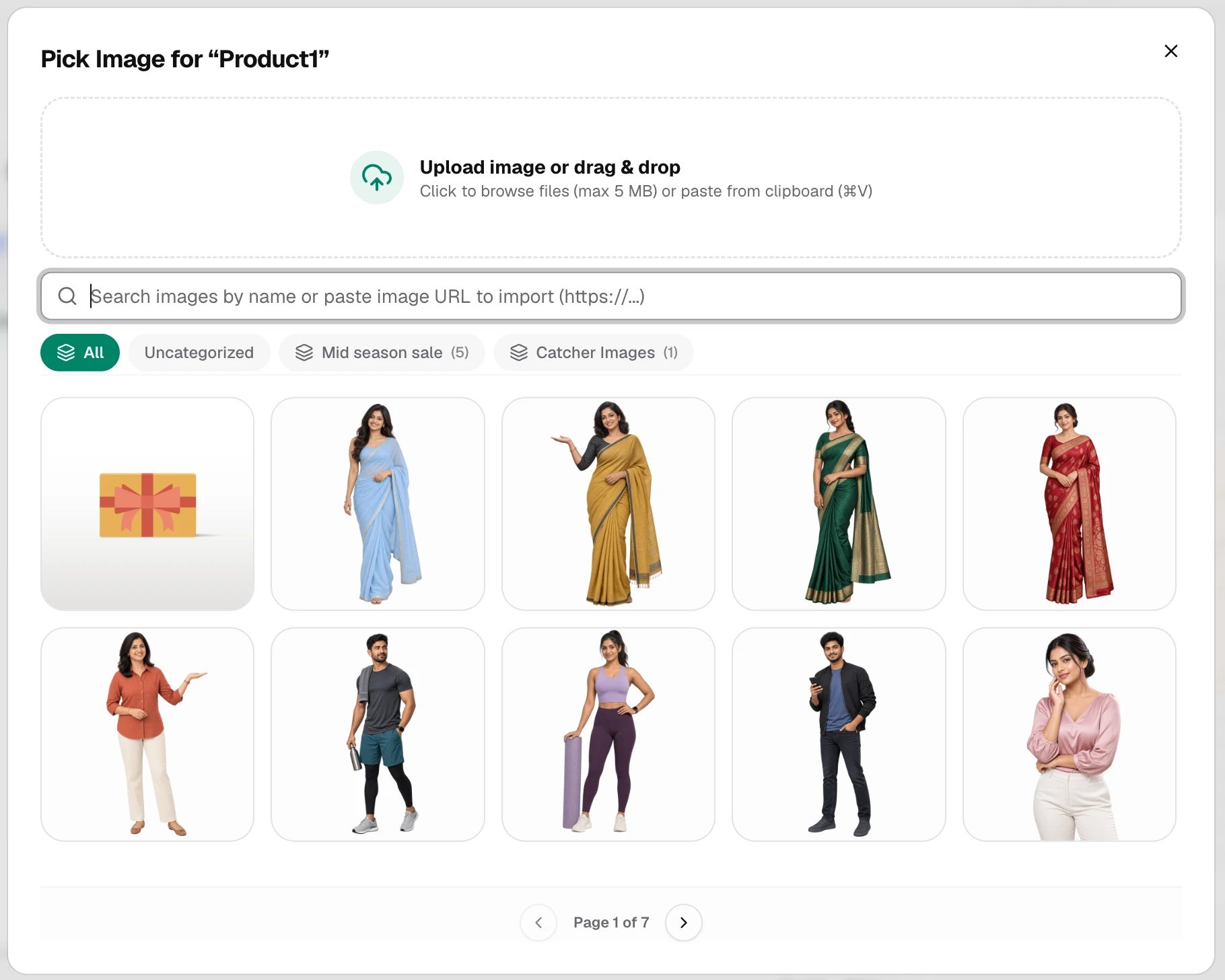
Click a text cell to change its copy. A text layer styled several ways opens a small editor with a chip per style; see Row values. Click Pick Image in an image cell to choose an image for that row:
- Search the library by name, or filter by image collection.
- Paste an
https://image link into the search box to import it. - Upload image or drag & drop a file up to 5 MB, or paste one from the clipboard.
Each row also has a File Name cell. Leave it empty to use the default name. When a batch has several pages, Kalpana adds the page name to each file name, for example SKU-2101_story-1080-1920.
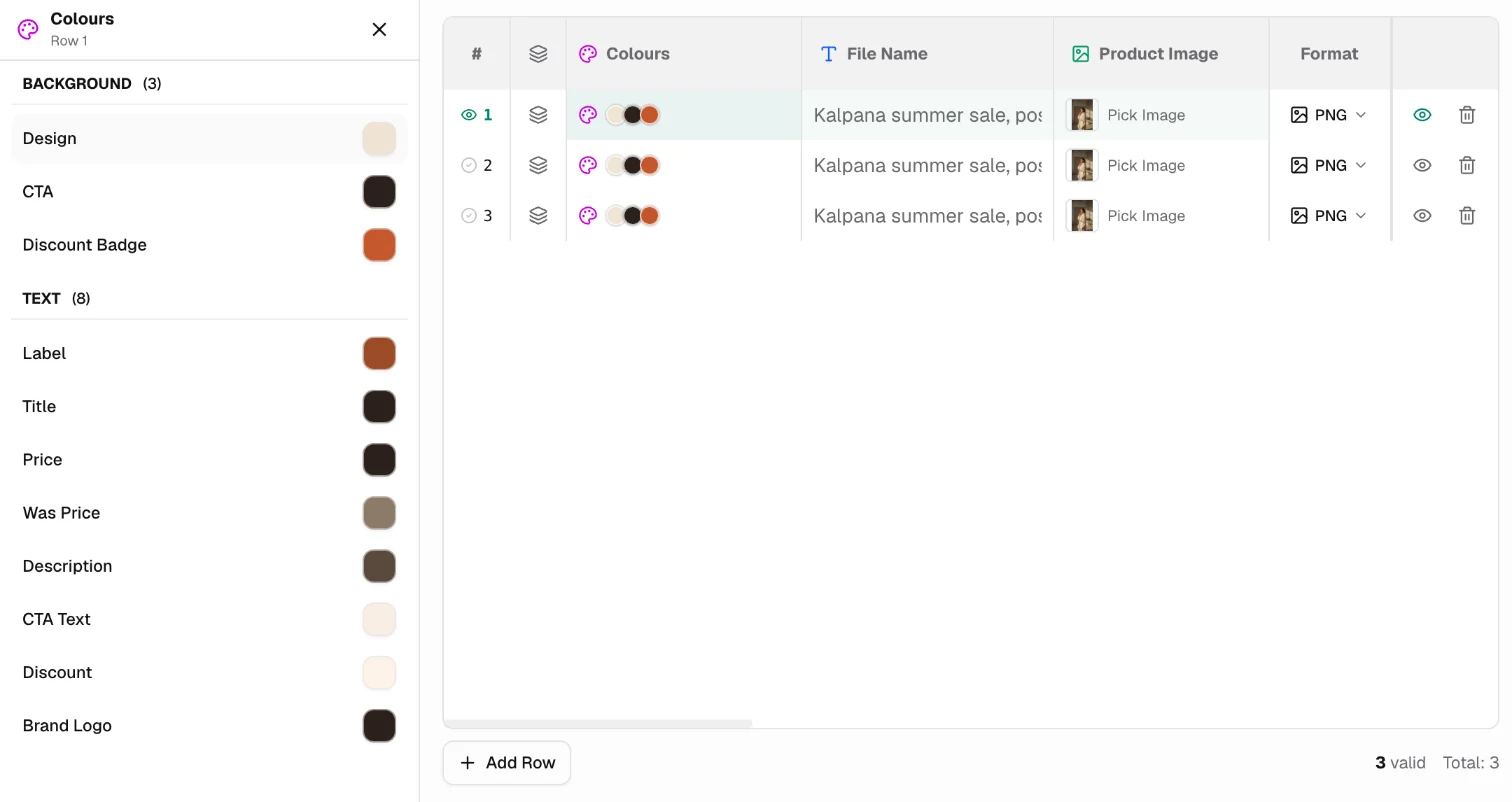
Colours per row
The Colours cell shows the row's colours as swatches. Click it to open the colours panel, grouped into Background and Text. Change any fill for that row only, with a solid colour or a gradient, or reset it to the template's colour.
Show and hide layers per row
The layers icon at the start of each row opens Layer Visibility. Turn any layer off for that row, for example a discount badge on full-price products. The template is unchanged.
Fit and position images
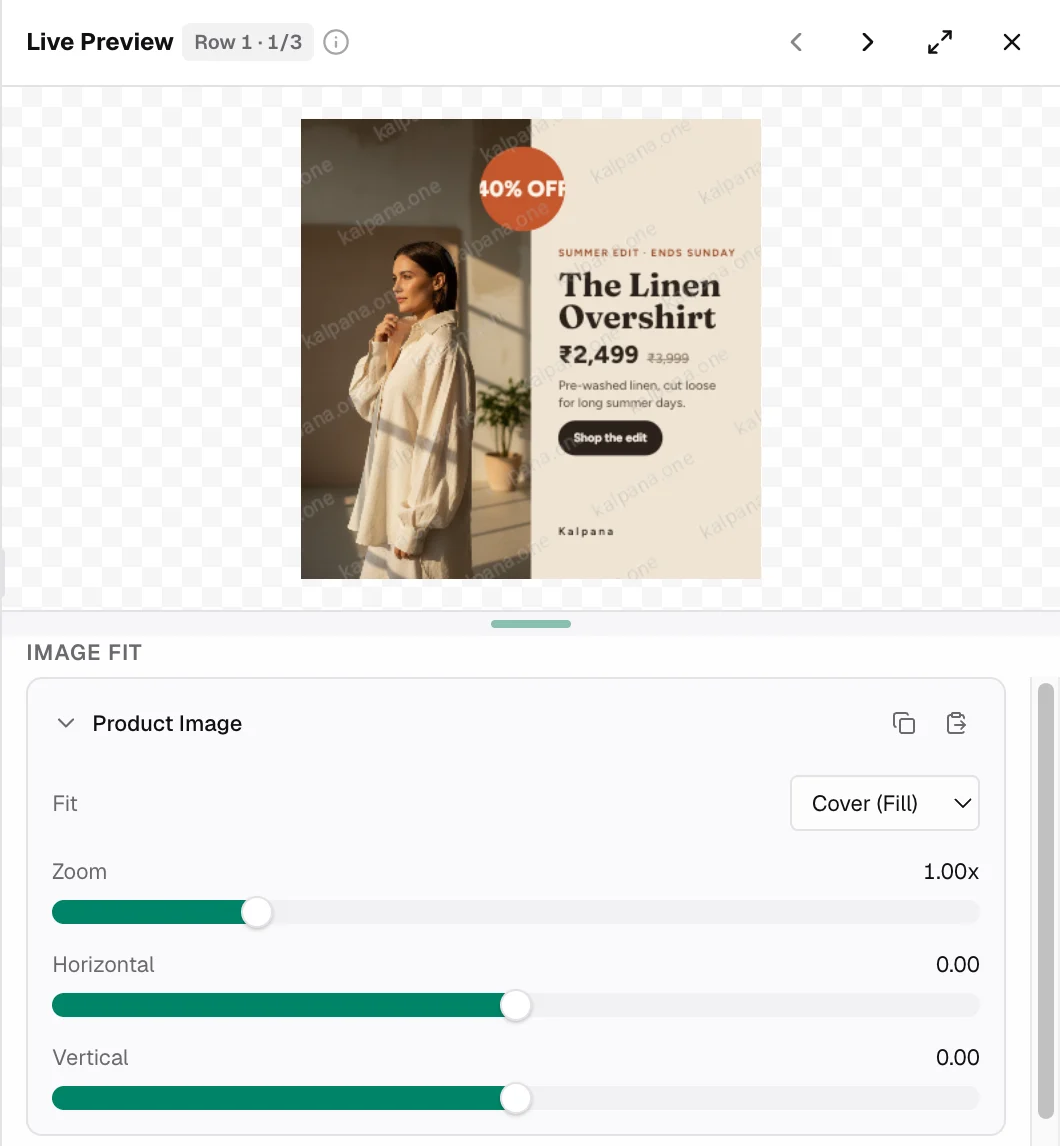
With the preview open, Image Fit lists the row's image variables. For each one:
| Control | Options |
|---|---|
| Fit | Cover (Fill), Fit (Contain) or Stretch |
| Zoom | 0.2× to 4× |
| Horizontal and Vertical | Move the image inside its frame |
Copy an adjustment from one row and paste it on another with the buttons beside the image name.
Output format per row
The Format cell sets the file type of each row: PNG, JPEG or WebP for images, and MP4, GIF or WebP for motion templates. The output size is the page size.
Validation and row actions
Rows with problems, such as a missing required image or an image link that cannot be reached, are flagged in the grid and counted at the bottom. Rows with errors are skipped when the batch is created.
Use the eye icon to preview a row and the bin to delete it. The last remaining row cannot be deleted.
The live preview is watermarked. The files a batch renders are not.
Updated 4 Nov 2026