
Designer
Change a template's layout, layers, pages and text styles inside Kalpana.
Open the designer from Templates → My Templates: choose New template to start from a blank design, or Edit design on a template to change one you already have. A new design starts as one 1080 × 1080 page; set its size from the + next to Pages, or with the Artboard size in the Design panel. The designer lets you change the design itself without going back to Figma: move and resize layers, change text styles, add shapes and images, and add pages in new sizes.
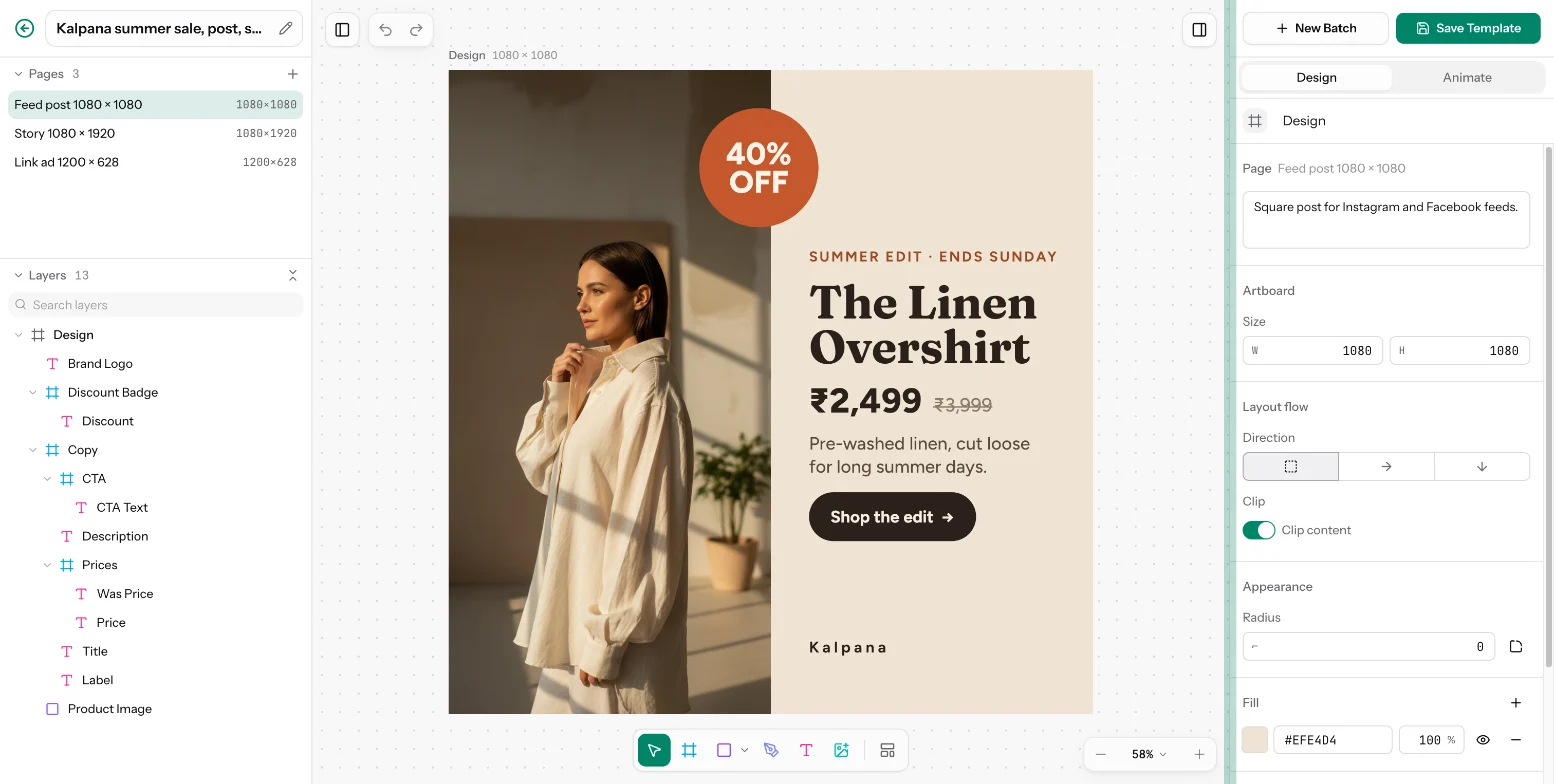
Layout of the designer
- Left: the Pages of the template and the Layers of the current page. Lock or hide a layer from its row, and use Search layers in large designs.
- Centre: the canvas with the toolbar and zoom controls.
- Right: New Batch, Save Template, and the Design and Animate panels for whatever is selected.
Tools
| Tool | Shortcut |
|---|---|
| Move | V |
| Frame | F |
| Rectangle | R |
| Ellipse | O |
| Line | L |
| Polygon and Star | |
| Pen | P |
| Text | T |
| Image | I |
You can also paste or drop an SVG onto the canvas. Insert template, at the end of the toolbar, brings another template in as a frame with its animations, fonts and images.
Properties
Select a layer to edit it in the Design panel:
- Position, Size, Rotation and Skew.
- Resizing for each axis: Fixed, Hug (shrink to content) or Fill (take the space the parent gives).
- Flow: Ignore layout flow takes a layer out of its parent's stacking so you can place it freely.
- Appearance: opacity, blend mode, mask and corner radius.
- Text: font, style, size, spacing, colour, case, alignment, the text Box behaviour (Hug, Wrap or Fixed), Max lines and clipping.
- Fill, Stroke and Effects. The colour picker has a dropper, Pick colour from screen, in Chromium browsers. Effects are drop and inner shadow, layer and background blur, noise and texture. Text layers also offer Dots on letters and Line on letters, which follow the shape of each letter, and a text effect preset (None, Shadow, Lift, Hollow, Splice, Echo, Glitch, Neon, Outline, Sticker or Gradient) with Colour and Intensity.
Frames have a Layout flow with a Direction of Freeform, Row or Column, Gap, Wrap, Align and Padding, and Clip content hides anything outside the frame. Layout flow is what lets a price move along when the title above it gets longer.
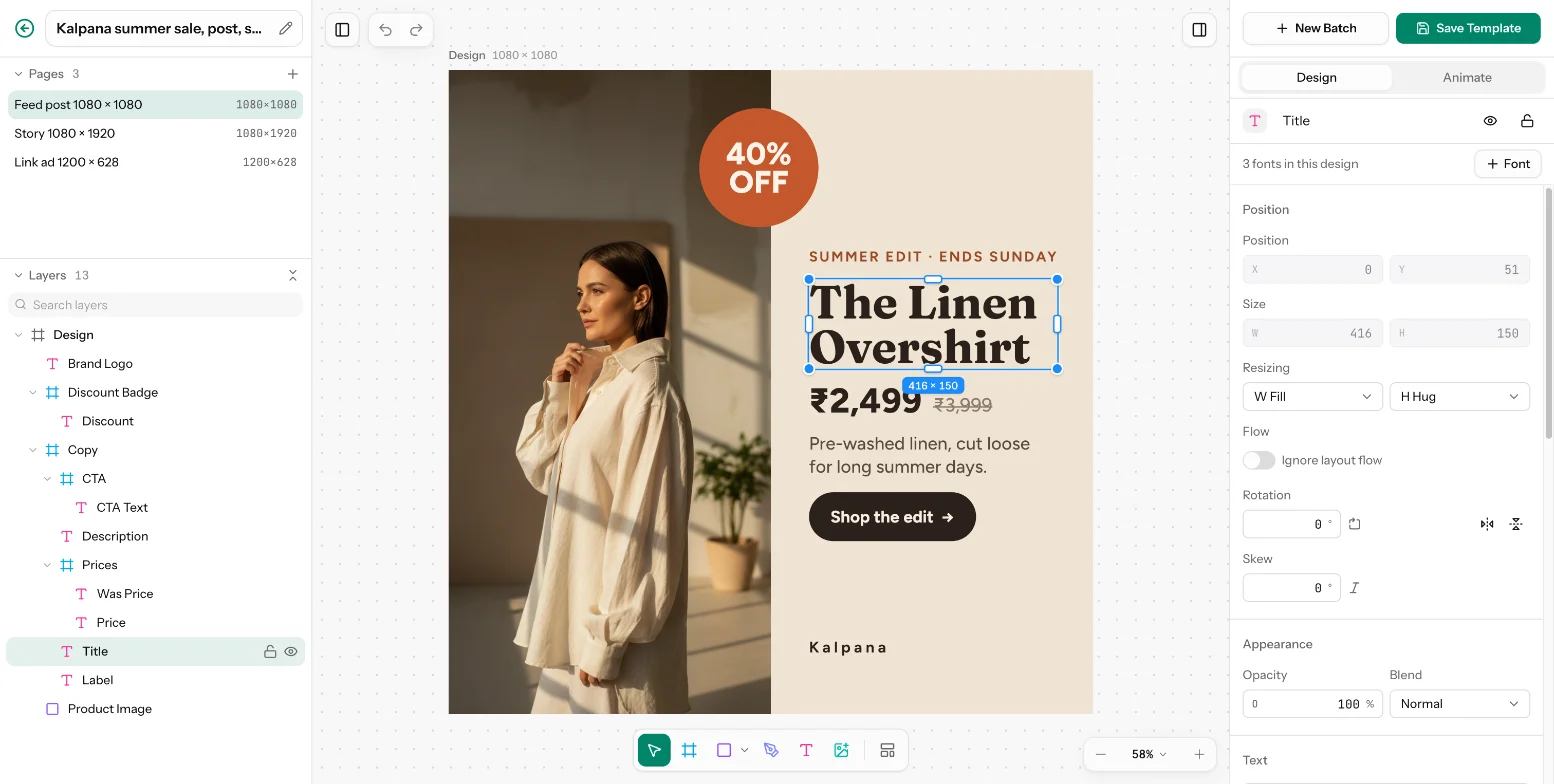
Pages and sizes
Choose + next to Pages to add a page, either the same size as the current page or from a preset for Instagram, Facebook, display ads, product images, email, websites, Pinterest, LinkedIn, X, YouTube or WhatsApp. Right-click a page to rename, duplicate, move, delete or copy a link to it, or to set it to another preset size with Resize to. Pages can also be dragged into order. Switch the canvas from Design to Flows to join pages into a video; see Template Flows. With nothing selected, the Design panel holds the page's description ("What this page is for"), saved with the page, and its Artboard size.
Save
Choose Save Template to save. Kalpana finds the text and image layers again and keeps the settings of variables that already existed. After a save, the designer uploads a new preview picture of each page whose content changed. New Batch opens a batch for the saved template. If you have unsaved changes it asks whether to Save and continue, Discard changes or Keep editing.
You need permission to edit templates in the workspace to open the designer. See Members and roles.
Updated 4 Nov 2026