
Quickstart
Copy a gallery template, add three rows and download the finished files.
The fastest way to see Kalpana work is to start from a gallery template. You can bring in your own Figma design later.
Copy a template
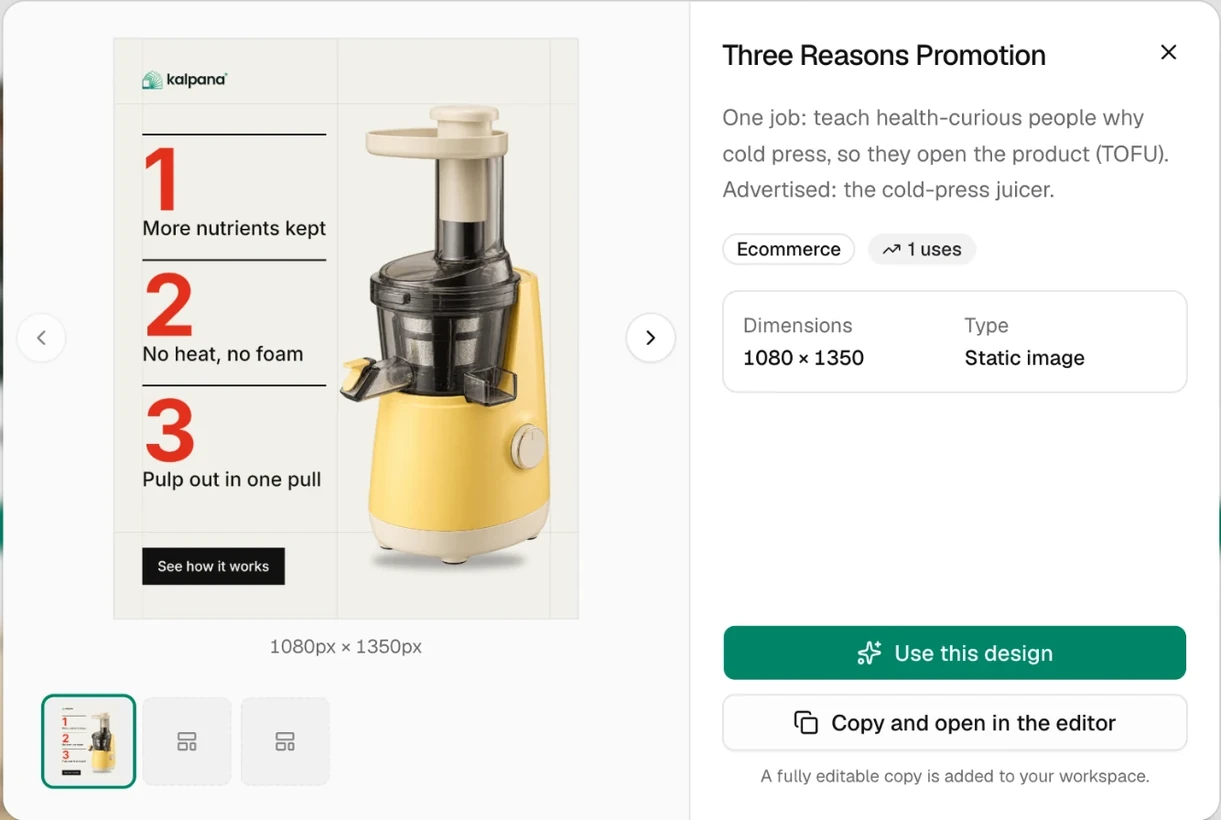
Open Templates → Explore. Click a design to preview it, then choose Use this design. Kalpana copies it into your workspace and opens a new batch for it.
Add a few rows
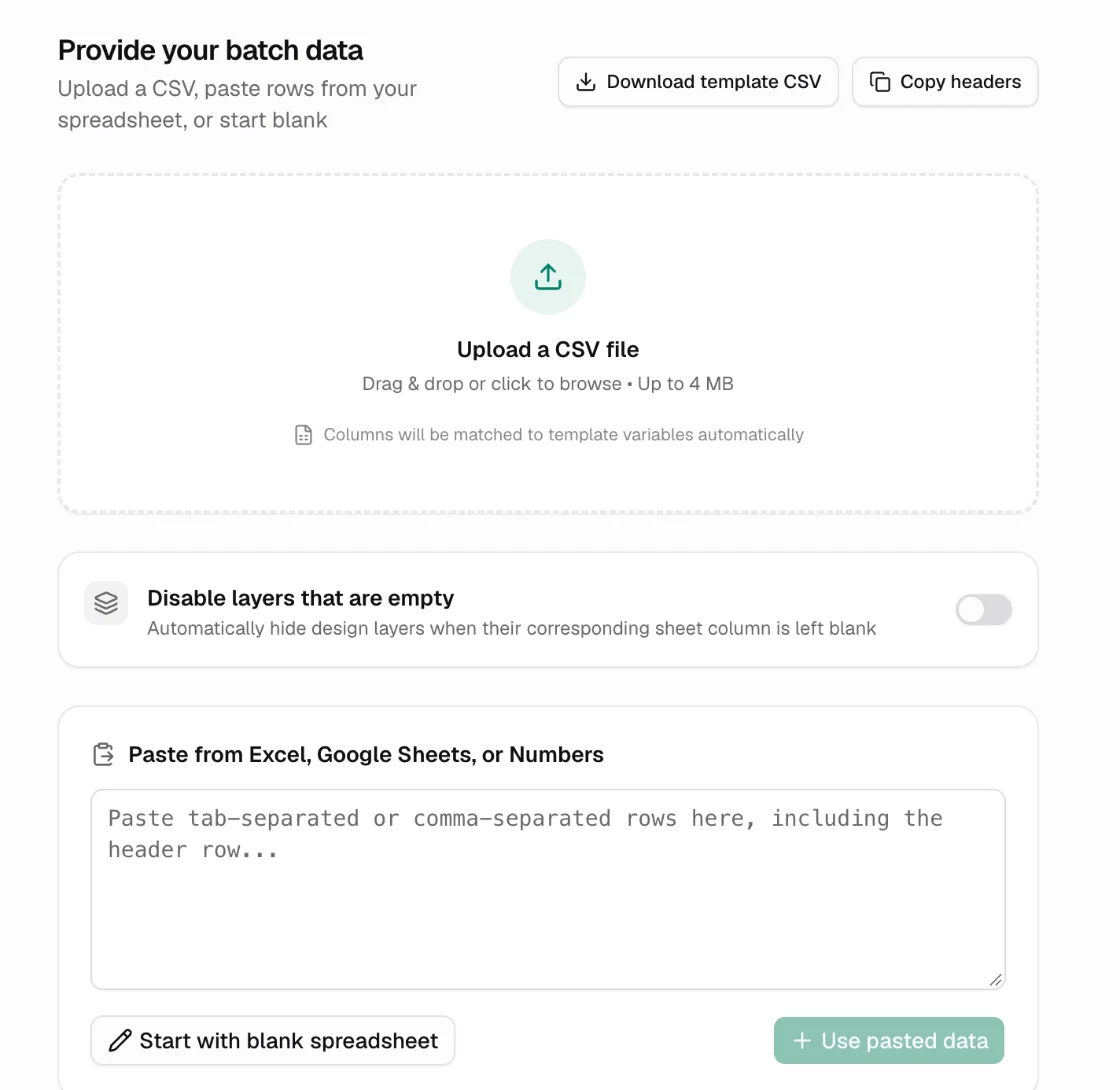
Choose how to provide data:
- Upload a CSV file (up to 4 MB). Columns are matched to the template's variables by name.
- Paste from Excel, Google Sheets, or Numbers, including the header row, then choose Use pasted data.
- Start with blank spreadsheet and type the rows yourself.
Not sure what the columns should be called? Use Download template CSV or Copy headers.
Preview the rows
Each row appears in the grid with a Live Preview beside it. Fix anything marked invalid, pick images with Pick Image, and change colours, layer visibility or image crop for any row. See Preview rows.
Create the batch
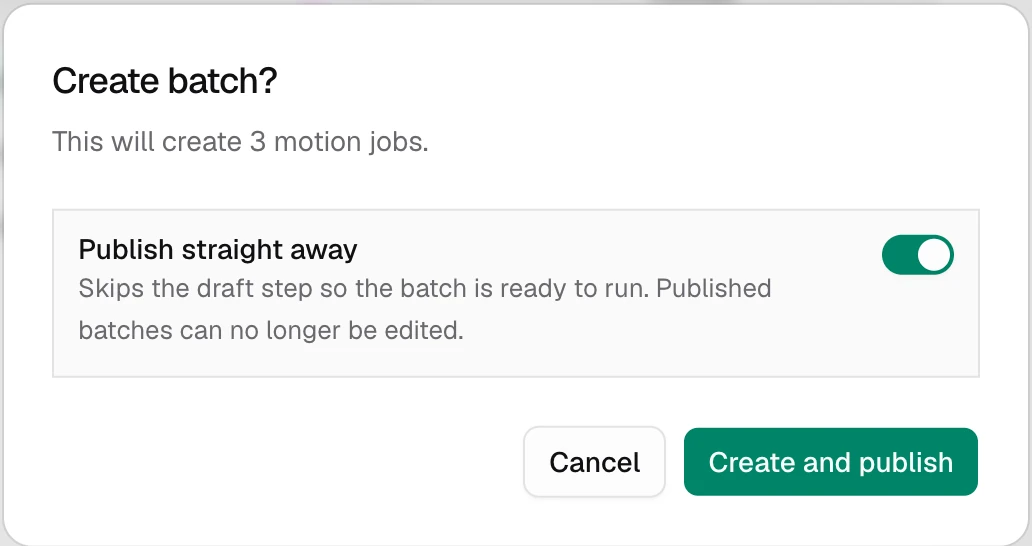
Choose Create Batch. The confirmation shows how many image and motion jobs will be made. Turn on Publish straight away if you want to run it now; otherwise the batch is saved as a draft you can still edit.
Run it and download
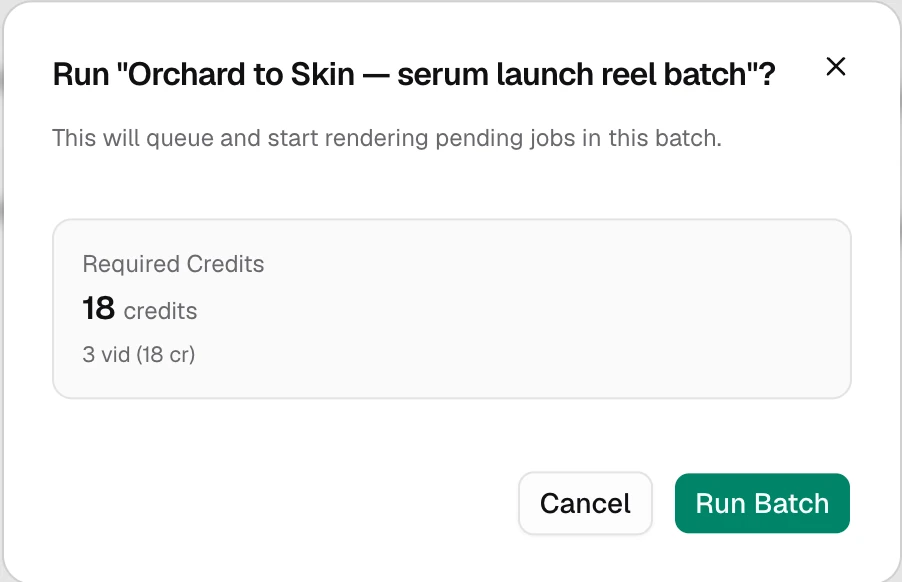
On Batches, choose Run on the published batch. The confirmation shows the credits required. When rows finish, open Details to preview or download each file, or Download ZIP once the batch completes.
Start with three to five rows. Once the copy fits, the images crop well and the file names look right, run the full sheet.
Next steps
Updated 4 Nov 2026