
Create a Batch
Pick one or more templates and bring in the rows to render.
A batch renders a sheet of rows through one or more templates. Each row renders once for every page of every template you keep in the batch.
Start a batch
There are five ways in:
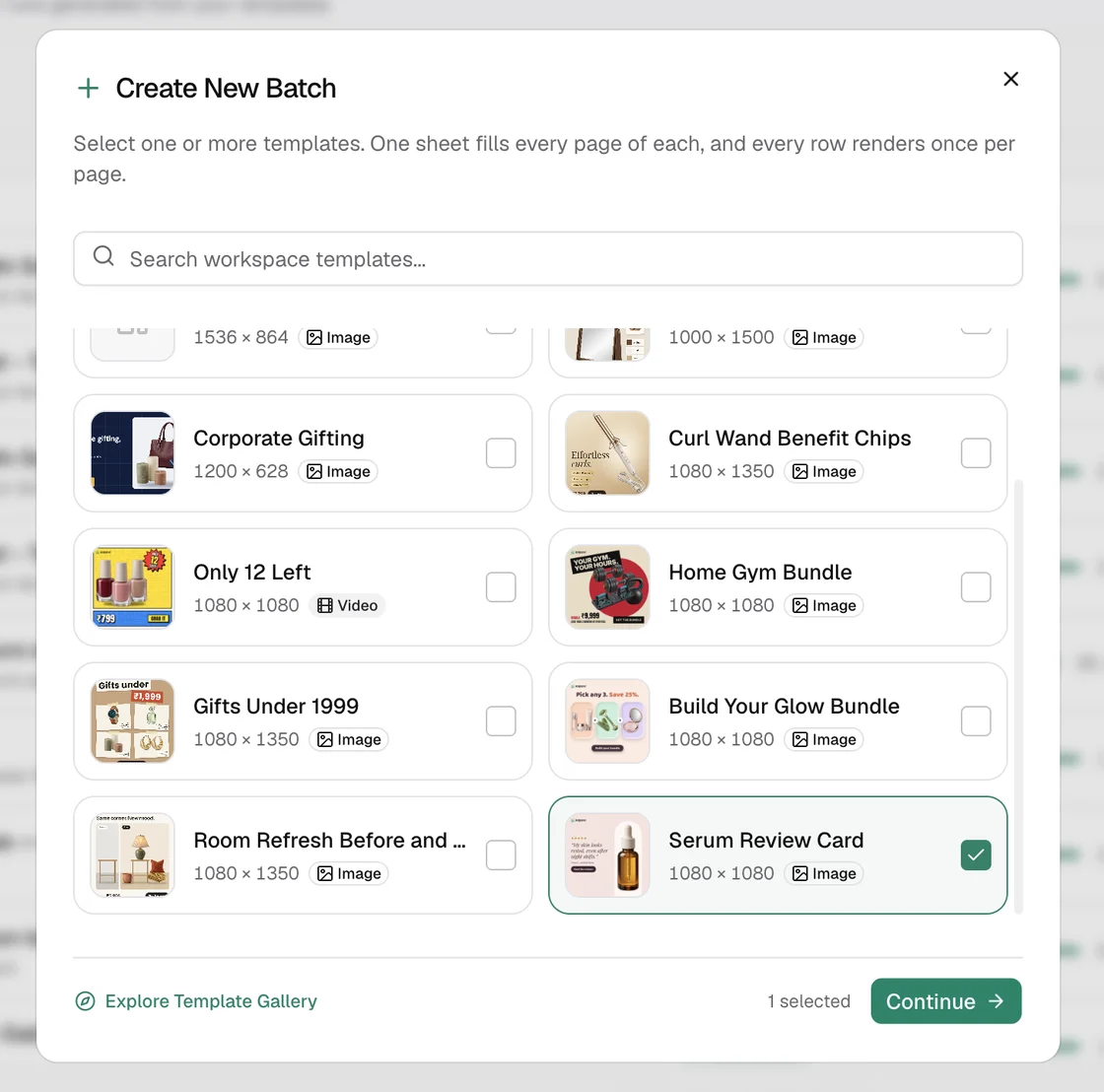
- Batches → New Batch. Search your workspace templates, select one or more, then Continue. Each card shows the template's size and whether it renders an image or a video. One sheet fills every page of each template. Explore Template Gallery opens the gallery to copy a ready-made design.
- New batch on a template's page.
- New Batch in the designer, which saves the design first.
- Create batch from a template card's menu in My Templates.
- Quick generate from the same menu, which renders one file without a batch. See Quick generate.
Provide the data
| Option | Details |
|---|---|
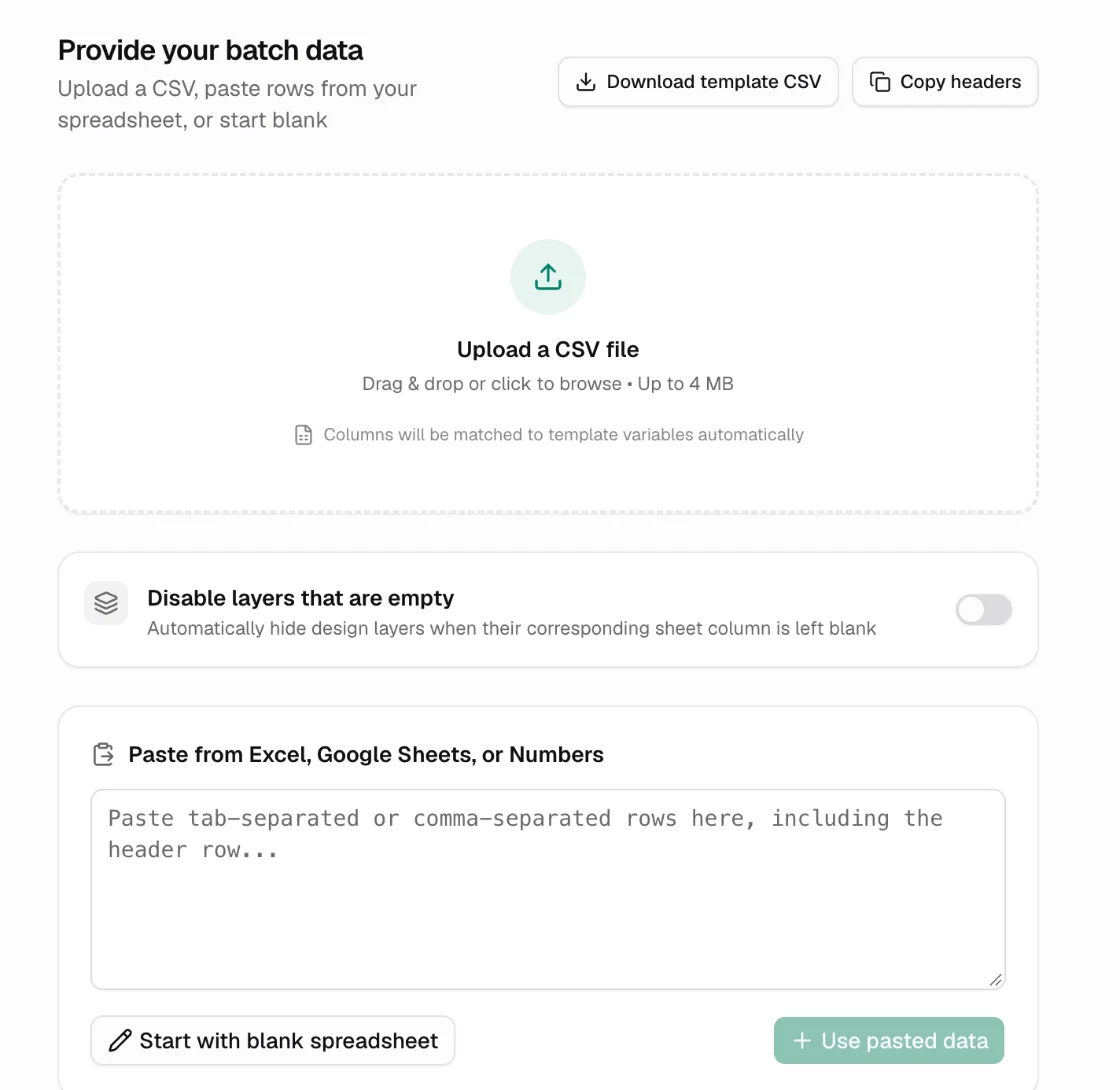
| Upload a CSV file | Drag and drop or browse. Up to 4 MB. Columns are matched to variables automatically |
| Paste from Excel, Google Sheets, or Numbers | Paste comma- or tab-separated rows including the header row, then Use pasted data |
| Start with blank spreadsheet | An empty grid with one column per variable |
Download template CSV gives you a file with the right headers. Copy headers copies them for pasting into your own sheet.
Turn on Disable layers that are empty to hide a layer in any row where its column is blank, instead of keeping the template's default content.
How columns are matched
A column is matched to a variable when its header equals the variable's name. Case does not matter. Anything that does not match is ignored, and you can fix matches later with Variables in the builder.
A template with several pages gets a column per page, named page1@Title, page2@Title and so on, in page order. Download template CSV and Copy headers give you these names. A plain Title column fills every page that has no column of its own, so Title alongside page2@Title gives page 2 its own text and every other page the shared one. See Preview rows.
Two kinds of column need particular values:
- Image columns take the exact name of an image in your workspace library, or an
https://link to an image. Links must be on a domain allowed in Workspace settings. Kalpana checks every image before the batch is created. - File name (also
file_name,filenameorkalpana_file_name) sets the name of each output file. Without it, files are named after the batch and the row number.
Title,Price,Was Price,Product Image,file_name
The Linen Overshirt,"₹2,499","₹3,999",linen-overshirt.png,SKU-2101
The Cotton Kurta,"₹1,799","₹2,599",https://cdn.shopify.com/s/files/kurta.jpg,SKU-2102
A batch can only be created by people whose workspace role allows it: Owners and Managers. Designers can edit templates but not create batches. See Members and roles.
Updated 4 Nov 2026