
Variables
Choose which text and image layers a batch fills, and how each one appears as a column.
A variable is a layer whose content can change per row. You do not have to mark layers in Figma: every text layer becomes a text variable and every image layer becomes an image variable when the template is saved. You then decide which of them a batch should fill.
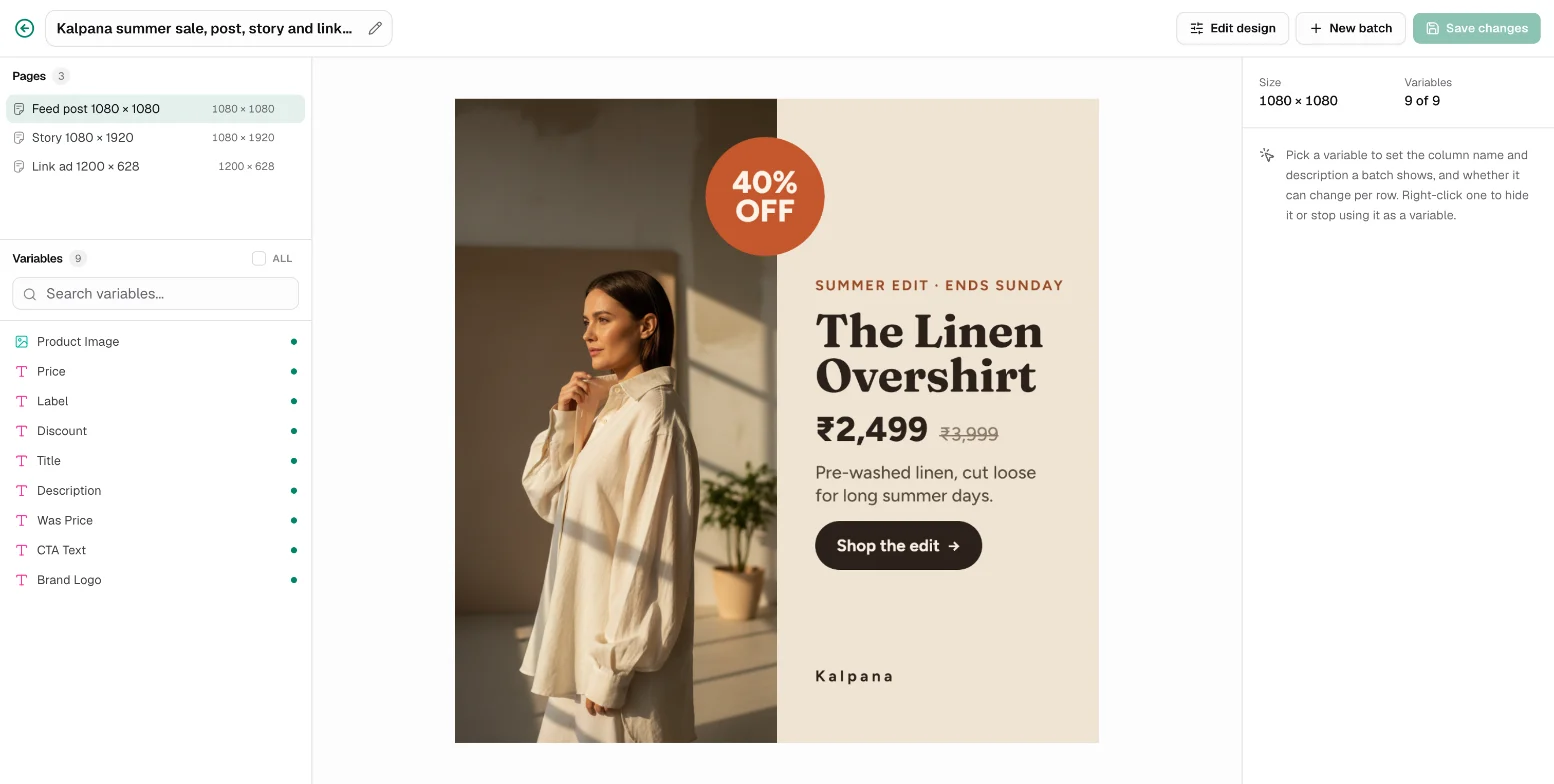
The Variables list
Open a template from My Templates. The left panel shows its Pages and, below them, its Variables with a count. Each entry has an icon for its type (text or image) and a dot showing whether it is in use.
- Search variables to find one by name.
- Select several with Cmd or Ctrl (one at a time) or Shift (a range). The bar that appears turns them on or off as variables, or shows and hides the layers.
- Right-click a variable for Hide layer / Show layer and Use as a variable / Don't use as a variable.
Variable settings
Select a variable to edit it in the right panel:
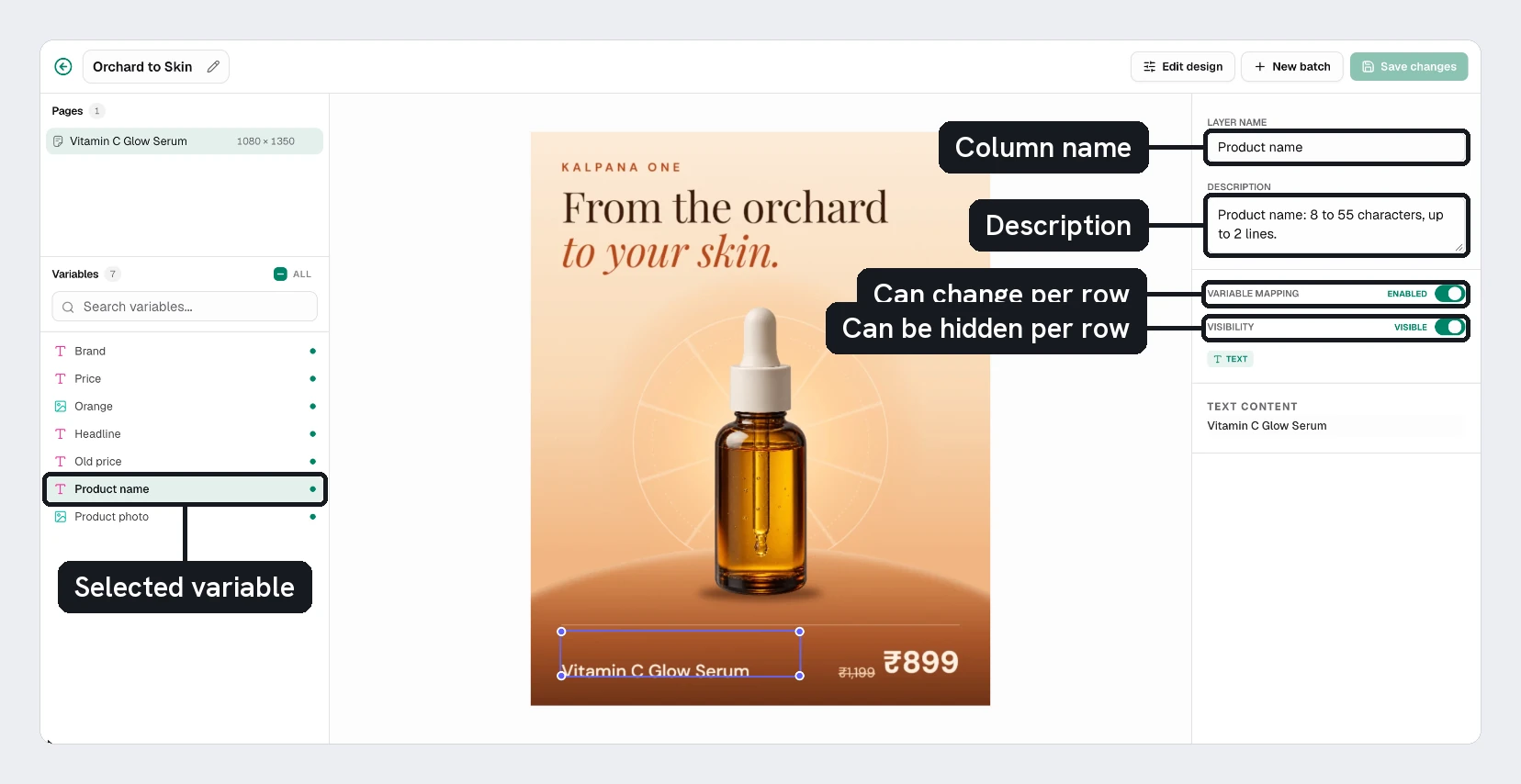
| Setting | Effect |
|---|---|
| Layer Name | The name shown as the column header in batches and the CSV template |
| Description | Help text shown to whoever fills in the batch |
| Variable Mapping | Enabled variables appear in batches. Disabled ones keep the design's content and do not appear in the export sheet |
| Visibility | Show or hide the layer in the template itself |
| Text Content | The default text, used when a row leaves the cell empty |
| Auto Resize | For text in a fixed-size box, shrinks the font so longer copy fits inside the box |
With nothing selected, the panel shows the page size and how many variables are in use, for example Variables 9 of 9.
Choose Save changes when you are done. If you leave with unsaved changes, Kalpana asks first.
Name variables for the people who fill them
Variable names become column headers. Names like Title, Price, Was Price, CTA Text and Product Image make spreadsheets easy to prepare and easy to map. A name containing "price" or "color" is labelled as a currency or colour field to help people recognise it.
What is not a variable
Colour and layer visibility are not separate variable types. In the batch builder you can change the colours of a row and show or hide any layer for that row without adding anything to the template. See Preview rows. For what each kind of variable accepts in a row, see Row values.
Missing fonts
If a font used by the template is not available in the workspace, an alert and a Sync fonts button appear on the template. Create batch in the template's preview then asks you to sync or upload the missing fonts first, so every row renders with the right typeface.
Updated 4 Nov 2026