
Sign Up and Find Your Way
Create an account, answer the welcome questions and learn the workspace layout.
Create an account
Sign up with an email address and password (at least 8 characters) or choose Continue with Google. Kalpana sends a verification email. You can start working before you verify, but you need a verified address to accept an invitation to someone else's organization.
When the account is created, Kalpana sets up your own organization, a first workspace inside it, and puts the organization on the Free plan: 100 render credits per month.
Forgot your password? Choose Forgot? beside the password field on the sign-in page and follow the link in the email.
Welcome questions
The first time you sign in, Welcome to Kalpana asks five short questions: what you want to get done, how you heard about Kalpana, your role, your team size and how many creatives you make a month. They are asked once. You then land on Templates → Explore. Depending on your answers, a welcome popup may suggest a faster start: bringing your Figma designs in with the plugin, or connecting your AI assistant with Connect your agent.
Workspace layout
The sidebar holds everything in the current workspace:
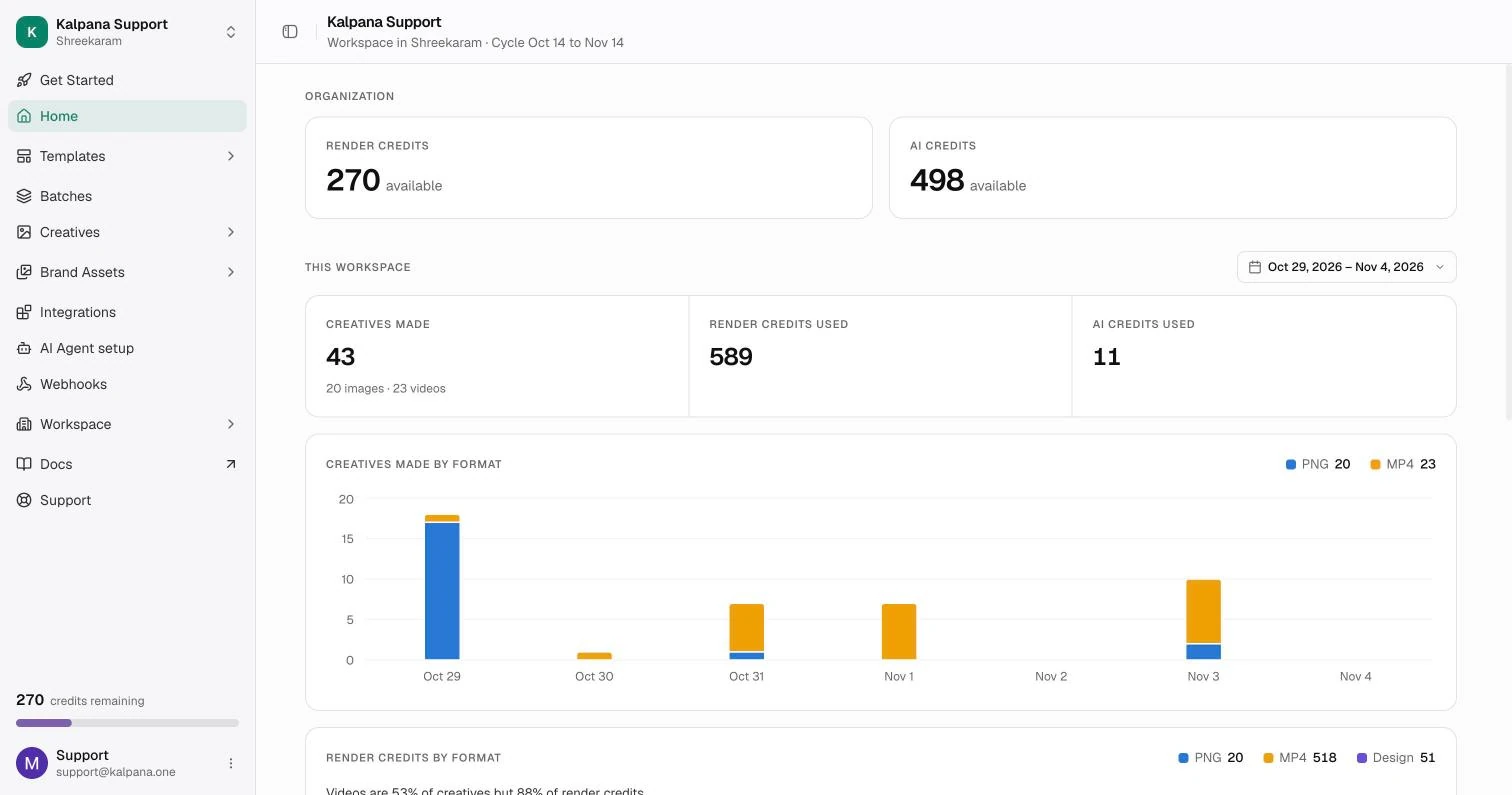
| Item | What it is for |
|---|---|
| Get Started | Connect an AI assistant, install the Figma plugin, explore templates and see what's new |
| Home | Credits left, usage for a date range and storage used |
| Templates | Explore (the gallery), My Templates and Collections |
| Batches | Published and draft batches, with progress and results |
| Creatives | All creatives and Folders of finished files |
| Brand Assets | All Images, Image Collections and Fonts |
| Integrations | Spreadsheet, store and cloud storage connections |
| AI Agent setup | A step-by-step dialog that connects Claude, ChatGPT and other assistants to design templates and run batches |
| Webhooks | Endpoints that are told when files are ready |
| Workspace | Members and Settings |
Below the menu are Docs and Support (email support@kalpana.one). At the bottom, a count shows the credits remaining, then your account menu, where you can change the theme, open Settings or log out.
Switch workspace from the menu at the top of the sidebar. It lists every workspace you can open, grouped by organization, and has Go to organization for organization-wide pages.
Home
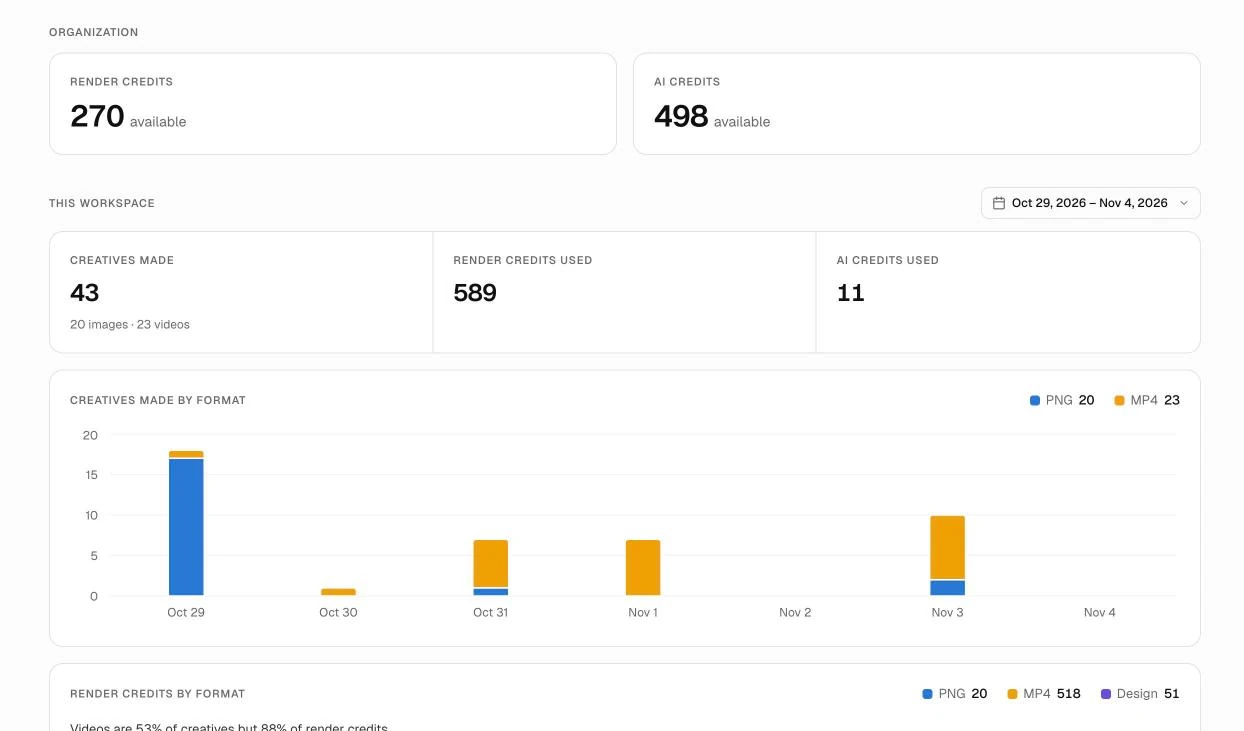
Home shows the organization's Render credits and AI credits available. Below that, This workspace shows creatives made, render credits used and AI credits used for a date range of up to 31 days, broken down by format and by AI edit type, plus Storage in this workspace, split by type.
If you cannot buy credits yourself, a run that needs more shows Ask an organization owner to add credits. Only organization owners and billing managers can change the plan or buy top-ups.
Updated 10 Nov 2026