
My Templates
Find, open, duplicate and organise the templates in your workspace.
Where templates come from
- New template. Start from a blank design in the designer.
- Your AI assistant. Describe a creative and get an editable template. See Designer Agent.
- The Figma plugin. Export a frame as a new template, or add it as a page to an existing one. See Figma plugin.
- The template gallery. Copy a ready-made design into your workspace. See Template gallery.
- Duplicate. Copy one of your own templates and change it.
My Templates
Templates → My Templates lists every template in the workspace, 12 to a page. Search by name and sort by Recent, Name or Updated. Each card shows the size, the date and a Motion badge when the template is animated. Hover a card with several pages and it slides through their previews, with a counter such as 2 of 3.
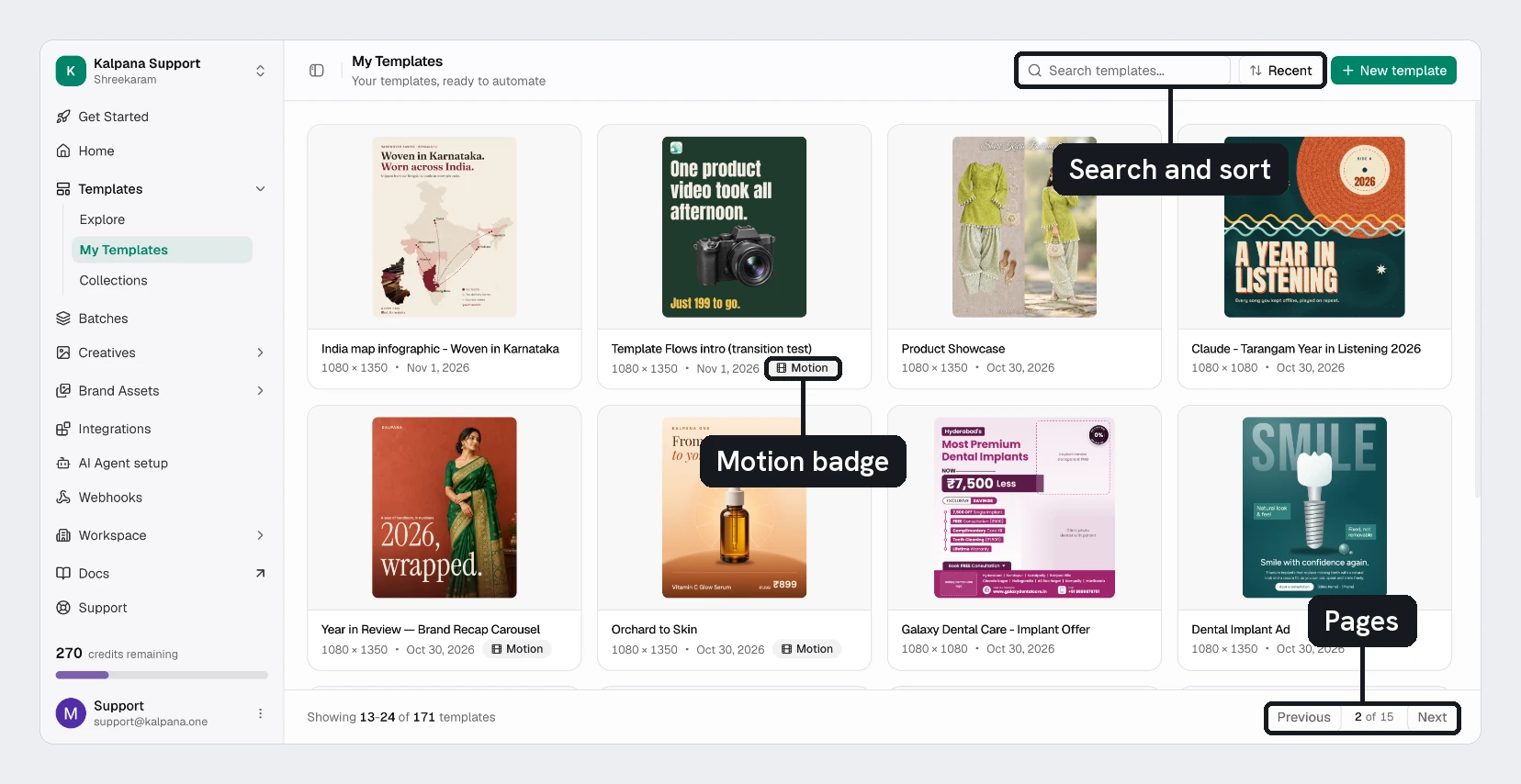
Hover a card and open its menu for:
| Action | What it does |
|---|---|
| Quick generate | Render one file from this template without a batch, choosing the page first when the template has several. See Quick generate |
| Create batch | Open a new batch for this template |
| Edit design | Open the template in the designer |
| Rename | Change the template name |
| Duplicate | Make an editable copy in the same collections |
| Add to collections | File the template into one or more collections |
| Delete | Remove the template. This cannot be undone |
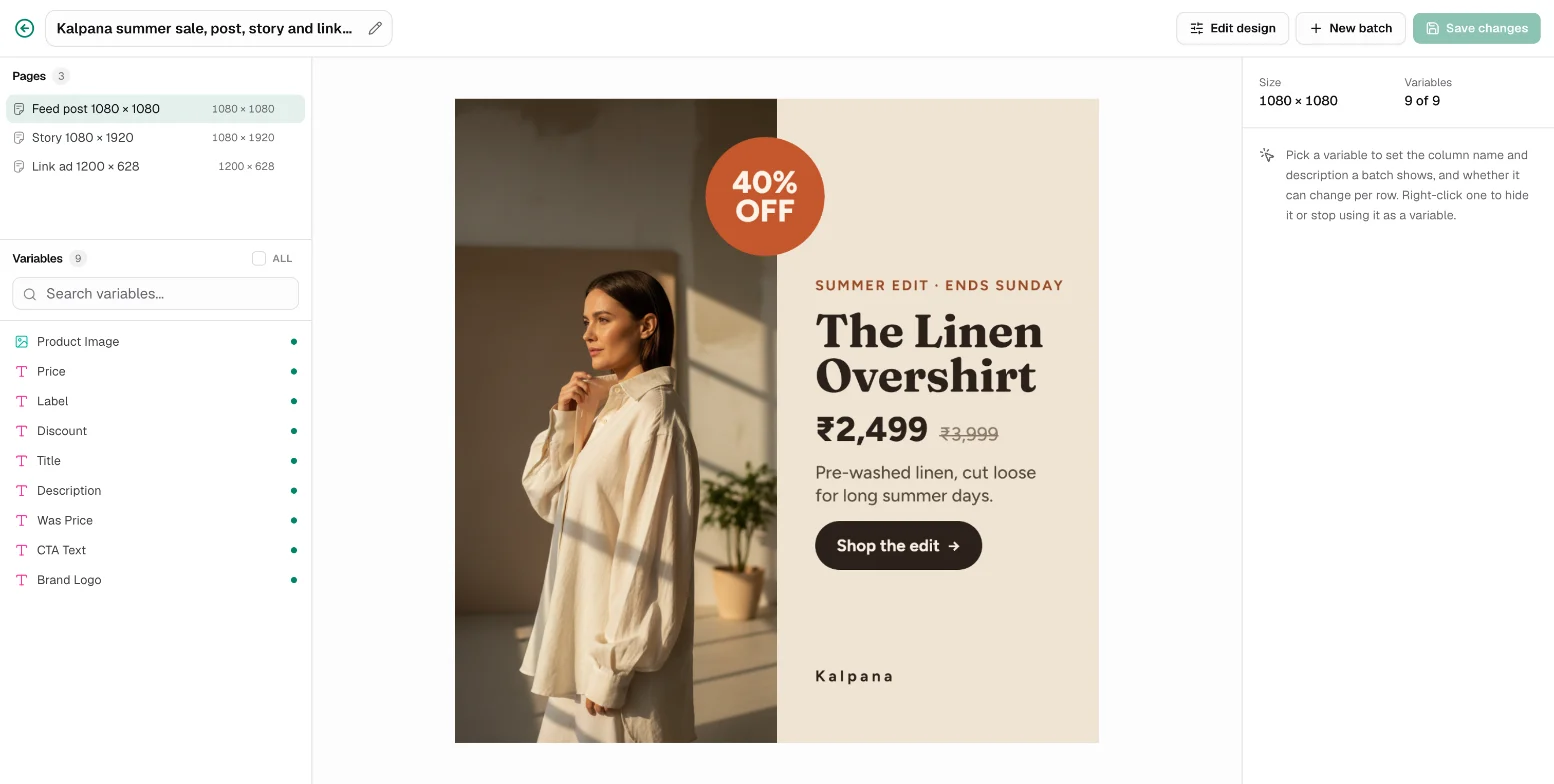
Click a card to open the template. From there, Edit design opens the designer and New batch starts a batch. See Variables.
Quick generate
Quick generate renders one file on its own, without building a batch. The form starts with the template's own text and images, so you can render it as it is or change any variable first.
- Open a card's menu and choose Quick generate. For a template with several pages, pick the page.
- Change the variables you want, and pick the Format: PNG, JPEG or WebP for an image. A motion template starts as an MP4 video, with GIF and animated WebP in the same menu; switch Output to Image for a still.
- Type a File name, or leave it empty to use the template's name, followed by the page name when the template has several pages.
- Choose Generate. The confirmation shows the Total Cost and your Available Credits. Choose Regenerate to start rendering.
The dialog shows the file when it has rendered, with Download, Back to the form to try other values, and Open Creatives. The file is saved in Creatives like any other. An image costs 1 render credit and a video is priced like a video row. See Output Formats.
Pages
A template can hold several pages, usually one per placement: a square post, a story and a link ad of the same offer. The Pages list on the template shows each page and its size. Rename or delete a page from its menu. Deleting a page keeps the creatives already made from it.
When you create a batch, every row renders once for each page. You can leave pages out of a particular batch.
Updated 4 Nov 2026