
Batch Agent
Ask Claude, ChatGPT or another AI assistant to fill your templates with data and render a creative for every row.
Kalpana Batch lets your AI assistant run batches for you. Point it at your product sheet or paste your rows, and it finds the right template, maps your data to its inputs, checks every row and creates the batch. It shows you the exact credit cost and runs the batch only after you approve it, then brings back the finished creatives.
The batches it creates are ordinary Kalpana batches: you can open, review and download them in the Studio like any other.
Try asking
- "Find a template for a festive sale and show me the fields it needs."
- "Create a batch for these 40 products in square and story sizes, but ask me before running it."
- "Show my latest batches and download the finished creatives."
Connect your assistant
Works with Claude, ChatGPT, Cursor, Codex and other assistants that support MCP.
Open AI Agent setup
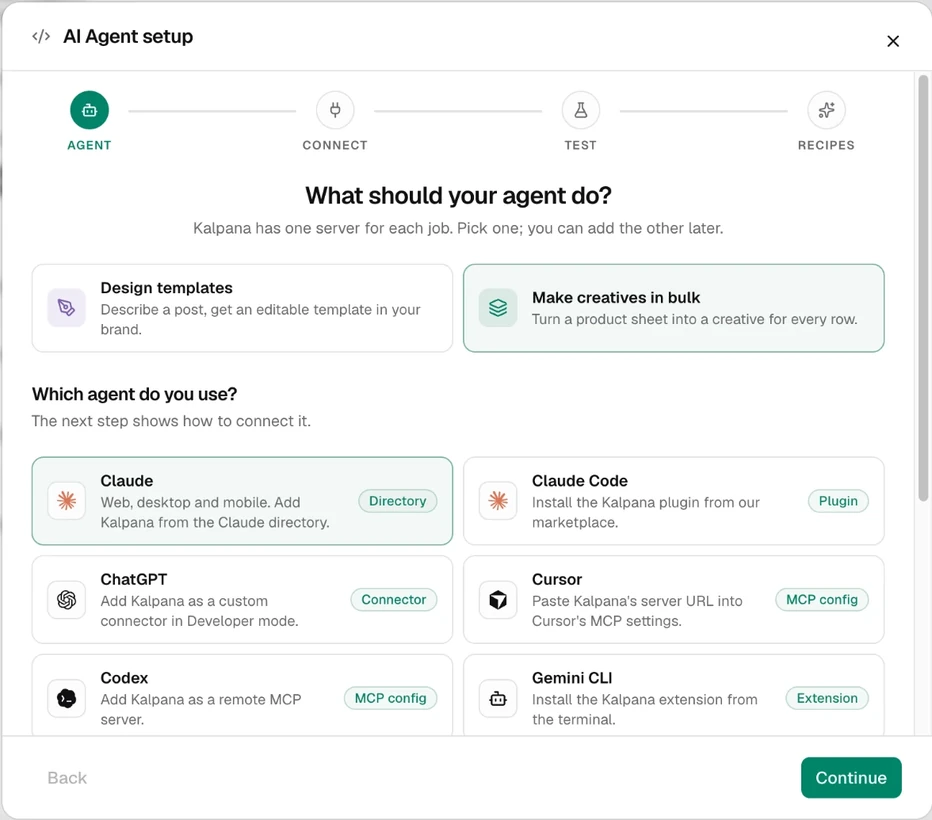
In the Studio, open AI Agent setup in the sidebar. Under What should your agent do?, pick Make creatives in bulk.
Pick your assistant
Under Which agent do you use?, choose your app and choose Continue. The Connect step shows that app's steps. In Claude, the quickest way is the Claude directory listing Kalpana Batch.
Sign in and approve
Your assistant opens Kalpana. Choose the workspace to share and approve what the agent may do. Each connection covers one workspace.
Test it and give it a first job
The Test step has a read-only prompt to copy into your assistant, so you can check it reaches Kalpana before it changes anything. Recipes then offers a few first jobs, each with a prompt written for it.
Full setup for every client, including config files and the server URL, is in Clients.
To run batches from your own code instead, pick Backend API as the agent, or choose API on the Connect step. It uses a workspace API key with the REST API. See API keys.
What it costs
Renders use the same credits as batches you run in the Studio: see Plans and credits. Creating and checking a batch is free; credits are used only when you approve the run, and only for files that render.
Works with the Designer Agent
A template's ID is the same for both agents, so an assistant connected to the Designer Agent too can design a template and then fill it with your data in one conversation.
The agent's tools and limits are listed in Batch tools and Kalpana Batch. To see or remove an assistant's access, open Settings → Connected assistants.
Updated 4 Nov 2026