
Product cards from a store export
Turn a CSV export of your products into a sale card for every product with one template and one sheet.
You export your products from your store as a CSV, fill the sale card from it, and get one card per product. The steps use Shopify, and any store that exports a CSV works the same way.
What you need
- The 1080 x 1080 product sale card template with Product Image, Title, Price, Was Price and Badge layers. See Create a template from a blank page.
- A CSV export of your products, with a title, a price and an image link for each.
- A workspace role of Owner or Manager.
- 1 render credit for each product.
Steps
Export from your store
In your Shopify admin, open Products, select the products you want or keep them all, and choose Export. Pick CSV for Excel, Numbers, or other spreadsheet programs.
Tidy the file
Shopify writes one row for each variant and each extra image. Rows that only add an image or a variant have an empty Title. Delete them, so every product appears once. Keep the columns you need: Title, Variant Price, Variant Compare At Price and Image Src.
Fix prices and add a badge
Prices export as plain numbers, such as 799.00. Kalpana puts the cell's text on the card as it is, so add the currency symbol in the sheet, for example ₹799. Add a Badge column by hand, with words like New season, and leave it blank for products that need none.
Start the batch
Open Batches → New Batch, select the sale card and choose Continue. Upload the CSV with Upload a CSV file.
Match the columns
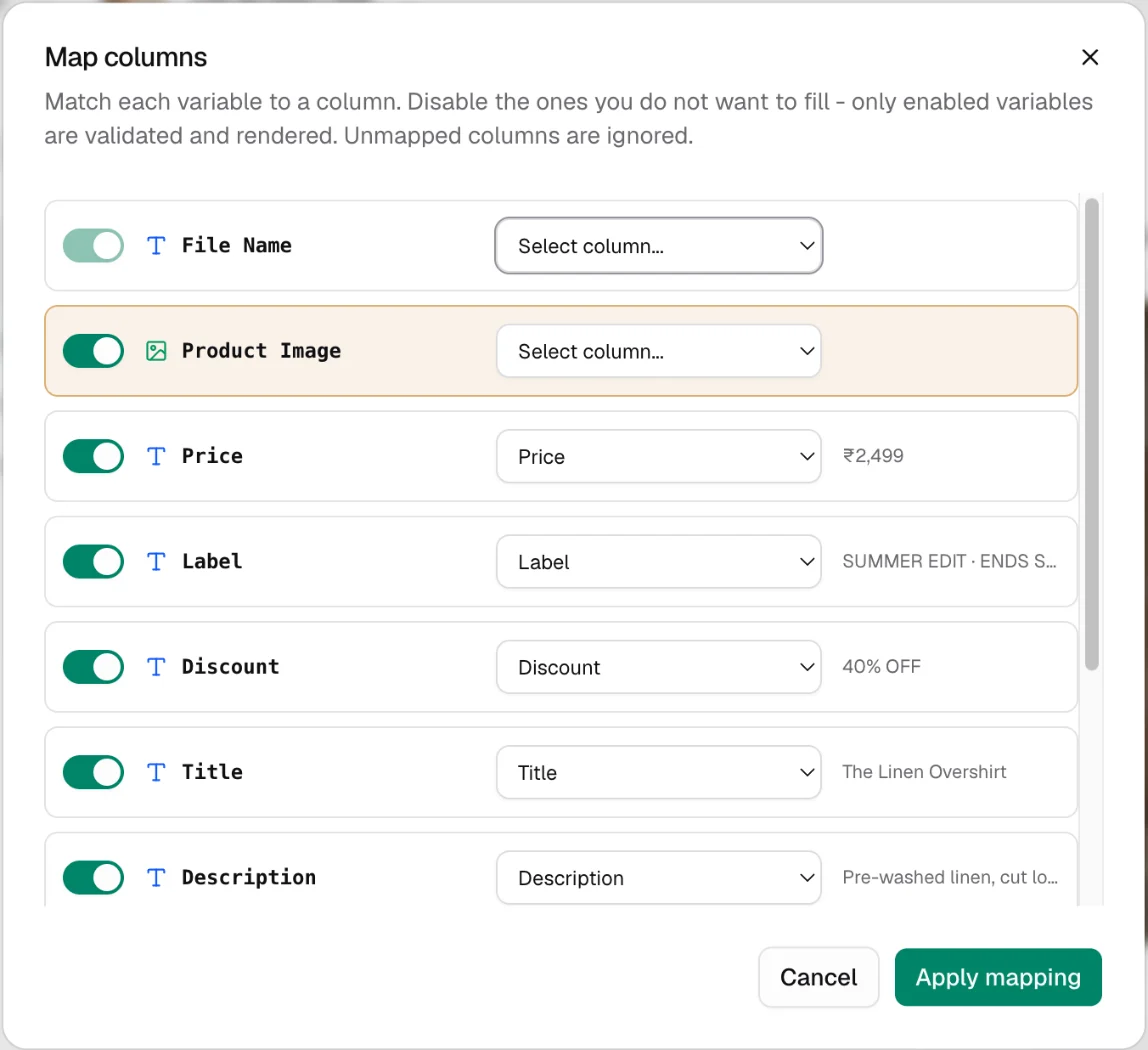
Only headers that equal a variable's name fill it. Choose Variables to open Map columns and match Title to Title, Price to Variant Price, Was Price to Variant Compare At Price and Product Image to Image Src. You can also rename the headers in the sheet and skip this step.
Image Src values are links on cdn.shopify.com, which your workspace allows by default.
Hide empty badges
Turn on Disable layers that are empty on the data step to hide a layer in every row where its column is blank. Or open Layer Visibility on a row to hide Badge or Was Price for that product only.
Check the rows
Choose the eye icon on a row, and look at your longest product name and a product with a tall photo. Use Image fit to reposition a photo. See Check and fix rows before you run.
Create and run
Choose Create Batch, turn on Publish straight away, then Run it from Batches → Published. The confirmation shows Required Credits before anything renders. A catalogue of 40 products costs 40 credits.
Check the result
Details shows one image for every product, each named after the batch and the row, or after a file_name column such as the product's SKU.
The commonest mistake is leaving the extra variant and image rows in the export. They have no title, so they make blank cards. Delete them first.
Send the cards back to your store
Kalpana sends a job.completed event for every file that renders, and Zapier can add the file to the product in Shopify. See Shopify for the Zap. Or ask your assistant to do the whole job. See Run a batch from a chat.
A batch of 500 products sends 500 events and runs your Zap 500 times. Check your Zapier allowance first.
Next
Updated 1 Nov 2026