
Run a batch from a chat
Ask your assistant to pick a template, fill it with your rows and bring back the files.
Your assistant finds a template, fills it with your rows, checks them and creates a batch. It runs the batch only after you approve the credit cost.
What you need
- An assistant that supports MCP, such as Claude, ChatGPT, Cursor or Codex.
- A workspace role of Owner or Manager.
- A template, such as the product sale card, and your rows. You can paste them into the chat or give the assistant a sheet it can read.
- Product photos in Brand Assets → All Images, or links on a domain your workspace allows.
Steps
Connect the batch server
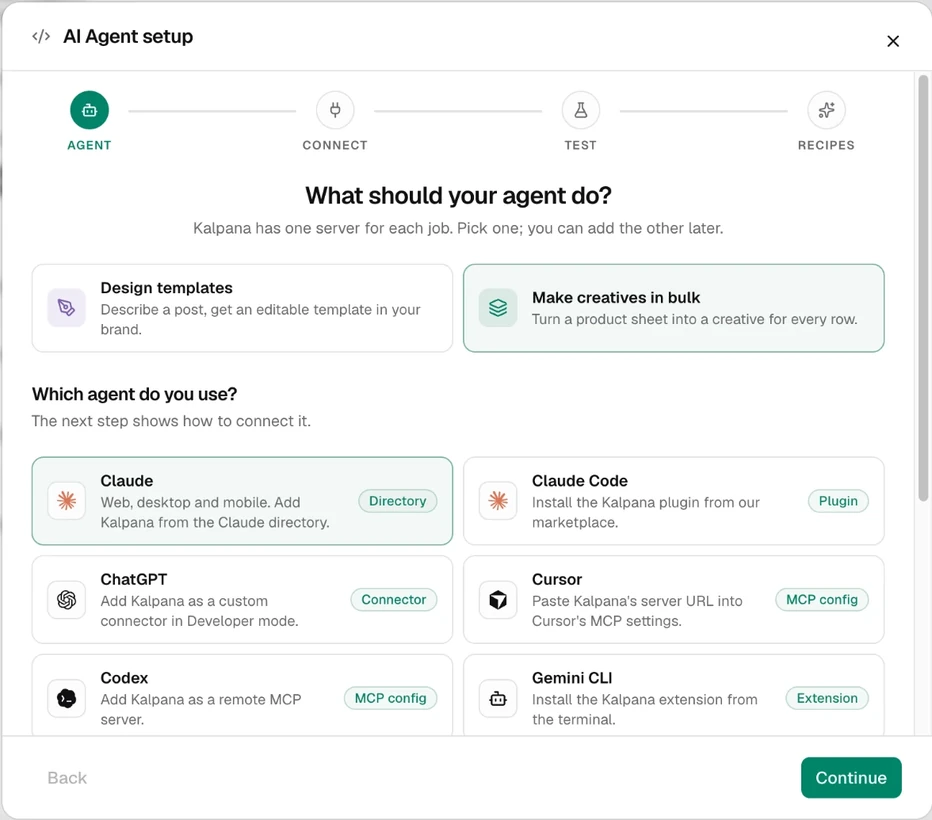
In the Studio, open AI Agent setup in the sidebar. Under What should your agent do?, pick Make creatives in bulk. Under Which agent do you use?, choose your app, choose Continue and follow its steps. In Claude, use the Kalpana Batch listing. Sign in, choose the workspace and approve. See Client setup guides for other apps.
Pick the template
Ask: "Find my product sale card template and show me the fields it needs." The assistant lists the template, shows a preview and names its inputs, such as Title and Price. A template with several pages gives each page its own inputs.
Send your rows
Paste the rows or point it at your sheet:
Create a batch with the sale card for these five products. Use the images named everyday-tee.png, linen-shirt.png and so on from my library. Ask me before running it.
If your assistant has Google Sheets or Shopify connected, it can read the sheet or pull the products itself. Otherwise export a CSV and paste it.
Let it check the rows
The assistant checks every row against the template before it creates anything. If a layer name is wrong or an image cannot be found, it tells you and asks. Fix the row in the chat. An omitted field keeps the template's own content.
Approve the batch
The assistant summarises the template, the rows and the file format, and asks before it creates the batch. Say yes. Creating the batch does not render anything. The assistant then tells you the exact credit cost, and nothing is spent so far.
Approve the run
Say yes only when the cost is right. Rendering uses render credits, 1 per image, for the files that render. Your assistant asks you twice on purpose: once for the batch, once for the cost.
Videos cost much more than images. Ask for the cost before you approve a video batch.
Collect the files
The assistant shows the progress and brings back download links. Links are temporary, so download the files promptly. The batch is also an ordinary batch in the Studio: open Batches to review and download it there.
Check the result
The batch in Batches shows Completed, with one job for each row. Open Details to see the files.
The commonest mistake is approving the run without reading the cost. Say in your first message if you want a video rather than an image. As an image, a template with motion shows one moment of its animation, and the assistant asks which moment if the page has none set.
Next
Updated 4 Nov 2026