
Fill several pages from one sheet
Fill a square, a story and a link ad from the same rows, and give one page its own copy.
One sheet fills every page of a template. Each row renders once for every page you keep in the batch, and each file has the size of its own page.
What you need
- A template with several pages, here a square (1080 x 1080), a story (1080 x 1920) and a link ad (1200 x 628) of the sale card. Each size is designed by hand. See Add more sizes to a template.
- The same layer names on every page, such as Title and Price.
- Your sheet. The sample sheet works.
Steps
Start the batch
Open Batches → New Batch, select the template and choose Continue. One sheet fills every page of it.
Download the headers
On the data step, choose Download template CSV or Copy headers. A template with several pages gets a column for each page, named in page order: page1@Title, page2@Title, page3@Title, and the same for Price and the rest.
Use plain names for shared copy
Name a column plainly, Title, and it fills every page that has no column of its own. For the sale card you can keep plain Title, Price, Was Price, Badge and Product Image, and every page uses them.
Give one page its own copy
Add page2@Title next to the plain Title. The story now uses page2@Title, and the square and the link ad still use Title. Use this when one size needs a shorter headline.
Title,page2@Title,Price,Was Price,Badge
Everyday Tee,Tee,₹799,₹1299,New season
Linen Shirt,Shirt,₹1499,₹2199,Best seller
Add the data and check each page
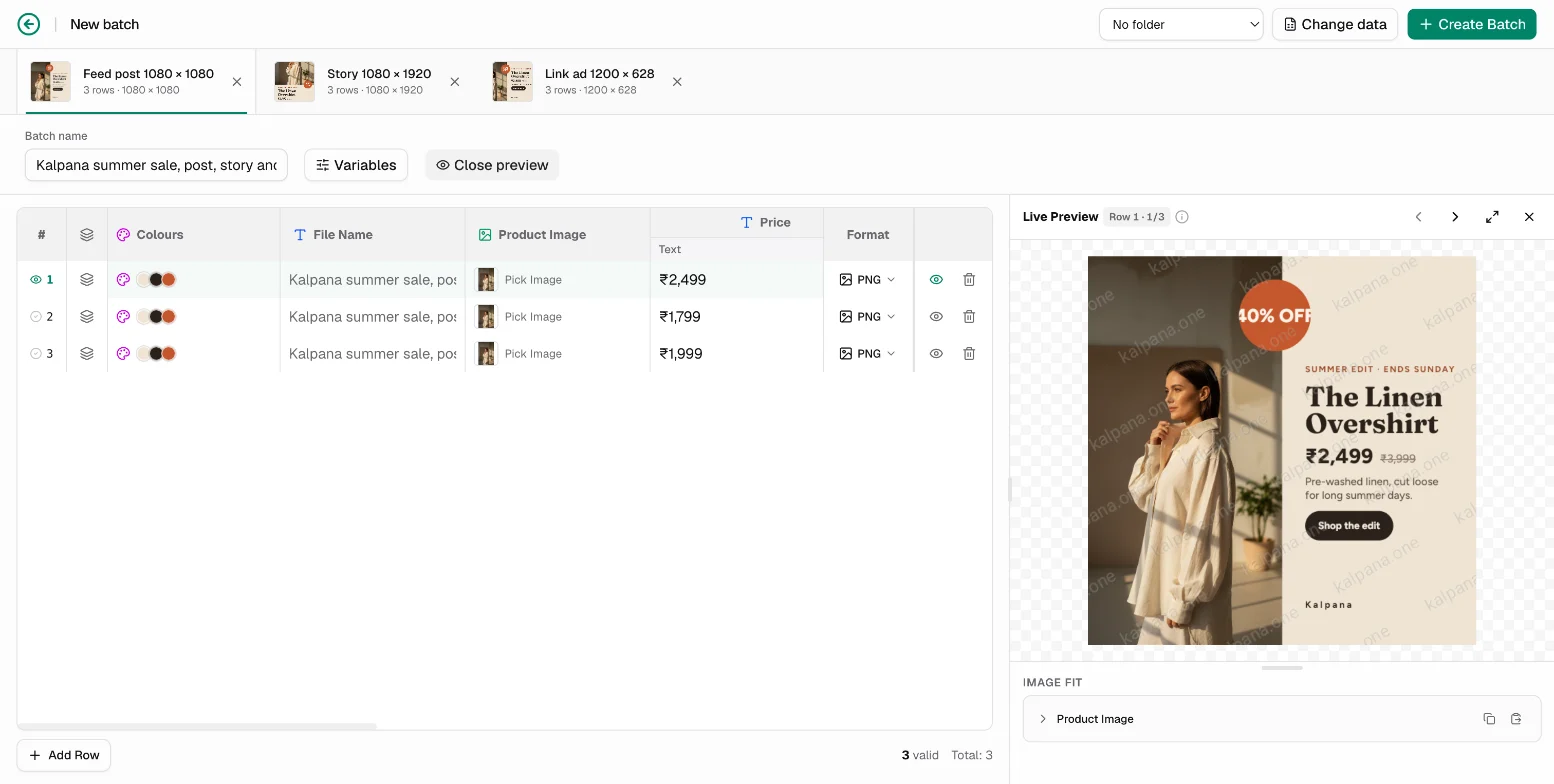
Upload or paste your sheet. The page tabs along the top show every page with its row count and size. Select each tab and preview a row. Fix anything with the page's own layout, not the sheet.
Leave a page out if you need to
Choose the x on a tab to leave that page out of this batch. Open the + menu to add it back.
Check the result
The files are named with the page name added, for example SKU-2101_story for a page named Story when the row has a file_name. Five rows across three pages make 15 images, which is 15 render credits. The run confirmation shows the total before anything renders.
The commonest mistake is changing the page order in the designer after you prepared the sheet. Column numbers follow page order, so page2@Title then belongs to a different page. Download the headers again after you reorder pages.
A template with one page keeps plain column names, with no page1@ prefix.
Next
- Render a video for every row
- One campaign in several ad sizes
- Create a batch for how columns are matched
Updated 1 Nov 2026