
Find your way around the Studio
Learn what each area of the sidebar is for, so you know where to go for any task.
By the end of this tour you will know which sidebar area to open for designing, producing, storing and connecting.
What you need
- A Kalpana account. Signing up gives you an organization and a first workspace.
- Five minutes. You only look at each area, so nothing is changed or charged.
Steps
Start at the top of the sidebar
The name at the top is your current workspace. Click it to switch to another workspace. The list is grouped by organization and ends with Go to organization, which opens the pages that cover the whole organization: people, billing and credits.
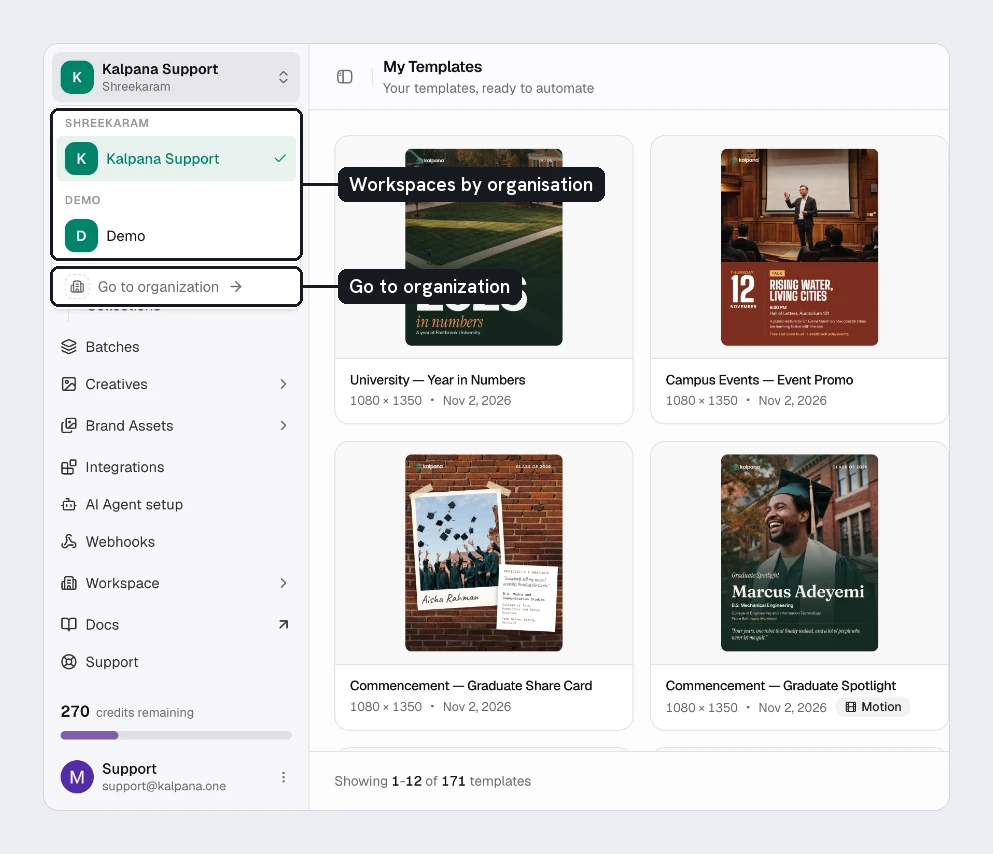
A workspace holds its own templates, batches, creatives, images and fonts. See Organizations and workspaces.
Open Get Started and Home
Get Started is the first item. It offers three ways to begin: connect an AI assistant, install the Figma plugin, or explore templates. Each assistant button opens AI Agent setup with that assistant picked. It also lists what is new.
Home shows how many render credits and AI credits are left, what the workspace used in a date range, and how much storage it holds.
Design under Templates
Templates has three pages:
| Page | Use it to |
|---|---|
| Explore | Browse ready-made designs and copy one into your workspace |
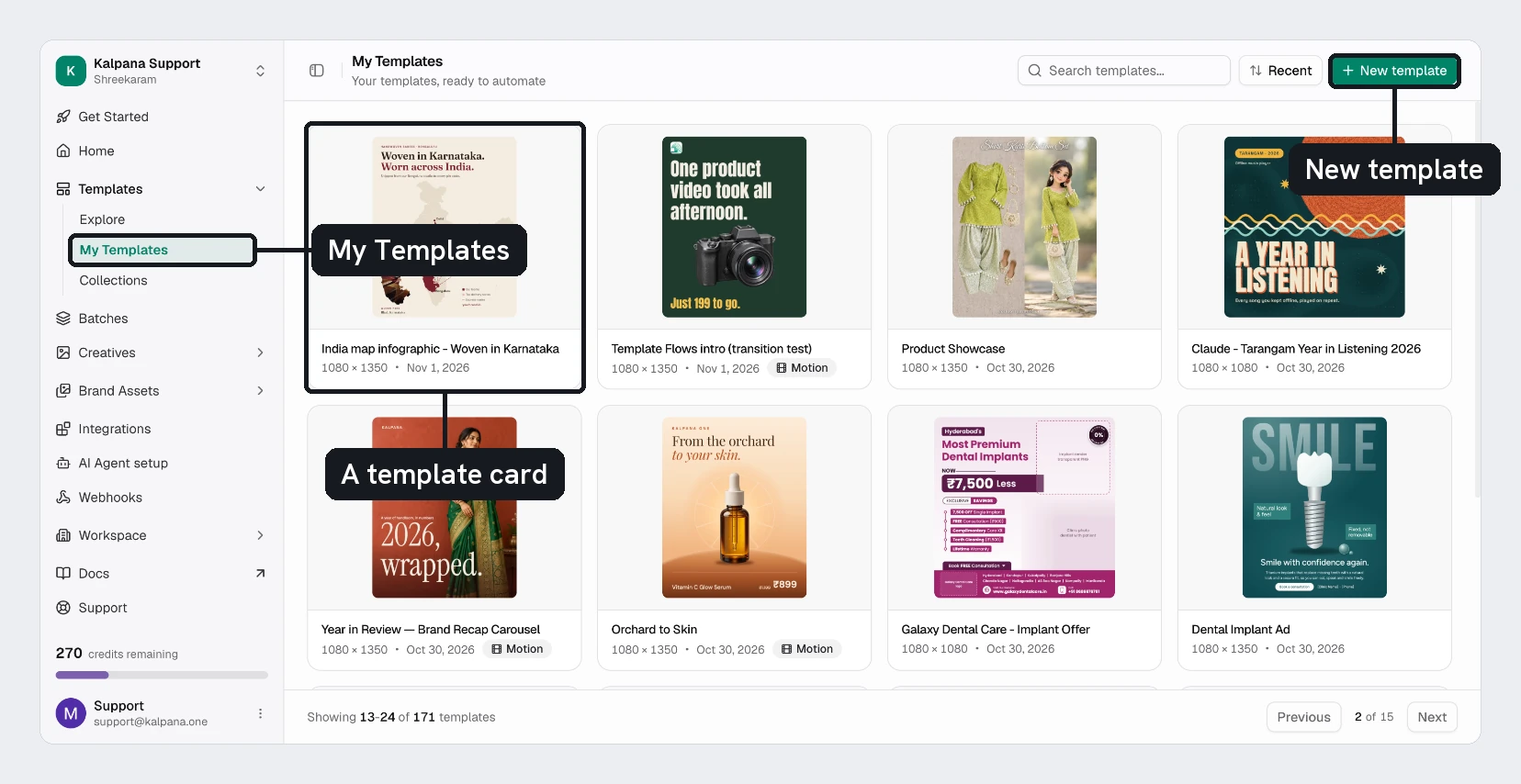
| My Templates | Find your templates, start a New template, or open one to edit |
| Collections | Group templates by campaign, channel or client |
Most design work starts on My Templates. Try creating a template from a blank page.
Produce under Batches and Creatives
Batches is where you fill templates with rows of data and render them. Drafts are still editable. Published batches are locked and ready to run.
Creatives holds the finished files. All creatives lists every file, and Folders groups them by campaign or client.
Keep your brand in Brand Assets
Brand Assets has three pages:
- All Images: product photos, logos and backgrounds.
- Image Collections: groups of images, such as one per campaign.
- Fonts: the custom typefaces your templates use.
Connect your tools
Three items link Kalpana to the tools you already use:
- Integrations connects outside tools, for example Dropbox for importing images and saving finished files.
- AI Agent setup opens a dialog that connects an AI assistant in four steps: Agent, Connect, Test and Recipes. Pick Design templates or Make creatives in bulk, then your assistant, and follow its steps.
- Webhooks sends a message to a URL of your choice when a batch finishes.
You do not need any of them to make your first batch.
Manage the workspace
Workspace has Members, where you add people and choose their roles, and Settings, for the name, the logo and the domains images may be imported from.
Look at the bottom of the sidebar
Docs opens this site. Support emails the team. A count shows the credits you have left. Your name opens the account menu, where you can change the theme, open Settings or log out.
Check the result
You should be able to answer three questions without looking: where a template lives (Templates), where a finished file lives (Creatives), and where fonts and images live (Brand Assets).
The commonest mistake is looking for a setting in the wrong workspace. If a template or image is missing, check the workspace name at the top of the sidebar first.
Next
Updated 4 Nov 2026