
Design a template with your assistant
Connect Claude, ChatGPT or another assistant, give it a brief and get a saved template you can edit.
You describe the creative, and your assistant builds the product sale card in your workspace as an ordinary template. You then open it in the designer and adjust anything by hand.
What you need
- An AI assistant that supports MCP, such as Claude, ChatGPT, Cursor or Codex.
- A workspace role of Owner, Manager or Designer.
- Render credits. Calls that make or draw a design are paid from them, and one credit pays for 20 calls; reads, checks and housekeeping are free. A design built in a few large calls costs less than one built in many small ones.
- Your brand fonts and images in Brand Assets, if the design should use them. The assistant can use only fonts in your workspace's font library.
Steps
Connect the designer
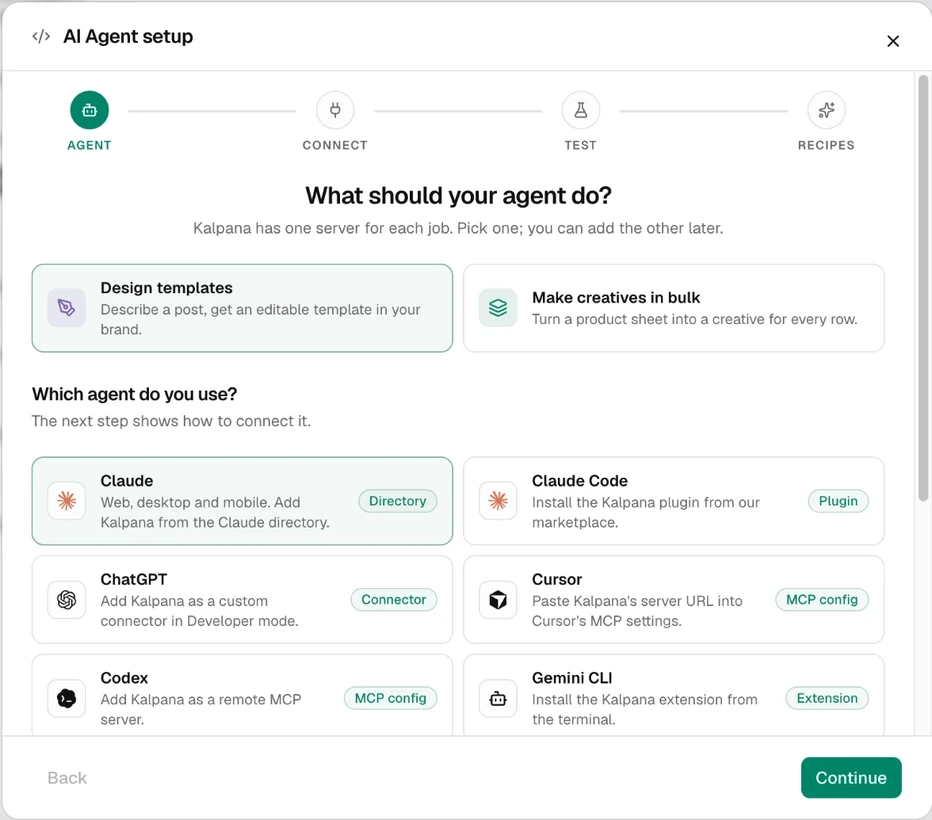
In the Studio, open AI Agent setup in the sidebar. Under What should your agent do?, pick Design templates. Under Which agent do you use?, choose your app, choose Continue and follow its steps. In Claude, use the Kalpana Designer listing. Sign in, choose the workspace to share and approve. A connection covers one workspace.
Give it a brief
Say what the creative is for, where it will be used and what the brand looks like. A good brief has the purpose, the size or platform, and the brand name, colours, fonts and tone. For the sale card:
Design a square 1080 x 1080 product sale card for our clothing store. It needs a Product Image, a Title, a Price, a Was Price and a Badge. Use our brand fonts and colours. Name each layer by what it holds, and make it work for titles up to 40 characters.
Layer names matter: every text and image layer becomes a column in a batch, named after the layer.
Answer its questions
The assistant asks only for what is missing, such as your logo or the colours. It can use images already in your workspace, or give you a link to the workspace's images page where you drop new ones. Images must be PNG, JPEG or WebP, up to 5 MB each.
Review what it built
The assistant checks its own layout and looks at previews before it saves. You still review it. Open Templates → My Templates and open the new template. Look at the preview, then choose Edit design to open the designer.
Ask for changes
Ask in the chat for anything you want different: "Make the badge smaller", "Add a story page at 1080 x 1920". Each size is designed on its own, so check every page it adds.
Check the inputs and save
The assistant names the template and describes each input with a limit, such as "Title: up to 2 lines, about 45 characters". Open the template page to check its Variables. If you change anything in the designer, choose Save Template. The assistant's work is already saved, and if you edit the page while it works, its next call uses your version.
Check the result
The template is in My Templates with a layer for each part of the card, named as you asked. The preview shows the card, and the Variables list shows Product Image, Title, Price, Was Price and Badge.
The commonest mistake is a brief with no copy limits. Tell the assistant the longest title you expect, or a long row will break the layout. See Build a layout that survives long copy.
You can ask for motion and flows too, such as "Animate the title word by word" or "Join these pages into a 15-second video".
Next
Updated 4 Nov 2026