
Build a layout that survives long copy
Use layout flow and text limits so the sale card holds up for any title, price or badge in your sheet.
Kalpana never shortens your text. A design that only works for Everyday Tee will break on Hand-Embroidered Cotton Kurta with Contrast Piping, so you build the room for it now.
What you need
- The sale card from Create a template from a blank page, open in the designer.
- Five minutes. Nothing here uses credits.
Steps
Put the two prices in a row
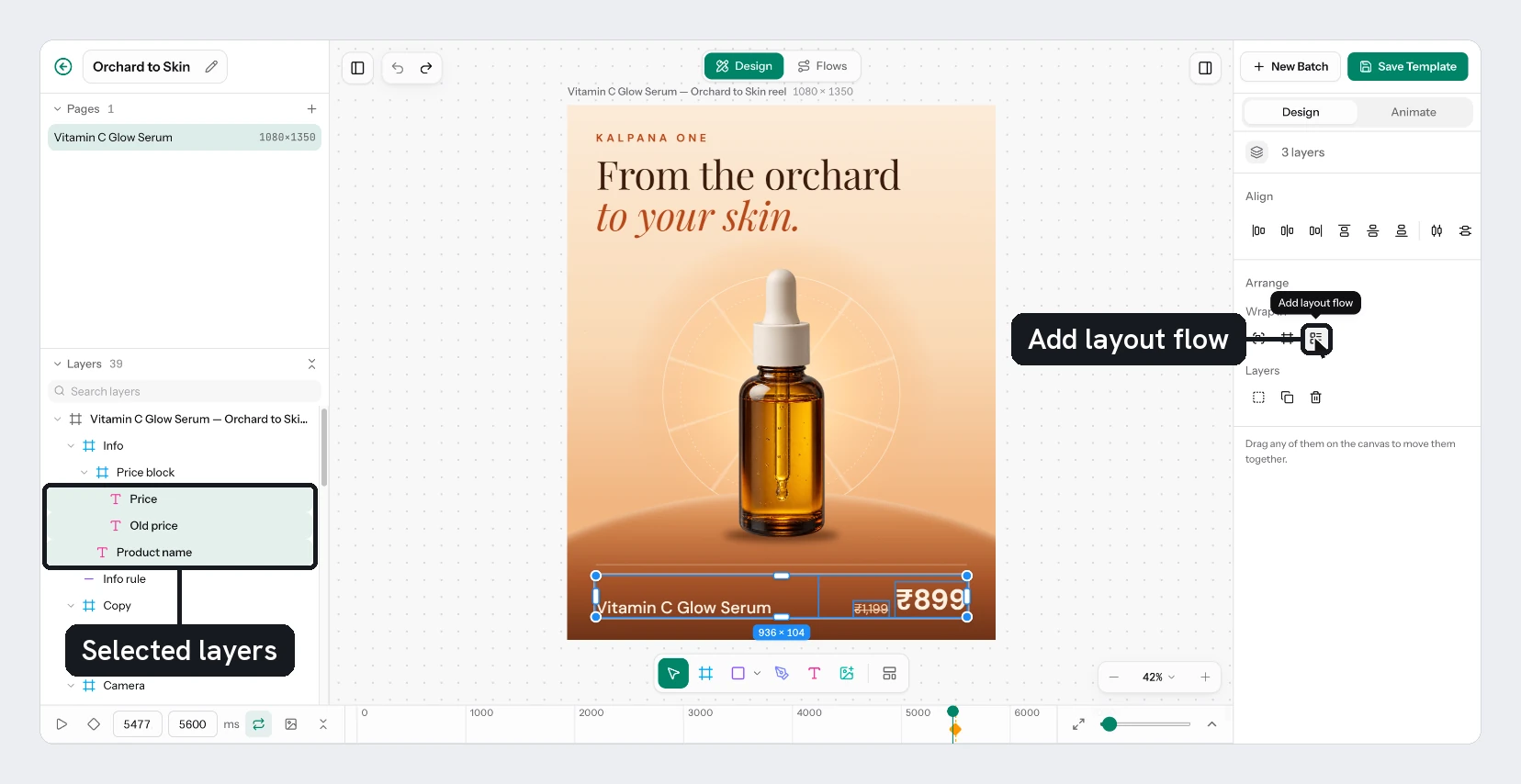
In the Layers panel, click Price, then hold Shift and click Was Price. In the Arrange section on the right, under Wrap in, choose Add layout flow. You can also press Shift+A.
Kalpana wraps the two layers in a frame. Because they sit side by side, it sets Direction to Row. It also orders them by position and uses the average gap between them. Rename the frame Prices.
Line the prices up
Select the Prices frame. In Layout flow, set Gap to 20. Under Align, set the cross axis to Baseline, so the small price sits on the same line as the big one.
Select Price and Was Price and check Box reads Hug in the Text section. Each price then grows to fit its own digits.
Stack the title and the prices
Select Title and the Prices frame, then choose Add layout flow again. The two are stacked, so Direction becomes Column. Rename this frame Details.
Set Gap to 16. Because the frame hugs its content, it grows and shrinks as the title does, and the prices follow it.
Limit the title
Select Title. In the Text section, keep Box on Wrap, which grows the layer downwards inside a fixed width. Set Max lines to 2 and choose the ellipsis (...) instead of Clip.
A title now takes two lines at most and ends with an ellipsis if it needs more.
Turn the badge into a pill
Select Badge and choose Add layout flow. Select the new frame and, in Layout flow, set Padding to 24 for left and right and 10 for top and bottom. Check that Resizing shows Hug for both width and height, so the pill fits its text.
Open Fill, choose Add fill and pick your accent colour. Set Radius to 24. Select the Badge text and give its Fill a light colour. Rename the frame Badge Pill.
The pill now widens for Only a few left and narrows for New season.
Test it with long copy
Double-click Title on the canvas and type a long product name. Do the same with Badge. Watch the frames resize. Then type Everyday Tee and New season back in, and choose Save Template.
Check the result
With a long title, you should see two lines ending in an ellipsis, the prices moved down below them, and nothing overlapping. With a short title, the prices sit closer to it.
The commonest mistake is leaving Max lines at no limit. A very long title then takes many lines and pushes the prices off the bottom of the page. Whatever falls past the page edge is cut off.
Pick the right limit for each text layer:
| Layer | Setting | What happens to long copy |
|---|---|---|
| Title | Wrap with Max lines | Grows to the line limit, then ends with an ellipsis |
| Price, Was Price, Badge | Hug | The box widens, and the frame around it follows |
| A label that must not move | Fixed with Shrink to fit | The text scales down, to the Min you set |
Shrink to fit is only offered on a Fixed box. On the template page the same setting is called Auto Resize.
Always check the longest and shortest row in the batch's live preview before you run. See Check and fix rows before you run.
Next
Updated 4 Nov 2026