
Fit text in its box
Control how a text box grows, wraps, stops at a line limit or shrinks, so a long row still fits.
Rows rarely have the same length as your sample. Three settings in the Text section decide what a long title does: the Box, Max lines and Shrink.
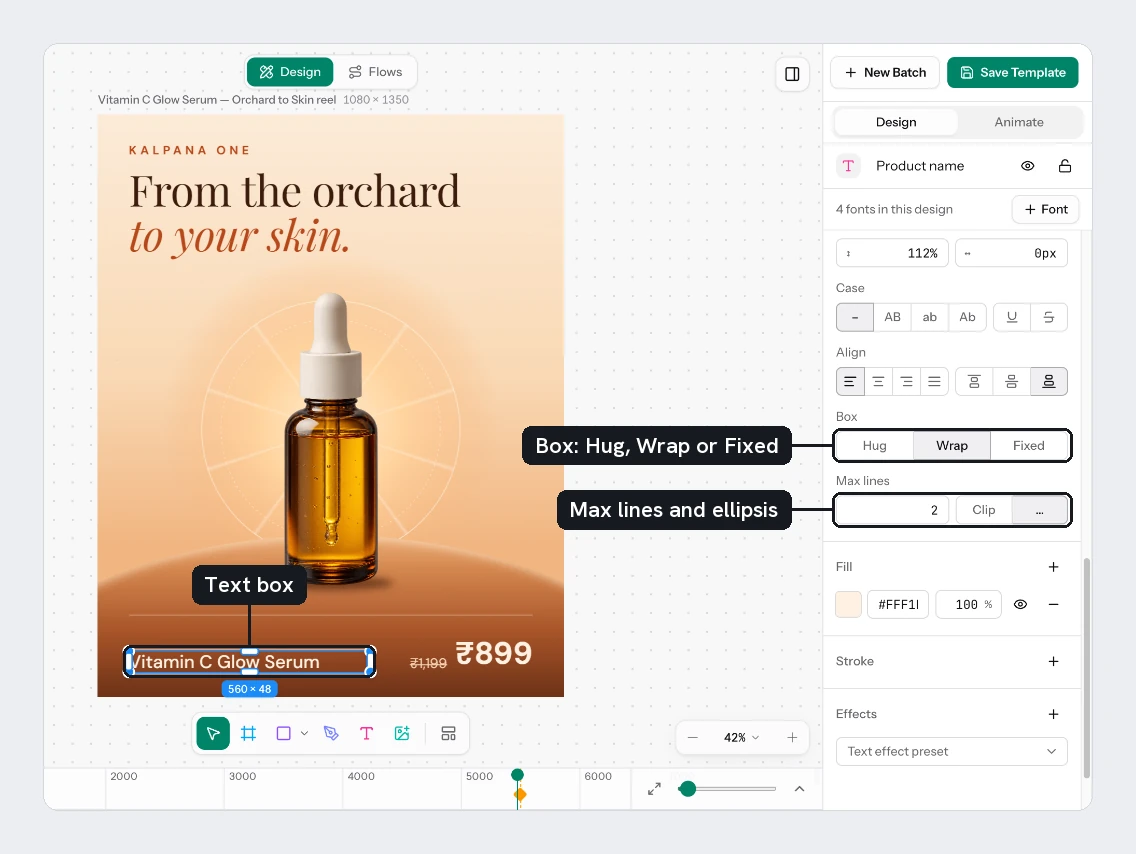
Choose the box
Box has three choices.
| Choice | Behaviour |
|---|---|
| Hug | The box grows with the text. Width and height both follow. |
| Wrap | The width is fixed and the text wraps. The height follows. |
| Fixed | Width and height stay as you set them. Long text can run past the box. |
Typing a W in Size on a Hug box turns it into Wrap. Typing an H makes it Fixed.
Limit the lines
Set Max lines
Type a number in Max lines. 0 means no limit.
Choose what happens to the rest
Next to it, Clip cuts off extra lines. The ellipsis button ends the last line with an ellipsis. Both are greyed out while Max lines is 0.
Shrink to fit
With Box set to Fixed, a Shrink row appears. Switch on Shrink to fit and the font scales down so long text stays inside the box. Min is the smallest scale it may reach, from 10% to 100%. It starts at 50%. On the template page the same setting is called Auto Resize.
Text below the minimum scale still overflows. Kalpana never shortens your copy, so check the longest row in the batch preview. See Row values.
Try it
On the sale card:
- Select Title and set Box to Wrap, with Max lines
2and the ellipsis button on. - Select Badge and set Box to Fixed. Size it to fit
New season, then switch on Shrink to fit. - Type
Only a few leftinto the badge to test it. It should shrink instead of spilling out. Put the original words back afterwards.
Next
Updated 4 Nov 2026