
Move around the canvas
Zoom, pan and fit the page so you can work on both the whole design and its smallest details.
Use the zoom bar and a few keys to see the whole page, or to get close to one layer. Zoom only changes your view. It never changes the design.
Zoom
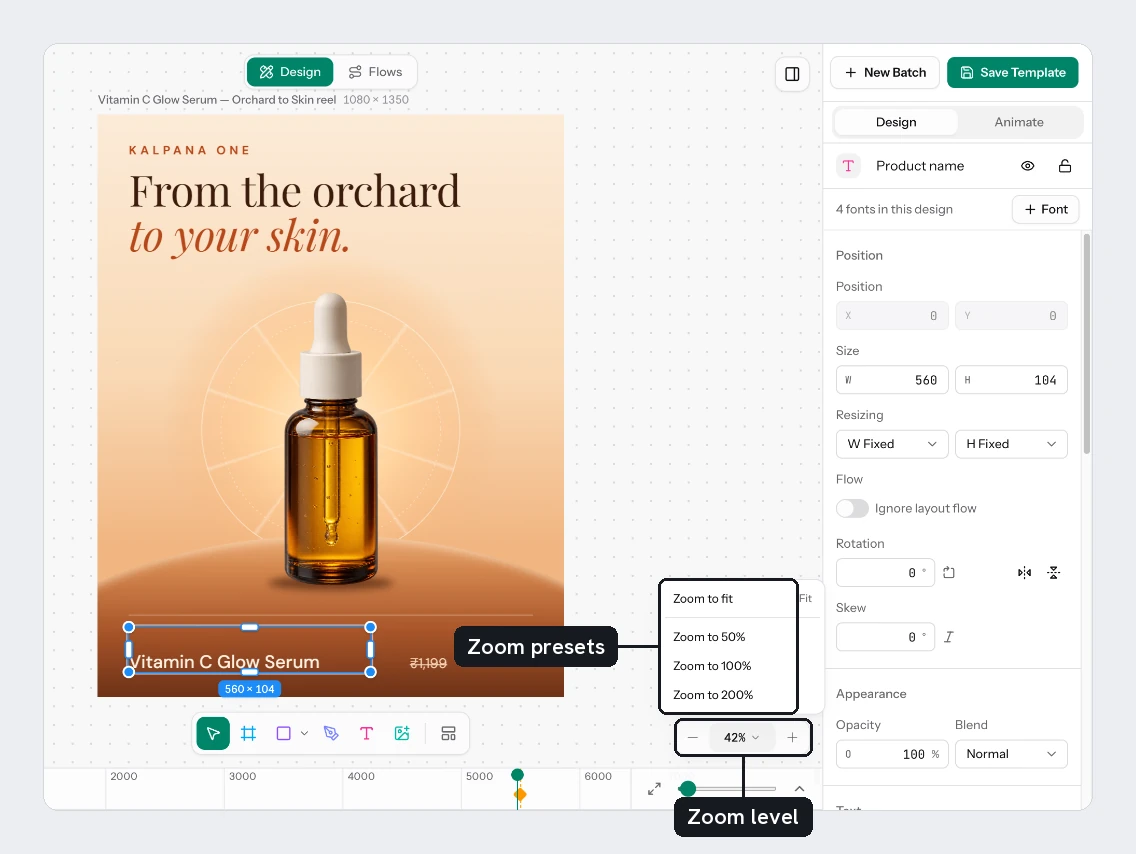
The zoom bar is at the bottom right. Choose Zoom out or zoom in to step the view. Choose the percentage, Zoom presets, for a menu:
| Menu item | Result |
|---|---|
| Zoom to fit | The whole page fills the view |
| Zoom to 50% | Half size |
| Zoom to 100% | One page pixel per screen pixel |
| Zoom to 200% | Double size |
Zoom runs from 2% to 200%. On a trackpad, pinch to zoom. With a mouse, hold Cmd/Ctrl and turn the wheel.
Pan
- Turn the wheel, or scroll on a trackpad, to move the view.
- Hold
Spaceand drag with the left button. Let go to return to your tool. - Drag with the middle mouse button.
A quick tap of Space is different: when the template has motion, it plays or pauses. A tap with no animation does nothing.
Fit and focus
| Key | Result |
|---|---|
Shift+1 | Fit the whole page |
Shift+2 | Zoom to the selected layers. With nothing selected it fits the page |
Shift+0 or Cmd/Ctrl+0 | Zoom to 100% |
Cmd/Ctrl+= | Zoom in |
Cmd/Ctrl+- | Zoom out |
Switching to another page fits the view again.
Try it
Select the Title on the sale card and press Shift+2 to zoom in on it. Hold Space and drag to move around. Press Shift+1 to see the whole card again. Then press Cmd/Ctrl+0 to check how the card looks at 100%, the size most people will see.
Next
Updated 4 Nov 2026