
The designer screen
Know what each part of the designer is for, and hide or resize the panels you do not need.
The designer has a left panel, a canvas and a right panel. Learn where things are once and the rest of the designer guides follow easily.
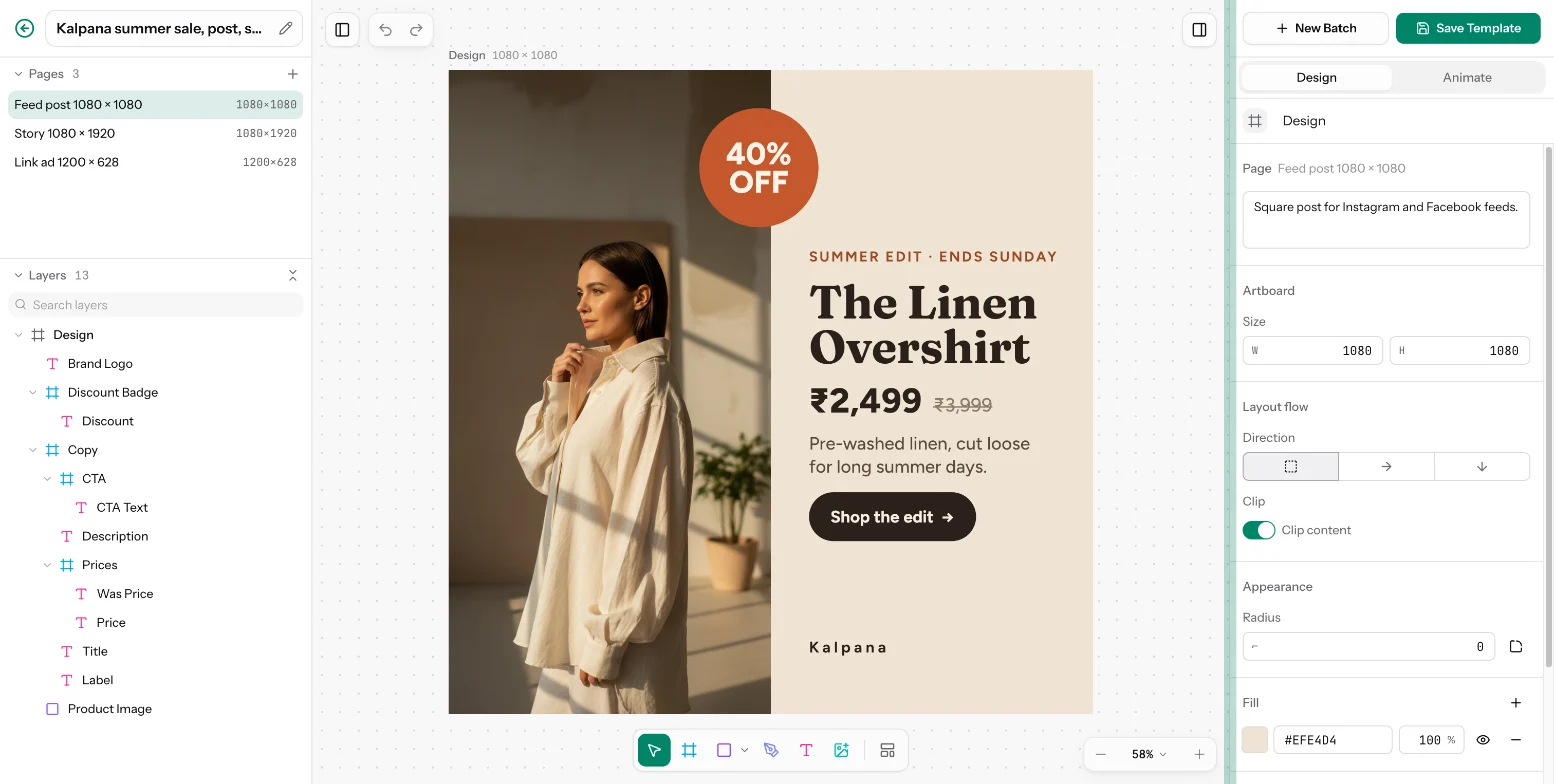
The parts of the screen
| Area | What is in it |
|---|---|
| Left panel | Go back, the template name with a pencil (Edit template), the Pages list and the Layers list |
| Canvas | Your page. Undo and Redo sit at the top left, the Design and Flows switch at the top centre |
| Toolbar | Design tools at the bottom centre: Move, Frame, the shapes, Pen, Text and Image, then Insert template |
| Zoom bar | Bottom right: Zoom out, the percentage, and zoom in |
| Right panel | Save Template and New Batch at the top, then the Design and Animate tabs for whatever is selected |
| Timeline | Along the bottom. It appears only once something on the page is animated |
New Batch shows only on a saved template, and only if your role can create batches.
What the right panel shows
With nothing selected, the Design tab shows the page: its Page description and the Artboard size. Select a layer and it shows that layer's settings, in sections that depend on the kind of layer. Select several layers and it shows Align and Arrange instead. The Animate tab needs exactly one selected layer.
Hide and resize panels
Panel sizes and visibility are remembered in this browser, not in the template.
- Use the two toggles at the top corners of the canvas (Hide pages and layers, Hide properties), or press
Cmd/Ctrl+\to hide or show both panels. Hide them when you want the whole canvas. - Drag the edge of the left or right panel to make it wider or narrower.
- Drag the divider between Pages and Layers to share the left panel between them. Click the title row of either to fold it away.
Design and Flows
The switch at the top centre has two modes. Design is the page you are building. Flows joins pages into a video. Everything in these guides is in Design unless a page says otherwise. See Build your first flow.
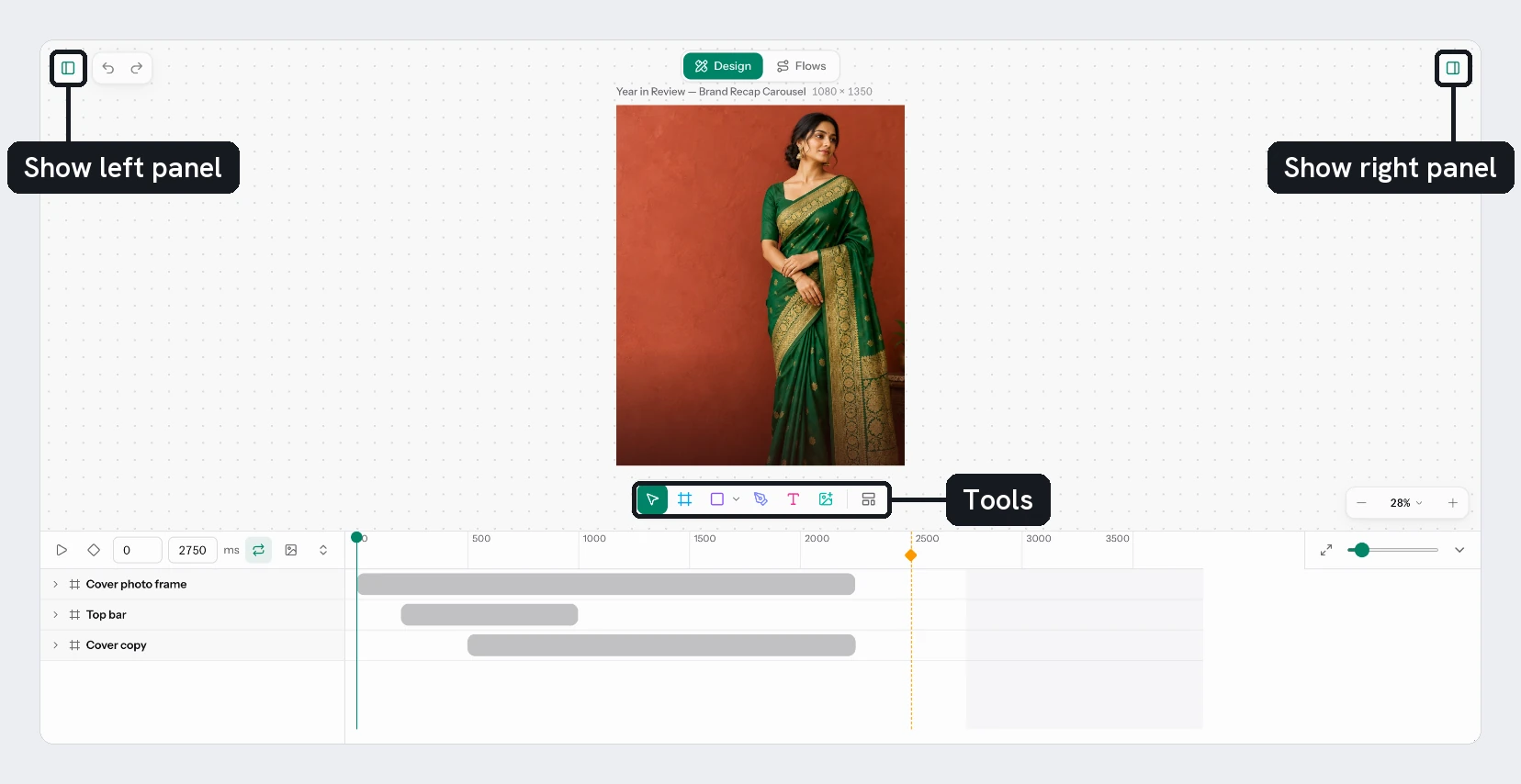
Try it
Open a new template. Press Cmd/Ctrl+\ to hide both panels, then press it again to bring them back. Drag the edge of the right panel to widen it. Select nothing and find Page description and Artboard in the Design tab.
Next
Updated 4 Nov 2026