
The Layers panel
Find, name, lock, hide and reorder layers, and nest them inside groups and frames.
The Layers panel lists everything on the open page. Reach for it to pick a layer that is hard to click, to name layers well, and to control what sits in front of what. The list shows the layer in front at the top.
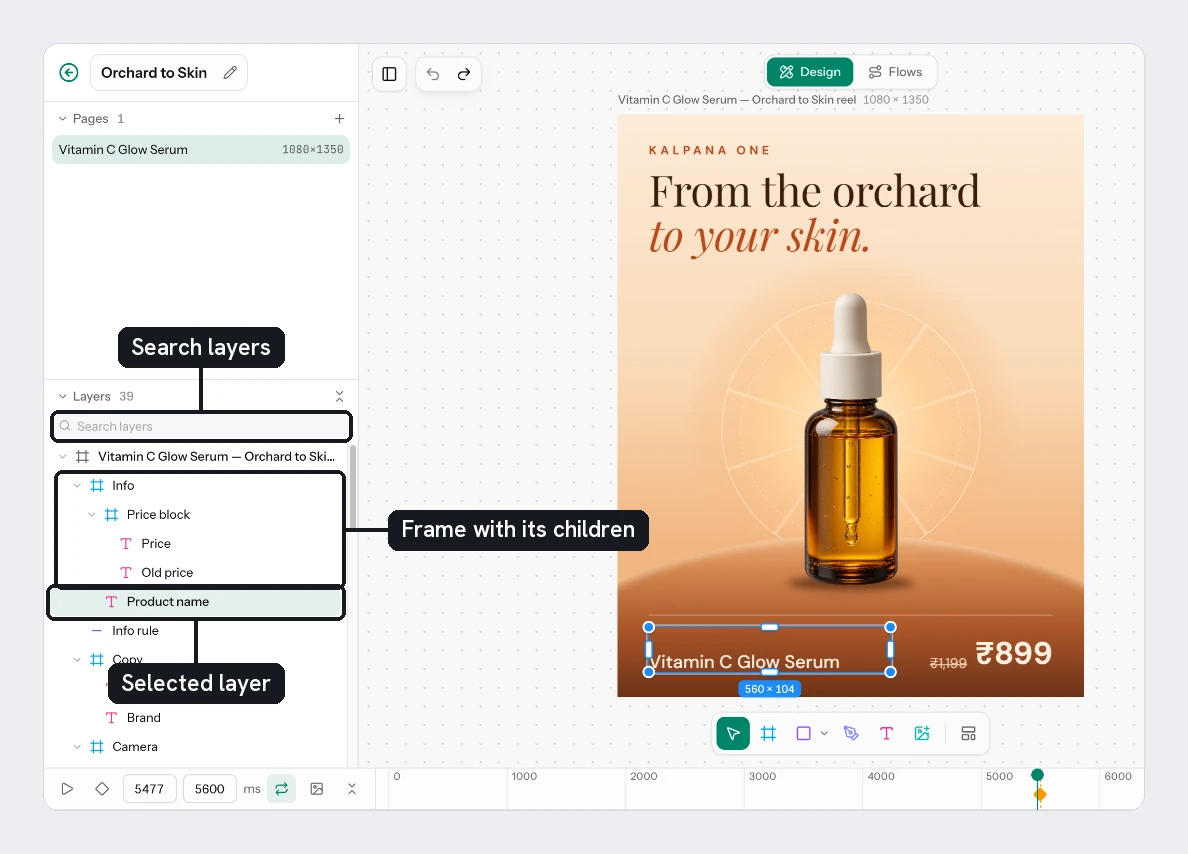
Find and select layers
- Type in Search layers to filter by name. Clear it with the cross. No layers match appears when nothing fits. You cannot drag rows while a search is on.
- Choose Collapse all or Expand all to fold every group and frame at once. Use the chevron on a row (Expand or Collapse) to fold one.
- Click a row to select it.
Shift,CmdorCtrl+click adds or removes a row from the selection. - Select a layer on the canvas and the panel opens its parents and scrolls to it for you.
Name layers
Double-click a row, type a name and press Enter. Esc cancels. You can also use the Layer name field at the top of the Design tab.
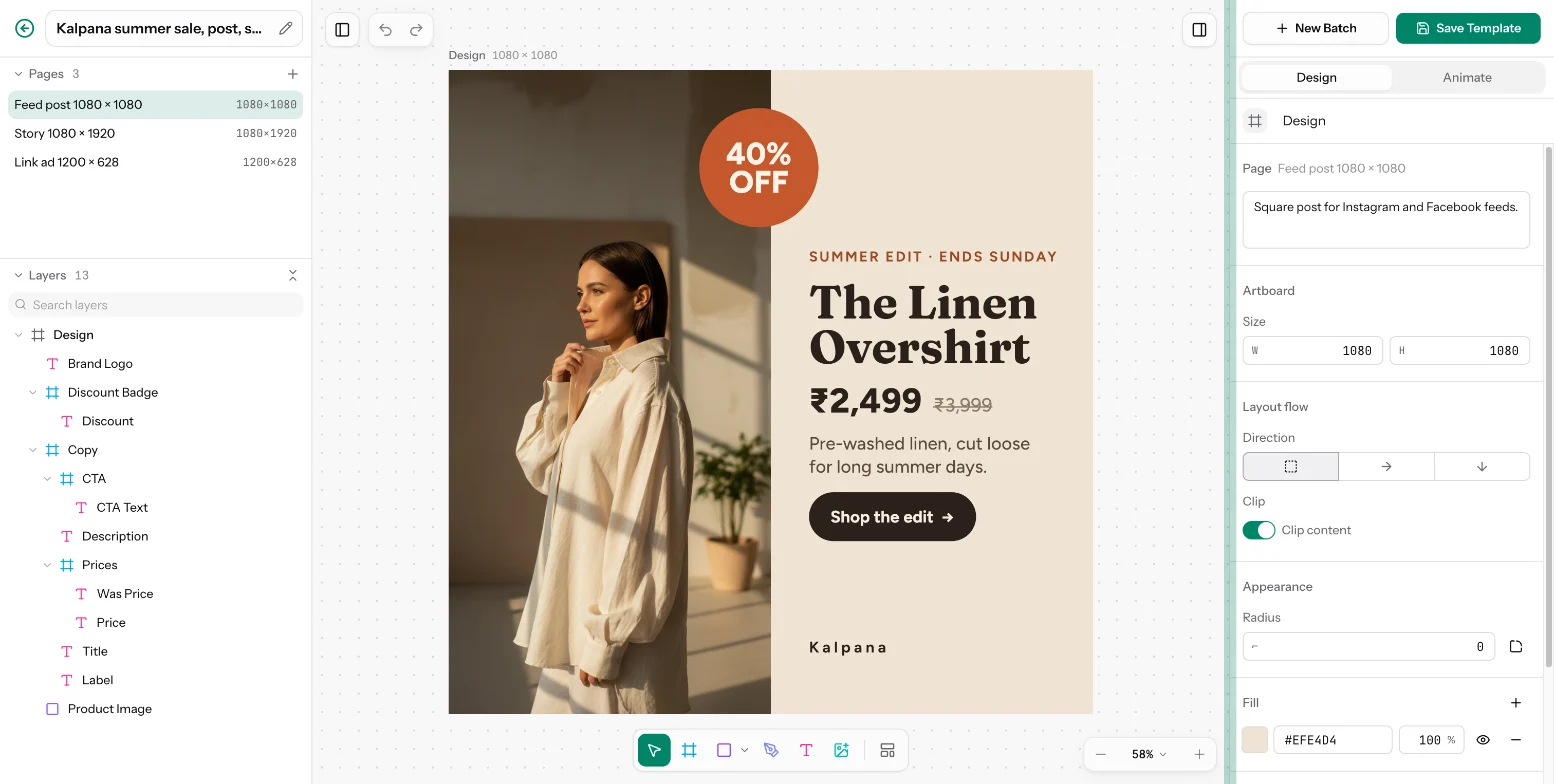
Names matter in Kalpana. Every text layer and image layer becomes a variable, and its layer name is the column header in a sheet. Name them for the sheet: Product Image, Title, Price, Was Price, Badge. A text layer is named after its words until you rename it, so rename it before you save.
See Choose what changes per row for the full picture of variables.
Lock and hide
Each row has two buttons on its right.
| Button | Result |
|---|---|
| Lock layer and Unlock layer | A locked layer cannot be selected on the canvas, so you cannot move it by accident. The lock stays visible on the row |
| Hide layer and Show layer | A hidden layer is not drawn. The eye stays visible on the row |
The same two buttons are in the Layer name header of the Design tab. The page itself cannot be locked.
Reorder and nest
Drag a row to change its place.
- Drop it above or below another row to change the stacking order.
- Drop it on the middle of a group or frame to move it inside.
- The page takes drops inside only, and a layer can never go into itself.
You can also restack with Cmd/Ctrl+] and Cmd/Ctrl+[. See Group, frame and arrange.
A layer that a mask affects is indented with a line and says "Masked by the mask layer below". A mask layer carries a Mask tag. See Masks.
Try it
On the sale card, double-click each layer and give it the names above. Lock the background. Then type "price" in Search layers and see that Price and Was Price remain. Clear the search and drag Badge to the top of the list so it sits in front.
Next
Updated 4 Nov 2026