
Align and distribute
Line layers up with each other or with their parent, and space them evenly.
Use align and distribute to make edges and centres line up exactly. It is faster and more precise than dragging with the guides.
Align several layers
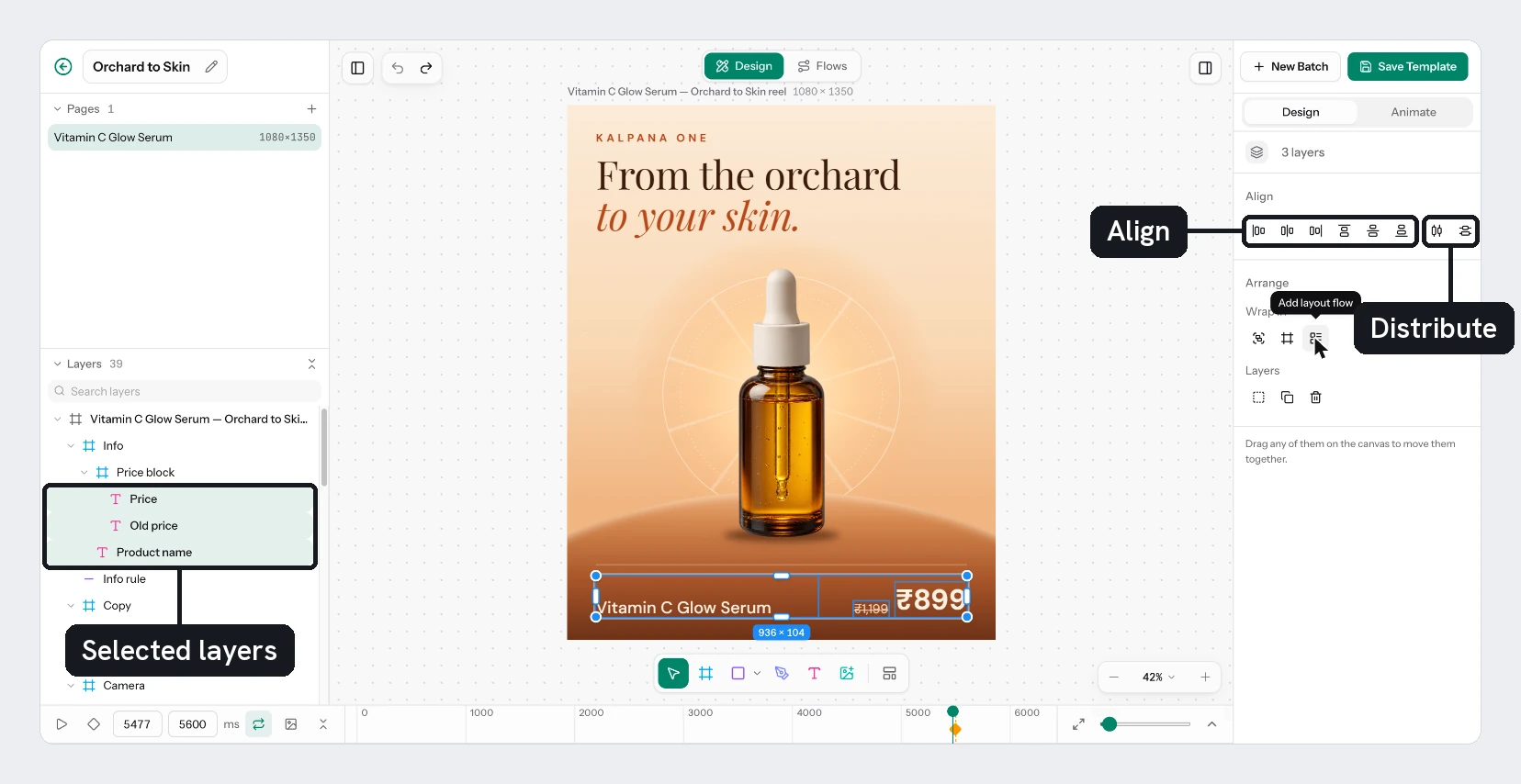
Select two or more layers. The right panel shows Align with one row of buttons. The layers line up with the box around all of them.
| Button | Shortcut |
|---|---|
| Align left | Alt+A |
| Align horizontal centres | Alt+H |
| Align right | Alt+D |
| Align top | Alt+W |
| Align vertical centres | Alt+V |
| Align bottom | Alt+S |
Layers inside another selected layer move with it, so they are not aligned separately.
Distribute
Distribute horizontal spacing (Alt+Shift+H) and Distribute vertical spacing (Alt+Shift+V) make the gaps between layers equal. They need three or more layers. The first and last stay where they are, and the layers between them are spaced out in their current order.
Align one layer within its parent
Select a single layer. When it sits in a frame or on the page, an Align section appears with Align left, Align centre, Align right, Align top, Align middle and Align bottom. They place the layer against its parent's edges or centre. The distribute buttons are greyed out, because they need three layers.
Layers inside a frame with a layout flow have no Align section, and their X and Y fields are disabled, because the frame places them. Change the frame's Align setting instead. See Layout flow.
Try it
On the sale card, select the Title, the Price and the Was Price and press Alt+A to line up their left edges. Select the Badge on its own and choose Align right, then Align top to place it in the top right corner of the page. It sits flush with the edges, so nudge it in with Shift and the arrow keys. Check the result with Shift+1.
Next
Updated 4 Nov 2026