
Build your first flow
Join three pages of the sale card into one video with transitions, then play it and save it.
A flow joins some of a template's pages into one video. In this guide you build one from a three-page version of the sale card.
What you need
- A template with three pages, all 1080 x 1080. Name them Hook (the Product Image and Badge), Product (the Title and Price) and Offer (the Price, Was Price and Badge). See Pages and sizes to add pages.
- The template open in the designer. See Open the designer.
Steps
Switch to Flows
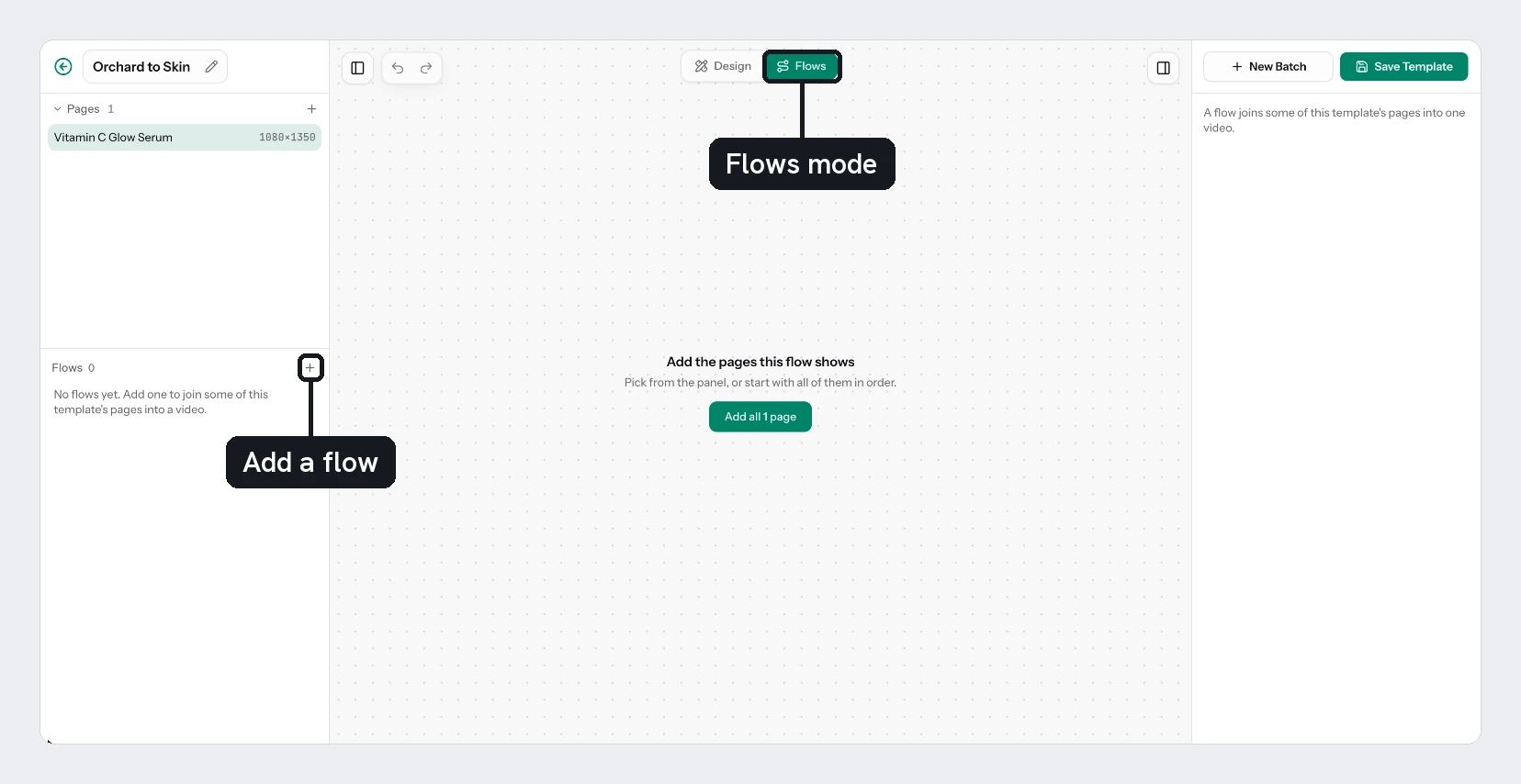
At the top centre of the canvas, choose Flows instead of Design. The left panel shows a Flows list in place of Layers.
Add a flow
Choose the + beside Flows. A new flow appears with its name open for editing. Select the text, type Sale teaser and press Enter.
Add the pages
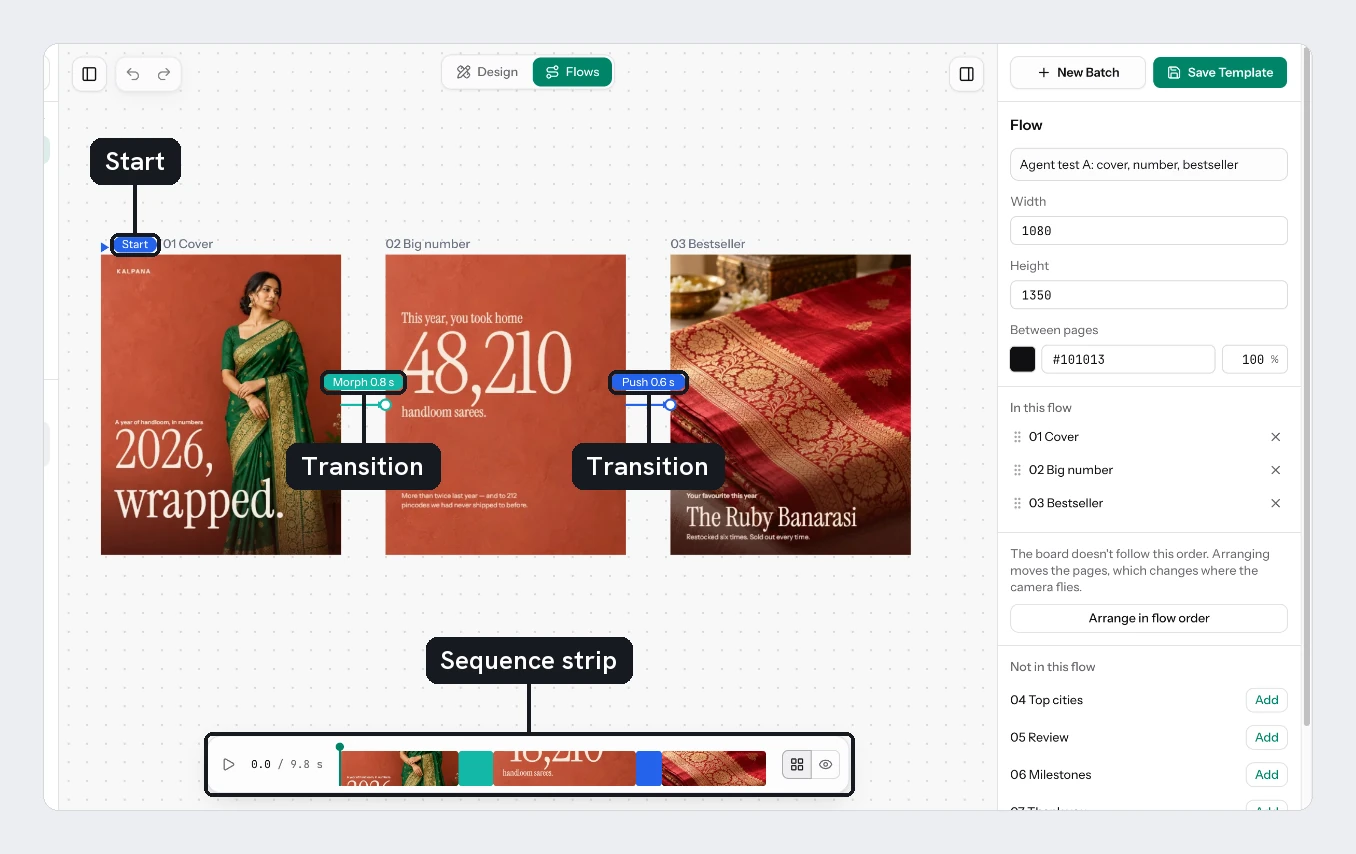
The board says "Add the pages this flow shows". Choose Add all 3 pages. The pages appear as pictures with arrows between them, and each arrow has a chip such as "Dissolve 0.6 s".
Change a transition
Click the arrow between Hook and Product. The right panel shows a grid of transitions. Choose Push. Its Direction appears; leave it on Left.
Add pages one at a time
Click an empty part of the board, so nothing is selected. If you left a page out, it is listed under Not in this flow in the right panel. Choose Add beside it and it joins the end of the flow with a Fly transition.
Play it
In the bar at the bottom, choose Play. The board switches to a preview and the clock counts up. Press Esc to stop and return to the board.
Set the video size
Click an empty part of the board, so nothing is selected. The right panel shows the flow's Width and Height. They start at the size of the first page.
Save
Choose Save Template or press Cmd/Ctrl+S. The flow is saved with the template.
Check the result
The Flows list shows your flow with a line like "3 pages · 7.2 s". Play it once more in Preview and check that each page stays long enough to read.
The commonest mistake is leaving a page out. Pages not in the flow are listed under Not in this flow, and they do not appear in the video. A page holds for its own animation length, or for 2 seconds if it is still. Set a hold by hand in The sequence strip.
Flows only exist in the designer. To render one for every row, add it to a batch. See Render a video for every row.
Next
Updated 4 Nov 2026