
Transition colours and gradients
Set the colour of a transition, make it see-through, and colour the space between pages.
Seven transitions pass through a colour: Dip, Flood, Rings, Stripes, Blades, Burst and Pixel. You can use a solid colour, a gradient or a see-through colour, so the change matches your brand.
Colour a transition
Select the transition
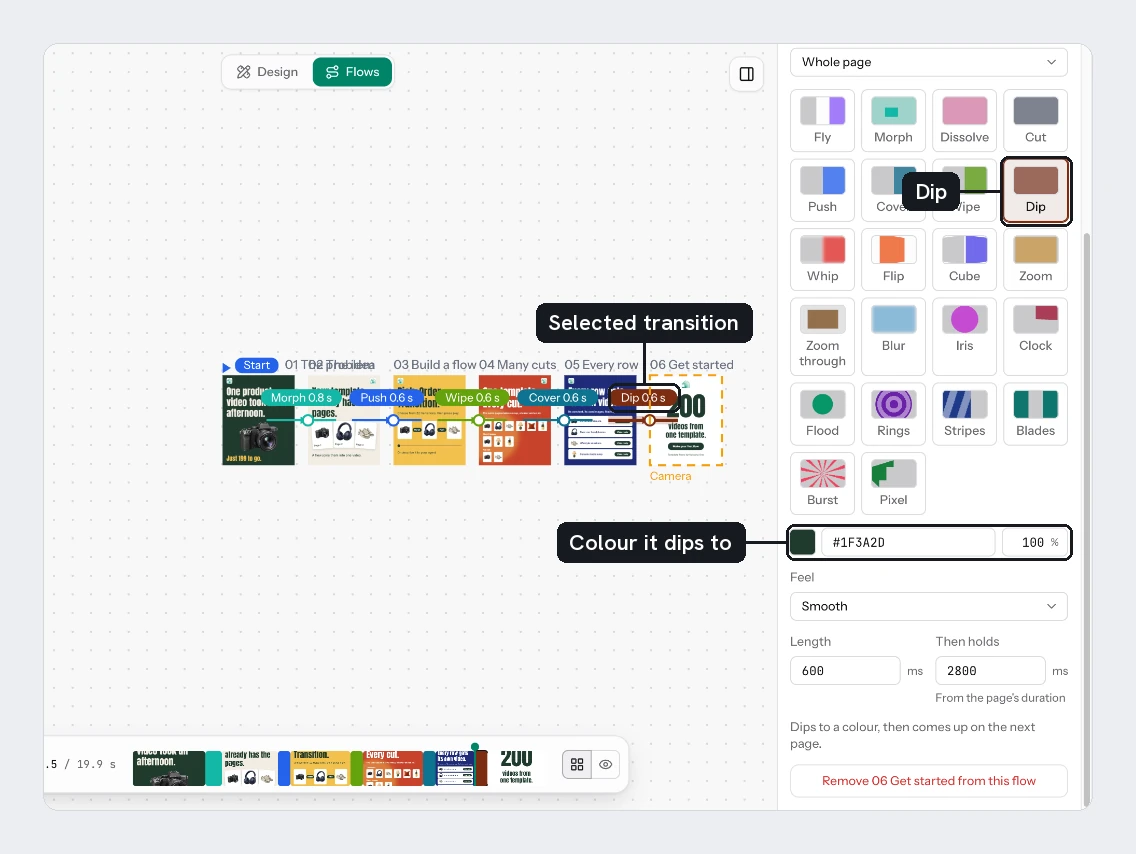
Click the arrow and choose one of the seven from the grid. A colour row appears under it, black by default.
Pick the colour
Click the swatch and enter a colour. In the picker, the type switch offers Solid and Gradient.
Make it a gradient
Choose Gradient to start from your colour fading to a lighter one. Edit it as you would any gradient: add or drag stops and change the angle. See Gradients.
Lower the opacity
Reduce the opacity field beside the colour. Below 100% the pages show through it. The page also changes at the end of the transition instead of halfway, so you see the next page arriving behind the colour.
Between pages
With nothing selected, the right panel has Between pages. It is the colour that shows in the gaps as the camera flies from page to page on a Fly. It is a near-black by default. Pick a solid colour or a gradient, for example your brand colour, so a flight across the board looks intentional. You can also switch it to an image and pick one from your images. Set the image's fit, or choose Tile to repeat a small image as a pattern.
Try it
On the sale flow, set the arrow into Offer to Flood. Pick the colour of your Badge, lower the opacity to 70%, and play. Then set Between pages to a pale colour and try a Fly between two other pages.
Next
Updated 4 Nov 2026