
Tune a transition
Change how long a transition takes, how it feels and what each effect does.
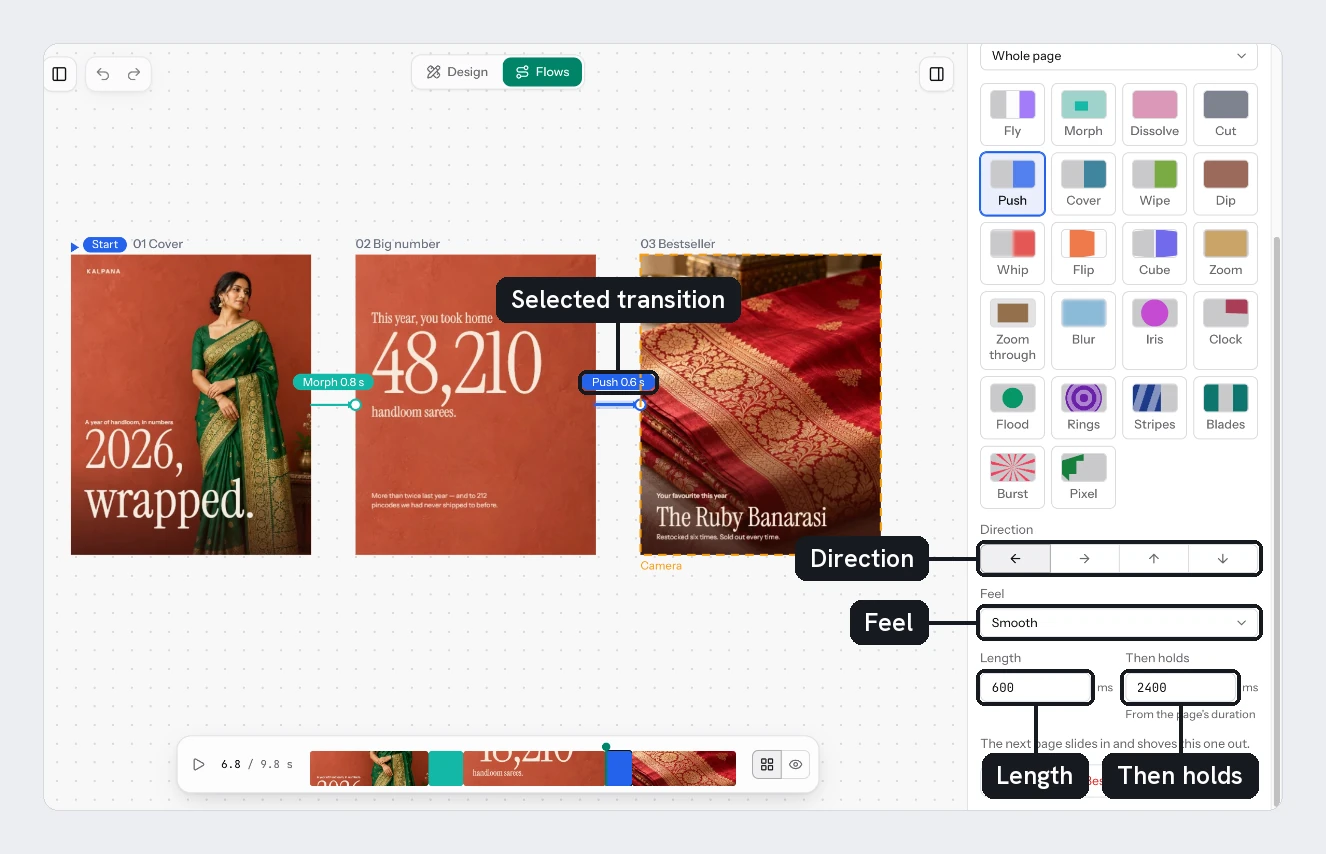
Once you have chosen a transition, the settings under the grid shape it. Select the arrow between two pages to see them.
Timing and feel
Set the length
Length is how long the change takes, in milliseconds, with a minimum of 50. A new Fly takes 1200, a Morph 800 and a Dissolve 600.
Choose a feel
Feel sets how the move speeds up and slows down: Smooth, Gentle, Snappy or Bouncy. Bouncy overshoots a little, then settles.
Set how long the next page stays
Then holds is how long the next page stays once it has arrived. It follows that page's own animation length until you type a value. Use the page's duration goes back to that.
Cut has no Feel or Length. Goes to changes which page the arrow lands on, and Camera frames the page it lands on. See Close in on a layer.
Settings for some transitions
| Setting | Where | What it does |
|---|---|---|
| Tilt | Fly | Two fields, each from -60 to 60 degrees, that tilt the camera as it flies |
| Travel | Morph | The pages slide the way they sit on the board |
| Skip its animation | A page shown twice | Shows the page at its still moment, instead of playing its motion again |
| Direction | Push, Cover, Wipe, Whip, Flip, Cube, Stripes, Pixel | Left, Right, Up or Down. Stripes offers Left and Right |
| Starts from | Iris, Flood, Rings, Burst | A grid of nine points where the shape begins |
| Starts at | Clock | The angle where the hand begins, in degrees |
| Turns | Clock | Clockwise or Anticlockwise |
| Order | Pixel | Random, In order or Centre |
| Close from | Blades | Sides, Top or Corners |
| Rings | Rings | How many, from 2 to 6 |
| Stripes | Stripes | How many, from 2 to 24 |
| Rays | Burst | How many, from 4 to 40 |
| Lean | Stripes | How far the bands tilt, in degrees |
| Block | Pixel | The size of each block, as a percentage |
| Ray | Burst | The thickness of each ray, as a percentage |
Dip, Flood, Rings, Stripes, Blades, Burst and Pixel also have a colour. See Transition colours and gradients.
Switching to another transition clears the settings of the old one. Choose the transition first, then tune it.
Choose Play at the top of the panel to watch only that transition.
Try it
Select the Hook to Product arrow in your sale flow and choose Clock. Set Turns to Anticlockwise and Starts at to 90. Choose Play, then set Length to 1500 and play again.
Next
Updated 4 Nov 2026