
The sequence strip
Play a flow and drag its holds and transitions to retime or reorder it.
The sequence strip is the bar at the bottom of the Flows view. It shows the flow as a row of pages to scale, so you can see how long each one stays and how long each change takes.
What is on the bar
From left to right: Play or Pause, the clock showing the time against the total, the strip, and a Board and Preview switch. A thin line above the strip scrubs: click or drag it to jump to a moment.
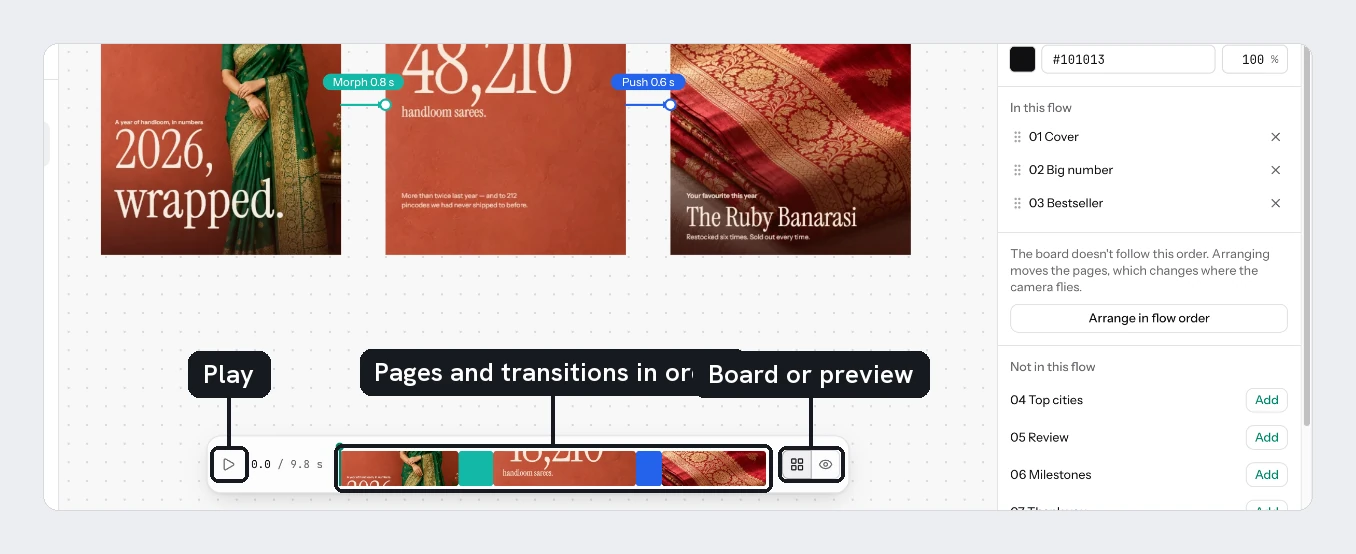
The strip has two kinds of segment. A hold is a page staying on screen. A transition is the change into the next page, coloured by its type. Point at a segment to see its name. Press play and the canvas switches to Preview by itself. Board returns to the map.
Change the timing
| Drag | Result |
|---|---|
| The end of a hold | Lengthens or shortens that hold |
| A transition sideways | Slides it, taking time from one neighbouring hold and giving it to the other |
| The edge of a transition | Changes its length, trading time with the neighbouring hold |
| A hold sideways | Moves that page to another place in the flow |
| A click on a segment | Selects it and moves the playhead there |
Segments cannot be dragged shorter than 50 ms. A hold you drag stays as you set it. To return a page to its own animation length, select it and choose Use the page's duration.
If a flow is long, the strip scrolls and keeps the playhead in view.
Keys
| Key | Action |
|---|---|
Space | Play or pause |
Left and Right | Go to the previous or next page |
Esc | Stop and return to the board |
Delete or Backspace | Remove the selected page or transition from the flow |
Cmd/Ctrl+Z and Cmd/Ctrl+Shift+Z | Undo and redo, for flows only |
Flows have their own undo history. A slip here does not undo a design edit, and the other way round.
Try it
In your three-page flow, drag the end of the Offer hold so it stays two seconds longer. Then drag the Hook page sideways past Product, play it, and press Cmd/Ctrl+Z to put it back.
Next
Updated 4 Nov 2026