
Several flows from one template
Make a short teaser and a longer walkthrough from the same pages.
A template can hold many flows, and each picks its own pages. Use that for a teaser and a walkthrough of the same design, or to try another angle without losing the first.
Make a second flow
Duplicate
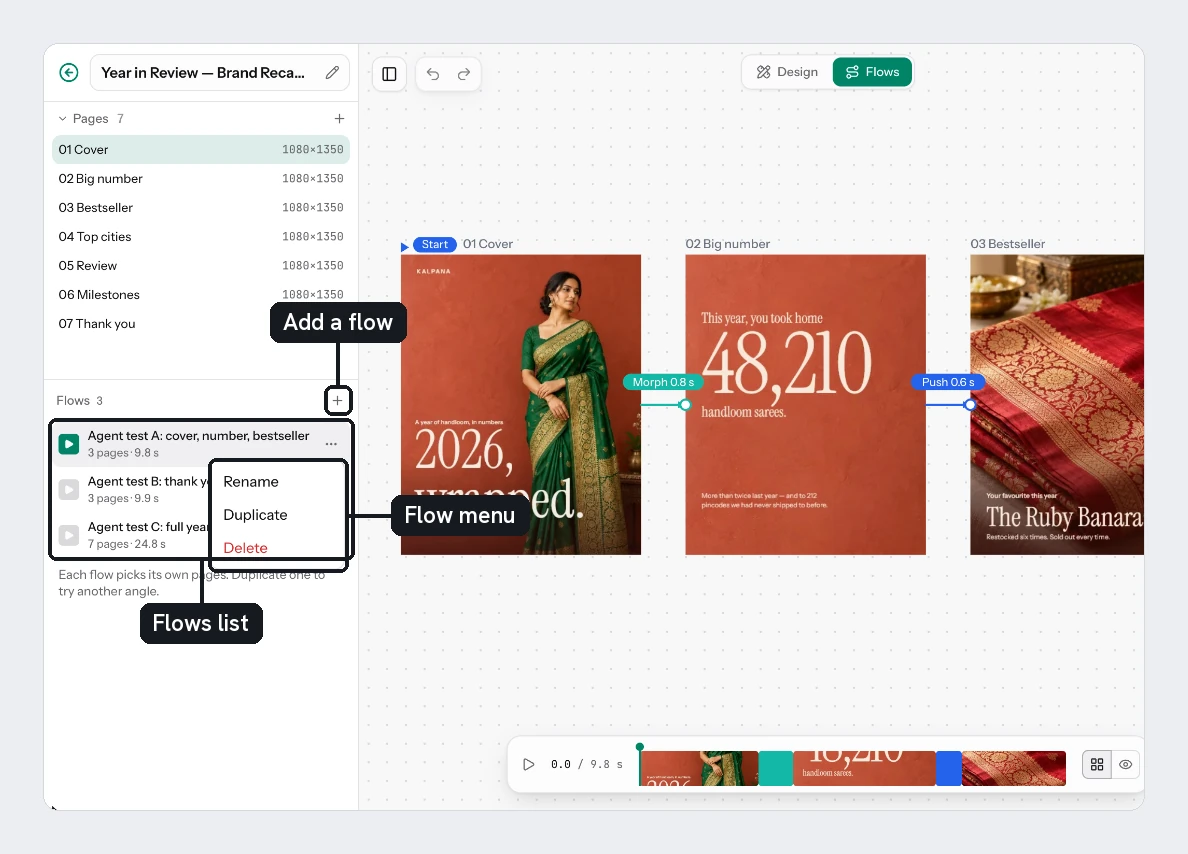
In the Flows list, open the menu beside your flow and choose Duplicate. You can also choose Duplicate flow at the bottom of the right panel with nothing selected. The copy is named, for example, "Sale teaser copy".
Rename it
Double-click the name, or choose Rename. Call it Sale walkthrough.
Change its pages
Select the copy. Remove pages with the x and add them back with Add under Not in this flow. For a teaser, keep Hook and Offer with a Whip. For the walkthrough, keep all three with Dissolve.
Each flow in the list shows its page count and length, such as "2 pages · 4.6 s". Click a flow to open it.
Size and timing
Select nothing to see a flow's Width and Height. They start at the size of the first page, and each flow has its own. They set the size of the video. Pages are not re-laid out, so choose a size your pages were designed for.
Flows follow their pages. If you change a page's length in Design, every flow showing that page follows, except holds you set by hand. A video runs up to 60 seconds, and only the first 60 seconds render.
Delete a flow
Choose Delete from the menu. The dialog confirms that the pages stay in the template, and undo brings the flow back.
A flow only renders when you add it to a batch, and a video costs more than an image. See Render a video for every row.
Try it
Make the teaser and the walkthrough above. Save with Cmd/Ctrl+S. In the batch builder you will see each as a tab beside your pages.
Next
Updated 4 Nov 2026