
Rectangle, ellipse, line, polygon and star
Draw the five basic shapes, and set a polygon's sides or a star's points and inner radius.
The basic shapes are the quickest way to add backgrounds, dividers, stickers and badges. Reach for them whenever a design needs a plain graphic that does not depend on a photo.
Draw a shape
Choose a shape
The shapes share one button in Design tools. It shows the shape you used last. Choose the chevron, More shapes, to pick another. Rectangle is R, Ellipse is O and Line is L. Polygon and Star have no key.
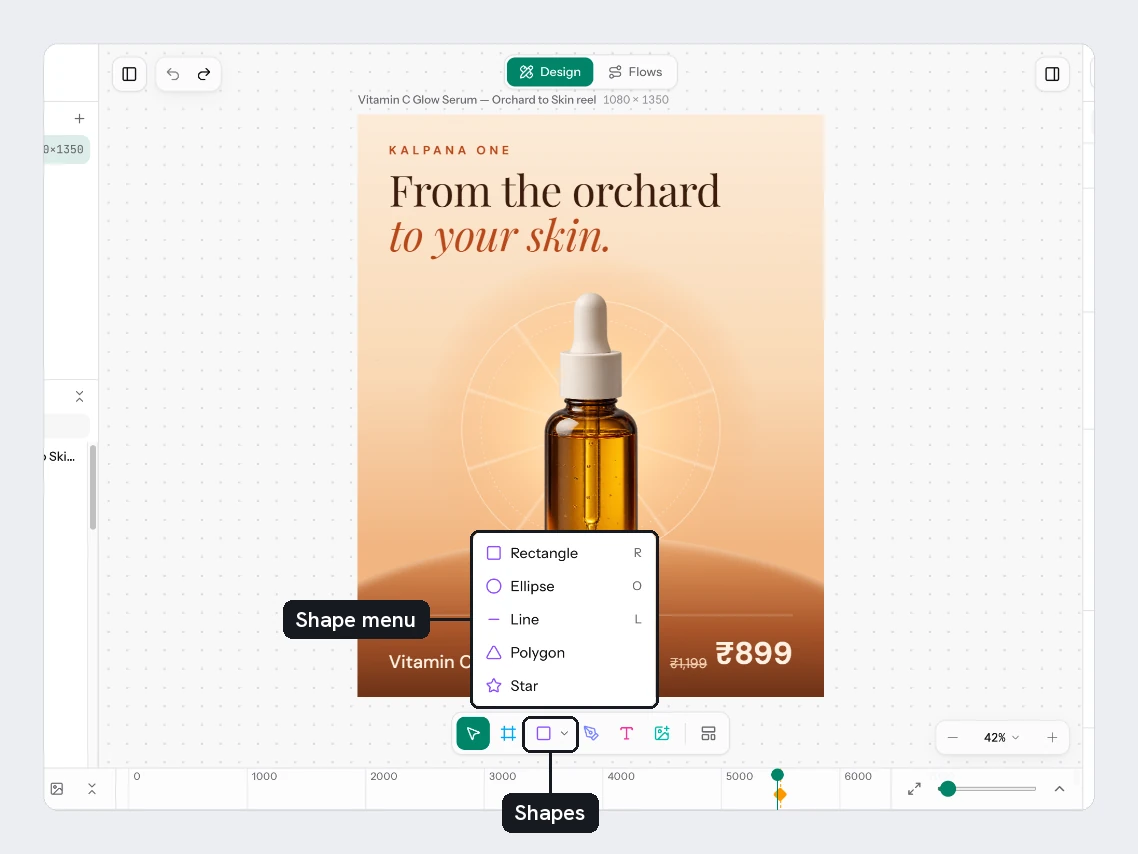
Click or drag
Click for a default shape with its corner at the pointer. Drag to draw the size you want, in any direction. The tool returns to Move.
| Shape | Click makes | With Shift while dragging |
|---|---|---|
| Rectangle | 200 x 200 | A square |
| Ellipse | 200 x 200 | A circle |
| Line | 300 long | Snaps to 45 degree steps |
| Polygon | 200 x 200 triangle | A square box |
| Star | 200 x 200 five-point star | A square box |
New shapes get a light grey fill and a numbered name such as Rectangle 1. Draw on a frame and the shape goes into that frame. Change colours in Fill and Stroke, and round a rectangle's corners with Radius in Appearance. See Opacity, blend and corners.
Set sides and points
Select a polygon or a star and the Design tab shows an extra section after Position.
- Polygon: Sides, from 3 to 60. A new polygon has 3.
- Star: Points / inner radius. The P field is the number of points, from 3 to 60, and R is the inner radius as a percentage, from 5 to 100. A new star has 5 points and an inner radius of 38. A higher inner radius makes the notches shallower.
A line has no fill. Give it a colour with Stroke, and set its Weight there.
To move the points of a polygon or star freely, flatten it with Cmd/Ctrl+E first. See Pen and path editing.
Try it
Make a sticker for the sale card's Badge. Choose Star and click near the top right of the card. Set P to 12 and R to 85 for a burst. Give it a Fill. Send it behind the Badge text with Cmd/Ctrl+[, repeating until the text is in front. Select both and align them with Alt+H and Alt+V. Keep Badge copy short, since the star does not grow with the text.
Next
Updated 4 Nov 2026