
Fills
Colour a layer or the page with a solid colour, and stack several fills on one layer.
A fill is what is inside a layer. Rectangles, ellipses, polygons, stars, images, frames, text layers and the page itself all have a Fill section in the Design panel. Lines and groups do not.
Set a solid colour
Select the layer
Click it on the canvas. For the page background, click an empty part of the canvas so that nothing is selected.
Open the colour
In Fill, click the colour swatch (Pick colour). Drag in the picker, or type a hex code such as #F6F1E9 into the colour field. The percentage beside it is the colour's own opacity, and 100% is fully solid.
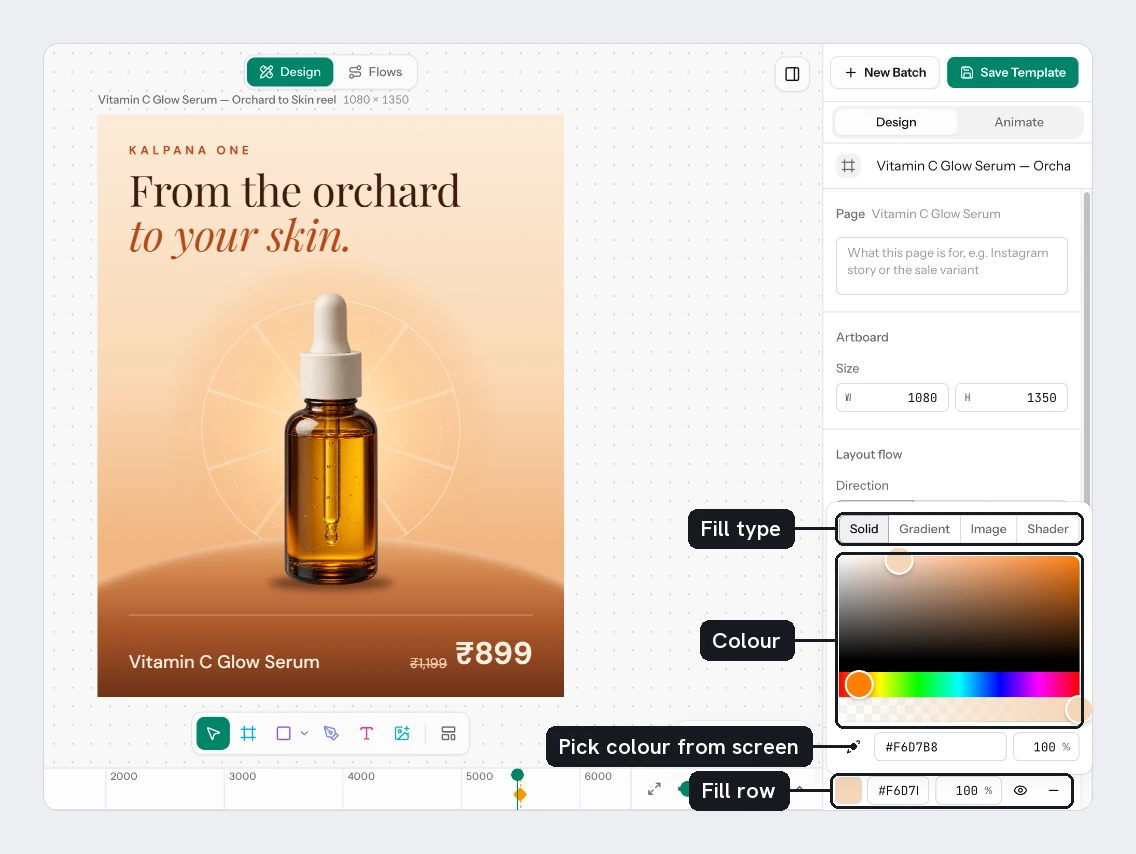
Or take a colour from the screen
In the picker, choose Pick colour from screen (the dropper) and click any pixel you can see. It keeps your current opacity. Press Esc to cancel. The dropper only appears in Chrome, Edge and other Chromium browsers.
There is no saved palette in the picker, so type your brand's hex codes.
Use more than one fill
Choose Add fill (+) to add another fill to the same layer. Each fill is a row with its own controls:
| Control | What it does |
|---|---|
| The swatch popover's type tabs | Solid, Gradient, Image or Shader |
| Hide paint | Turns that fill off without deleting it |
| Remove paint | Deletes that fill |
Fills are painted over each other. If one hides the fill below, lower its percentage or hide it.
The type tabs in the popover are labelled, and switching between them keeps the popover open. While it is open, each type remembers its paint: switch Image to Shader and back and the photo returns. If you open Image but never choose a picture, closing the popover puts back the paint you had before.
Switching a fill to another type replaces it. To keep a photo and add a pattern over it, choose Add fill and give the second fill the new type.
On a text layer, Fill colours the text. While you are typing, it colours only the words you selected.
A batch row can recolour a template without changing it. See Colours.
Try it
On the sale card:
- Click an empty part of the canvas and set the page Fill to
#F6F1E9. - Select Title and set its colour to
#1A1A1A. - Select Price and set its colour to
#C2371B. - Select Was Price and set its colour to
#8A8A8A.
You should see a warm page with dark copy, a red price and a grey old price.
Next
Updated 5 Nov 2026