
Strokes
Add an outline to a shape, text or line, and set its weight, position and dashes.
A stroke is a line along the edge of a layer. Reach for one to outline a badge, draw a divider or make a dashed border.
Add a stroke
Add it
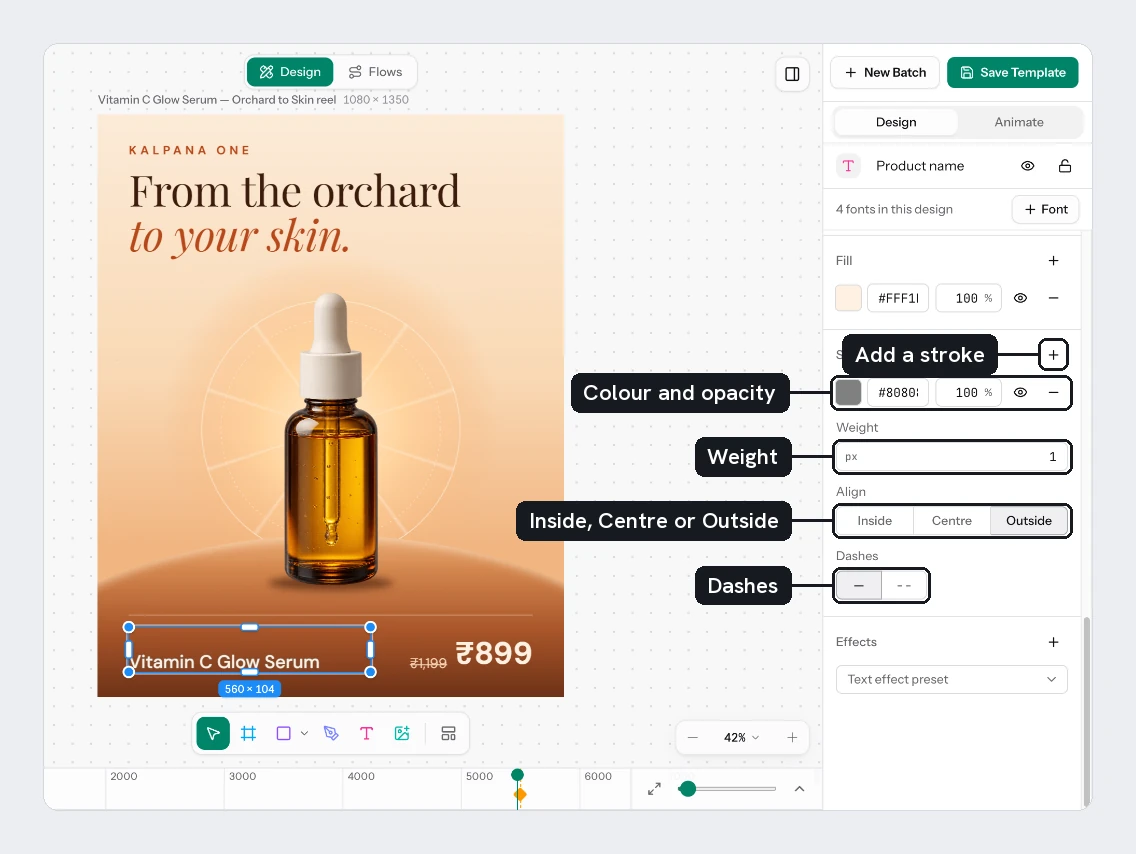
Select the layer and choose Add stroke (+) in the Stroke section. A stroke row appears with a colour, like a fill.
Set its colour
Click the swatch to pick a colour, or switch the type to Gradient or Image. Strokes have no Shader type. Hide paint and Remove paint work as they do for fills.
Shape the line
Once there is a stroke, these controls appear under it.
| Control | What it does |
|---|---|
| Weight | The thickness in px |
| Align | Inside, Centre or Outside the edge |
| Dashes | A solid or dashed line. With a dashed line, D is the dash length and G is the gap. |
| Caps | Flat, Round or Square line ends. Lines only. |
Choosing Outside on a shape makes it look larger, because the line sits outside its size. Inside keeps the layer's outer size.
Text layers can have a stroke too. The Outline and Hollow text effect presets use it.
A layer can have several strokes. They share one Weight, Align and Dashes setting. New lines and pen paths start with a stroke. Rectangles and other shapes start without one.
Try it
On the sale card, draw a divider between the title and the price:
- Press
Land drag a line across the card. A new line already has a black stroke. - In Stroke, set Weight to
4. - Set Caps to Round.
- Switch Dashes to the dashed line, then set D to
12and G to8.
You should see a dashed line with rounded ends.
Next
Updated 4 Nov 2026