
Shadows, blurs, noise and texture
Add depth, softness, grain or a rough edge to any layer, and dots or lines along letters, with the Effects section.
Effects change how a layer is drawn without changing its shape. Reach for a shadow to lift a card off the page, a blur to soften a background or noise to take the flat look off a colour.
Add an effect
Open the menu
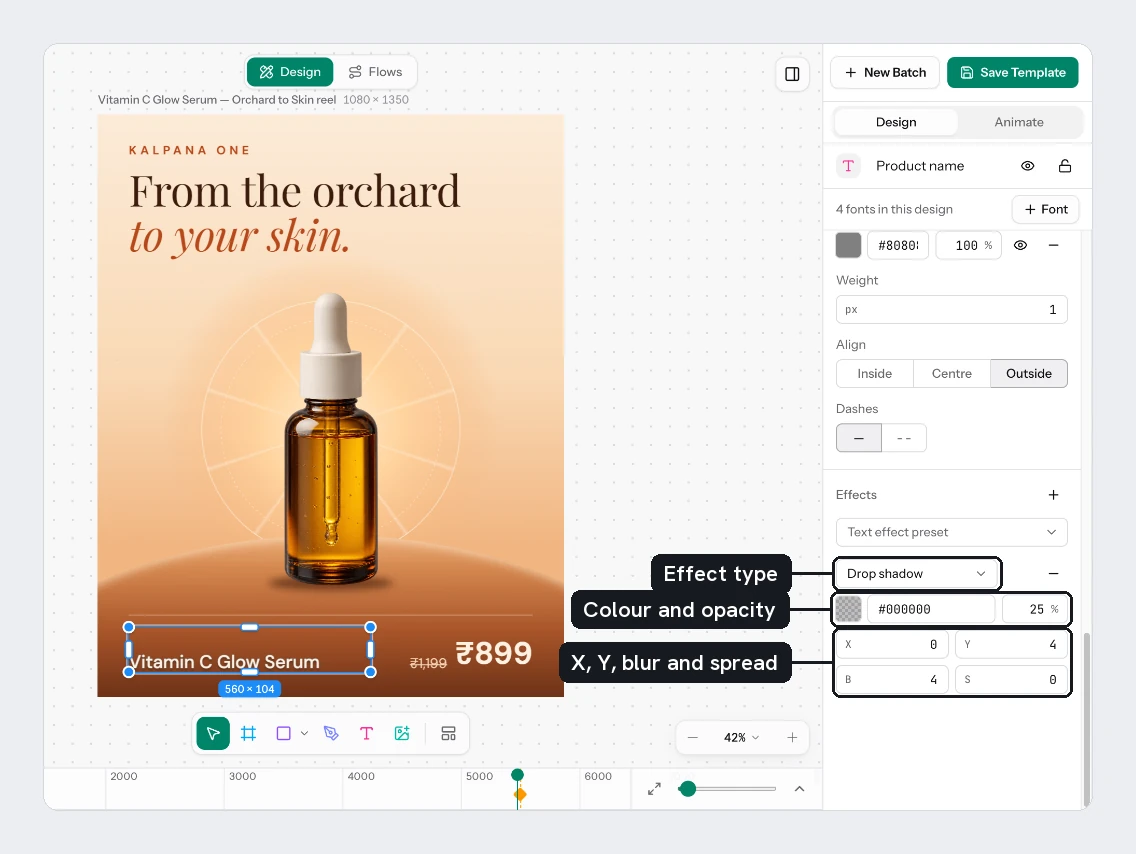
Select a layer and choose Add effect (+) in the Effects section. Pick Drop shadow, Inner shadow, Layer blur, Background blur, Noise or Texture. A text layer also offers Dots on letters and Line on letters. You can add as many as you like.

Hide or remove it
Hide effect (the eye) turns an effect off without deleting it. Remove effect (minus) deletes it.
Each effect's settings
| Effect | Settings |
|---|---|
| Drop shadow | A colour with its opacity, X and Y for the offset, B for blur and S for spread. A new one is a soft black shadow, 4 down. |
| Inner shadow | The same settings, drawn inside the edge |
| Layer blur | Blur, the radius that softens the layer itself |
| Background blur | Blur, the radius that softens what is behind the layer. You see it through a see-through fill. |
| Noise | A list: Noise: mono (one colour), Noise: duo (two colours) or Noise: color (many). Then the colours, S grain size and D density as a percentage. Noise: color also has O opacity. |
| Texture | D depth, how far edges are pushed. S size of the roughness. Clip to shape keeps it inside the layer. |
| Dots on letters | Text only. The dot colours, Inset, Size and Spacing. See Dots and lines along letters. |
| Line on letters | Text only. The line colour, Inset and Width. |
The first list in a shadow, blur, noise or letters row switches between its own kinds. For example, a Drop shadow row can become an Inner shadow, and Dots on letters can become Line on letters.
On text layers, the text effect presets sit at the top of this section and write shadows and strokes for you.
Dots and lines along letters
Dots on letters and Line on letters draw a row of dots, or a thin line, that follows the shape of each letter, like the lights on a marquee sign or a stitched outline. Kalpana works them out from the text as it is laid out, so they follow whatever copy a row brings.
Every size is a percentage of the font size, so the effect keeps its look when the text grows or shrinks.
| Setting | What it does |
|---|---|
| Inset | How far inside the letter edge the dots or line run. Below 0 they run outside the letters. From -50% to 50% |
| Size | Dots only. How big each dot is |
| Spacing | Dots only. The distance between dots |
| Width | Line only. How thick the line is |
| Colours | A line has one colour. Dots can have up to four: choose + (Add a colour: dots take turns) and the dots cycle through them. Minus removes a colour |
A new effect starts with a small inset close to the edge. Like other effects, the eye hides it and minus removes it.
On the sale card:
- Select Product Image, choose Add effect, then Drop shadow. Set Y to
12and B to24. - Lower the shadow colour's opacity to
20%. - Click an empty part of the canvas to select the page, choose Add effect, then Noise. Set D to
20%.
You should see a soft shadow under the photo and a fine grain on the page background.
Next
Updated 4 Nov 2026