
Shader fills
Fill a layer with a generated pattern such as dots, waves or a mesh of soft colour.
A shader fill draws a pattern from a few numbers and colours, so you need no image file. Reach for one for a background that has more life than a flat colour or a gradient.
Add a shader fill
Switch the fill to Shader
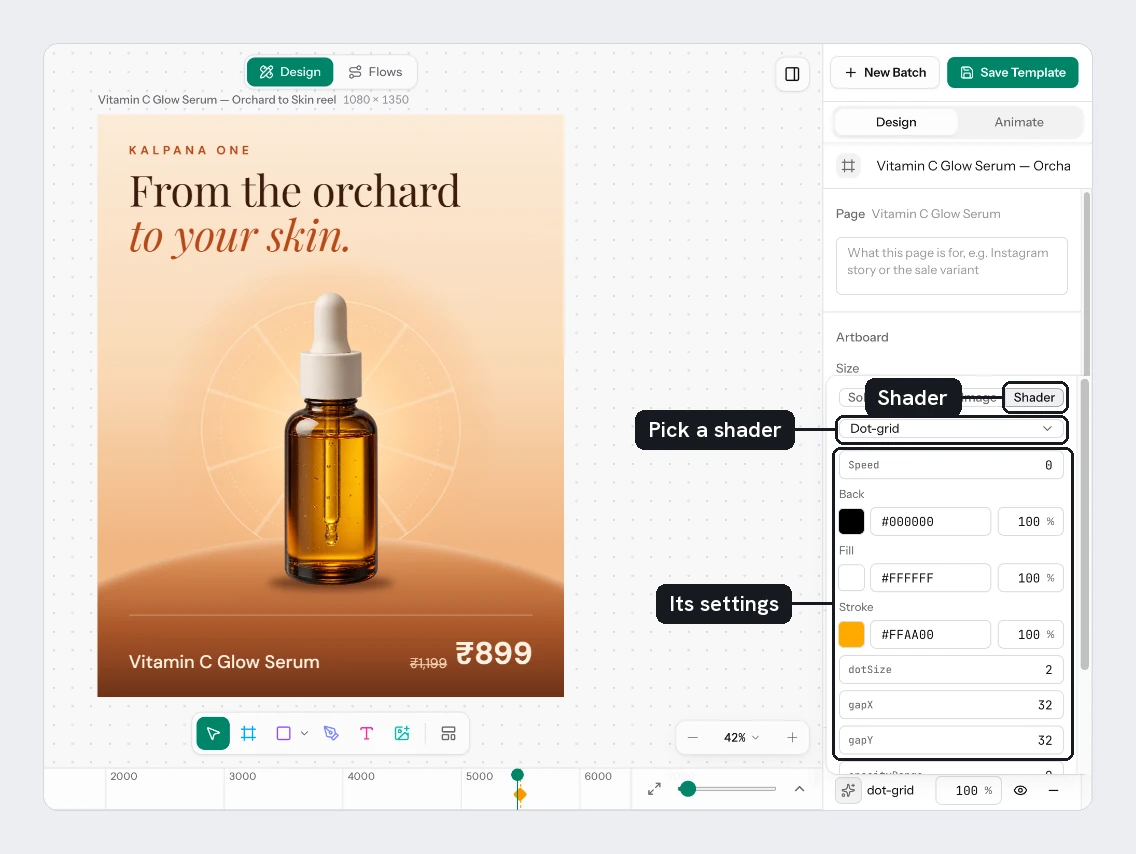
Select a layer and click the swatch in Fill. At the top of the popover, choose the Shader tab. The layer fills with Dot-grid, and the row shows the shader's name and an opacity percentage.
Switching to Shader replaces the fill. To keep a photo and put a pattern over it, choose Add fill and set the second fill to Shader.
Pick a shader
The current shader shows as one row with its thumbnail. Click it to open a grid of thumbnails in two groups, Patterns and Image filters. Image filters appear when the layer has a photo below the shader. The patterns are:
Dithering, Dot-grid, Dot-orbit, God-rays, Grain-gradient, Mesh-gradient, Metaballs, Neuro-noise, Perlin-noise, Pulsing-border, Simplex-noise, Smoke-ring, Spiral, Static-mesh-gradient, Static-radial-gradient, Swirl, Voronoi, Warp and Waves.
Each one changes the canvas at once, so try a few. Picking another shader keeps the fill's opacity and visibility but resets the settings.
The Image filters group (Halftone CMYK, Halftone dots, Image dithering, Lens distortion and Water) filters the photo beneath instead of drawing a pattern. See Image filters.
Tune the settings
Below the shader row, the settings are labelled rows. Speed sets how fast the pattern moves in a video. 0 holds it still, and an image shows one moment of it. Then come the shader's own numbers and colours: change a number in its field, or click a colour to open the picker. Named options, such as a shape or a grid type, are menus, and on/off settings are Off/On menus.
A shader fill has the same Hide paint, Remove paint and opacity controls as any other fill. Strokes cannot use shaders.
Put shaders behind your copy and check the contrast on the longest row. A busy pattern under a title can make some rows hard to read.
Try it
- Draw a rectangle (
R) the size of the sale card and send it to the back. - In Fill, switch to Shader and try Grain-gradient.
- Set Speed to
0so the background does not move. - Lower the opacity of the fill until your title reads clearly.
You should see a textured background behind the card.
Next
- Fills
- Gradients
- Group, frame and arrange for paint order
Updated 5 Nov 2026