
Opacity, blend and corners
Fade a whole layer, mix it with what is behind it, and round its corners.
The Appearance section of the Design panel holds three settings that apply to the whole layer: Opacity, Blend and Radius.
Opacity and blend
Fade the layer
Type a percentage in Opacity. 100 is solid and 0 is invisible. It fades the whole layer.
Choose a blend mode
Blend sets how the layer mixes with what is under it. With Normal, the layer covers what is under it.
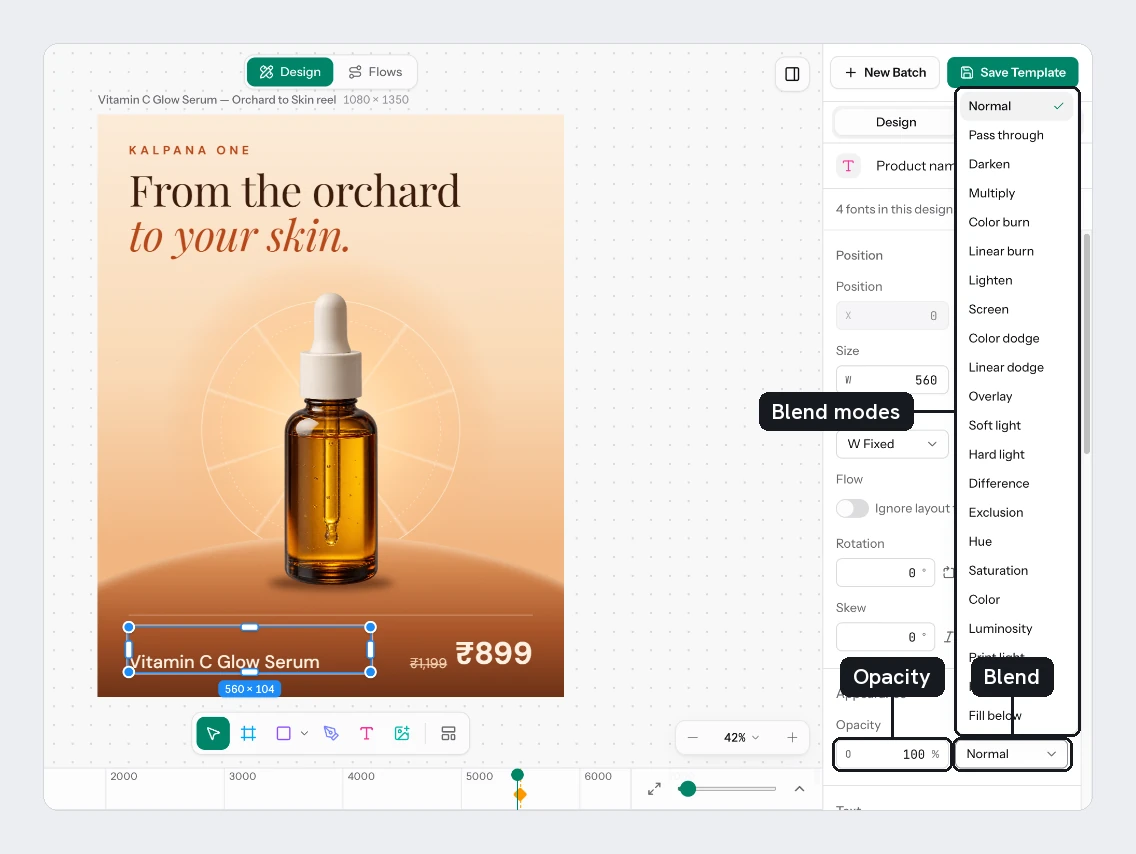
Blend modes are in groups:
| Group | Modes |
|---|---|
| Normal | Normal, Pass through |
| Darken | Darken, Multiply, Color burn, Linear burn |
| Lighten | Lighten, Screen, Color dodge, Linear dodge |
| Contrast | Overlay, Soft light, Hard light |
| Difference | Difference, Exclusion |
| Colour | Hue, Saturation, Color, Luminosity |
| Cut and fill | Knockout cuts the layer's shape out of the layers below it in its group. Fill below paints only where the layers below it in its group are. |
Fading happens in three places. Use the narrowest one that does the job.
| Where | Controls |
|---|---|
| The whole layer | Opacity in Appearance |
| One fill or stroke | The percentage on its row. On a solid colour it is the colour's own opacity. |
| One gradient stop | The percentage in that stop's colour picker |
Round the corners
Radius sets the corner radius in px. It appears on layers that have corners, such as rectangles, frames and images. To set each corner on its own, choose Independent corners. Four fields appear: TL, TR, BR and BL, for top left, top right, bottom right and bottom left. The single Radius field is greyed out while they show.
Round a photo's corners on the image layer. The photo is clipped to the corners, so every row's picture gets them.
Try it
On the sale card:
- Select Was Price and set Opacity to
70. - Select Product Image and set Radius to
32. - Choose Independent corners, then set BL and BR to
0.
You should see a softer old price and a photo with rounded top corners only.
Next
Updated 4 Nov 2026