
Insert a template
Bring one of your templates into another as a frame, with its animations, fonts and images.
Insert a template when a piece of design already exists in another template and you want it again: a footer, a price stamp, a brand lockup. It saves you rebuilding it.
Insert one
Open the dialog
Choose Insert template at the end of Design tools. The Insert a template window opens.
Find the template
The four newest templates in the workspace are shown. Type in Search templates by name to find another. Each card shows the name and size, and Motion when the template is animated. The template you are editing is not listed.
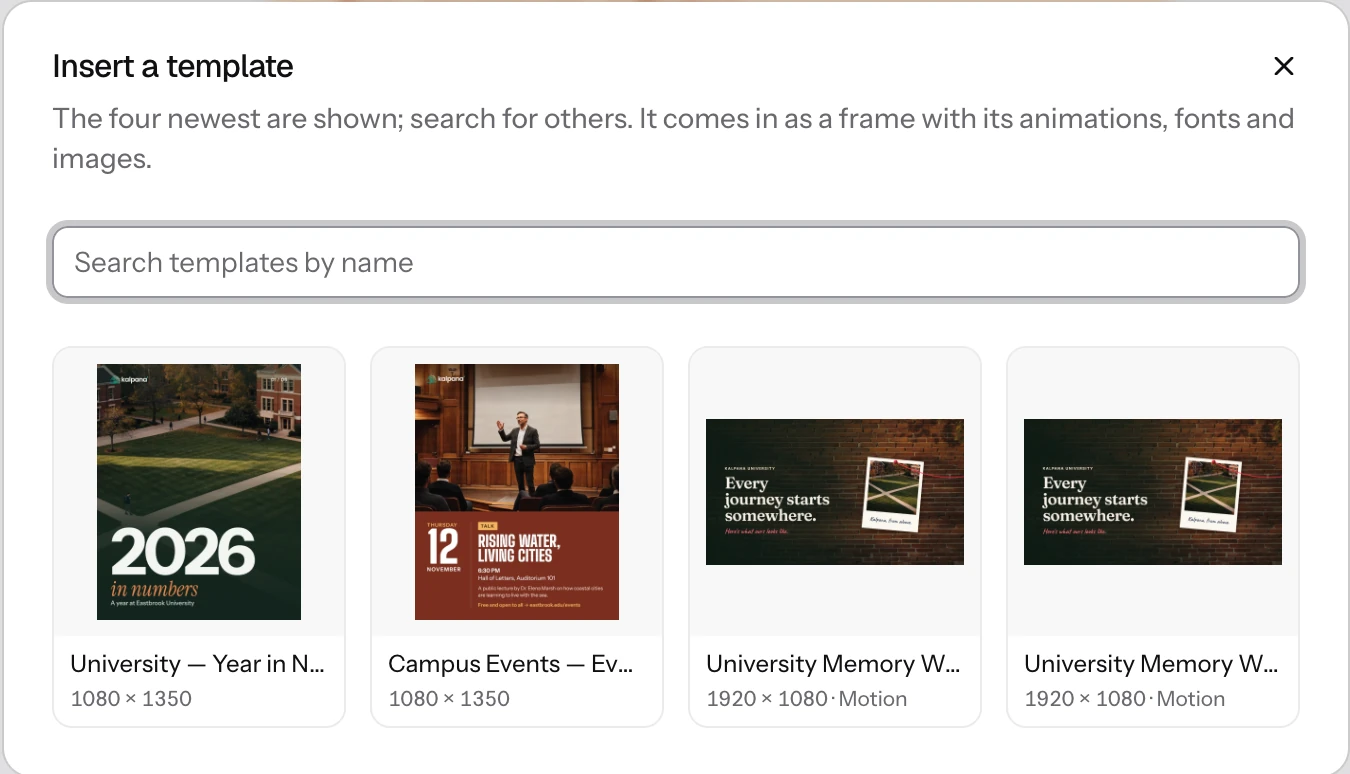
Choose it
Click a card. The template comes in as a frame at the top left of the page, named after the template, and it is selected. Its animations, fonts and images come with it.
After you insert
- Move and resize it like any frame. Double-click it to step in and edit its layers. See Frames.
- The frame is a copy. Changing the original template later does not change it, and changing it here does not change the original.
- Its text and image layers become variables of this template like any others, so check their names in Layers. See Choose what changes per row.
- If it is animated, the timeline appears and may become longer to fit its motion. See The timeline.
Insert only brings in templates from your own workspace. To start from a ready-made design instead, see Make a gallery template yours.
Try it
Make a small template called Sale footer with a line of text and a logo, and save it. Open the sale card and choose Insert template, then Sale footer. Drag the new frame to the bottom of the card and resize it to fit.
Next
Updated 4 Nov 2026