
Text reveal
Bring a text layer in or out by word, by letter or all at once, and set when each part moves.
Text reveal animates the parts of a text layer one after another. Use it for titles and prices where you want words to arrive in turn.
Add a reveal
Select a text layer
Select the Title layer and open the Animate tab.
Choose Add, then Text reveal
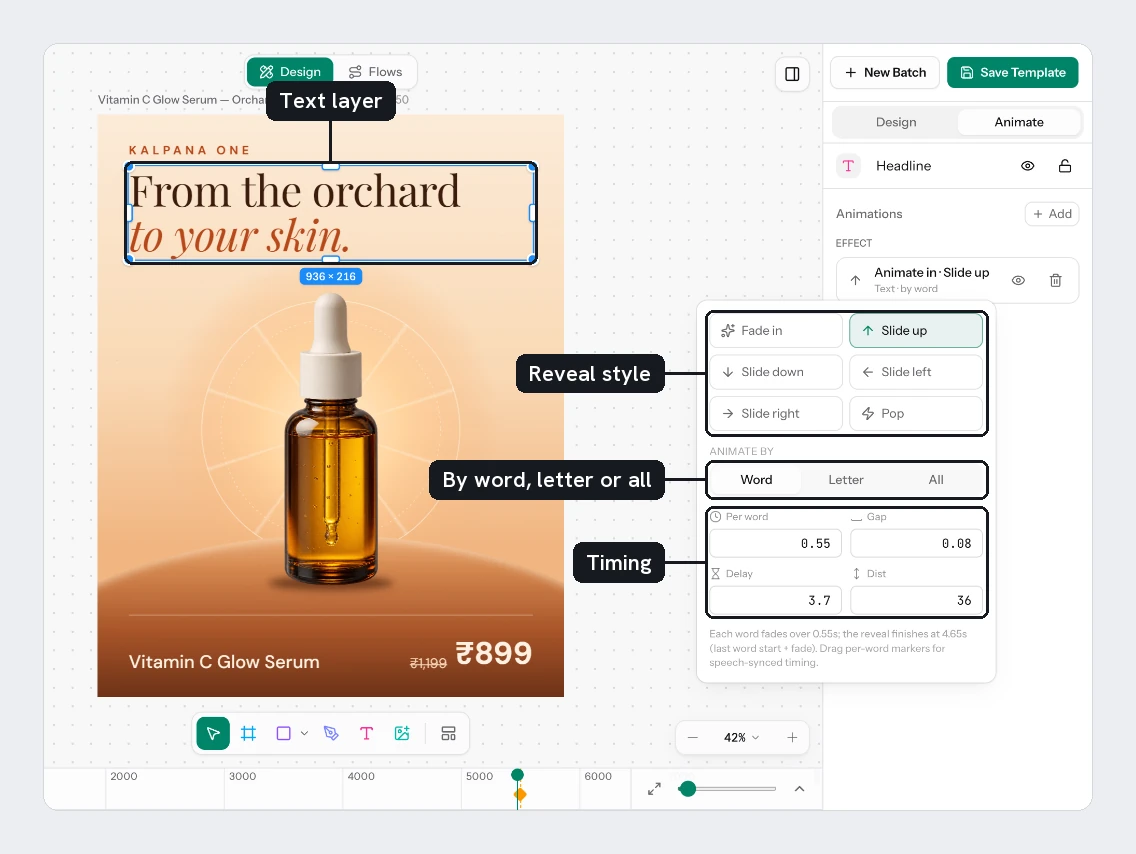
The Text reveal list has Animate in and Animate out. Each offers Fade in (or Fade out), Slide up, Slide down, Slide left, Slide right and Pop (or Pop out).
Open its row
The row reads, for example, "Animate in · Fade in". Click it to open the settings.
You can add Animate in and Animate out separately. A layer can have only an exit, and then it rests fully visible until it leaves.
Set the timing
| Control | What it does |
|---|---|
| Preset grid | Changes the move and keeps your timing |
| Animate by | Word, Letter or All |
| Per word (or Per letter) | How long each part takes to appear. With All this is Length |
| Gap | Time between one part starting and the next. Not shown for All |
| Delay | When the first part starts (in). Start is the same for an exit |
| Dist | How far a slide travels. Slides only |
| Scale | How small Pop starts. Pop only |
Per word, Length, Gap, Delay and Start are in seconds. Dist is in pixels. Scale is a size factor, where 1 is full size. A line under the fields tells you when the reveal finishes: the last part's start plus its fade.
A new reveal starts at the playhead. On the timeline each word or letter has its own marker, which you can drag for a custom start time.
The gap stays the same for every row, so a longer title finishes later. Fill your longest title and check it is done before the page ends.
Try it
Add Slide up to Title with Animate by set to Word. Set Gap to 0.08. Add Pop to Price with All. Play it, then change the title text to a long one and play again.
Next
- Animate any property for moves a preset does not cover.
- Keyframes and easing
- The timeline
Updated 4 Nov 2026