
Set the still moment
Choose the moment of an animated page that image renders and previews show.
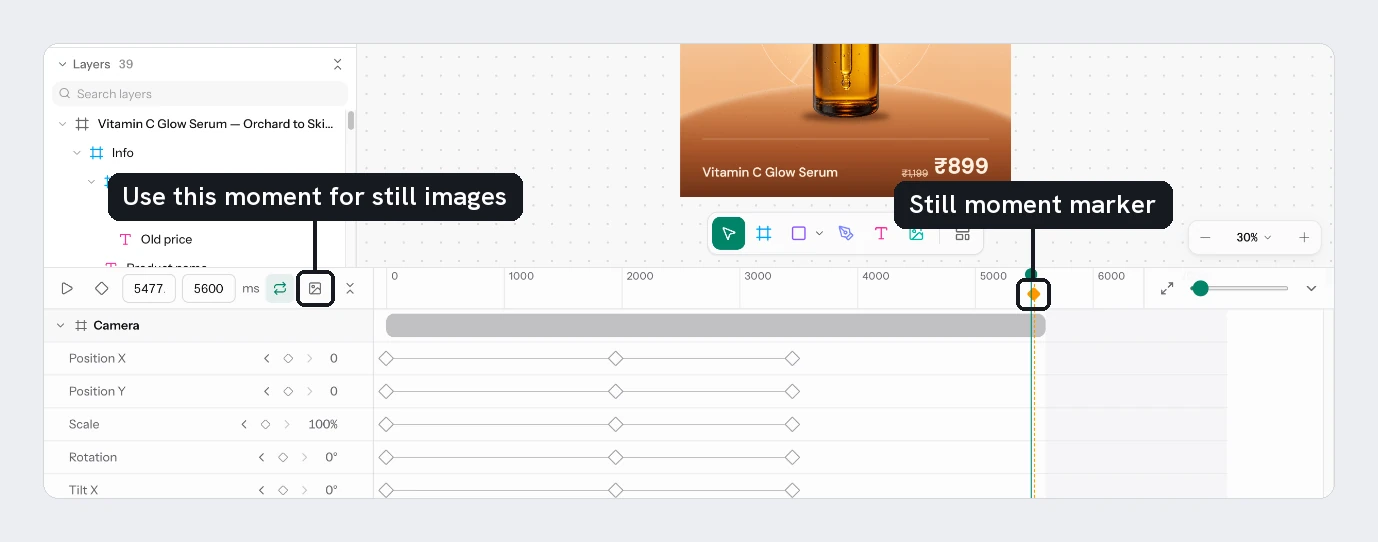
An image shows one moment of an animated page, called its still moment. Set it so images show the design with everything in place, not a half-played frame.
Set it
Move the playhead
Scrub the ruler or type a time in the current time field until all the content is where you want it.
Choose the image button
In the timeline toolbar, choose the image icon (Use this moment for still images). An amber diamond appears in the ruler at that time.
Move it if needed
Drag the amber diamond along the ruler. The canvas follows, so you see the moment you are picking. Its tooltip reads "Still moment" with the time.
Remove it
Put the playhead on the marker. The button lights up and its tooltip becomes Remove the still moment. Choose it to clear the moment.
What uses it
| Where | What you see |
|---|---|
| Images (PNG, JPEG, WebP) of a batch | The still moment |
| Page pictures on the template page and in cards | The still moment |
| Videos | The whole animation |
With no still moment set, the marker rests faintly at the end of the page and images show the last frame, where the motion has settled. The moment is saved with the template. If you shorten the page, it moves back to the end.
Choose a moment when your longest title is fully on screen, since every row uses the same moment.
Try it
On the animated sale card, play to the point where Badge, Title and Price have all arrived. Choose the image button, then save the template with Cmd/Ctrl+S.
Next
- Motion templates covers formats and credit costs.
- The timeline
- Render a video for every row
Updated 4 Nov 2026